+923335326045 jabbarenotes@gmail.com

Class 9 Computer Notes

  • 1.1 Brief History of Computer Systems
    Q 1: Write a note on Abacus, Napier’s Bones, Pascaline, Difference Engine, Analytical Engine and Mark-I?
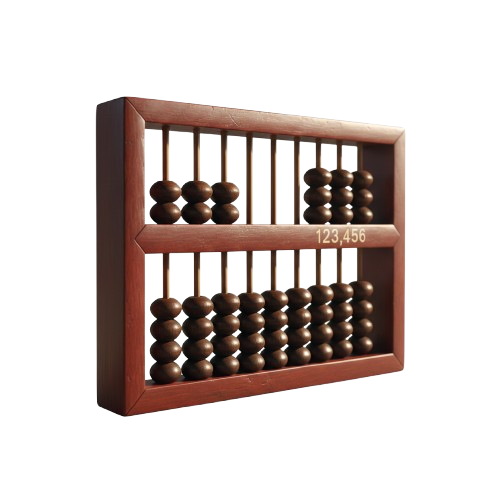
    Abacus:
    ○ Abacus is one of the oldest calculating devices.
    ○ It consists of a frame with rods and movable beads.
    ○ It is used to perform addition, subtraction, multiplication, and division.
    ○ The abacus helps in fast mental calculations and improves number skills.
    ○ It played an important role in the early history of mathematics and computing.
    Napier’s Bones:
    ○ Napier’s Bones were invented by John Napier in 1617.
    ○ They are a set of numbered rods made of bone, wood, or metal.
    ○ The device was used for multiplication, division, and square roots.
    ○ It worked by changing calculations into simple addition and subtraction.
    ○ Napier’s Bones were an important early calculating tool before modern calculators.
    Pascaline:
    ○ Pascaline was an early mechanical calculating machine.
    ○ It was invented by Blaise Pascal in 1642.
    ○ It was mainly used for addition and subtraction.
    ○ The machine worked using gears and wheels.
    ○ Pascaline helped reduce calculation errors and led to modern calculators.
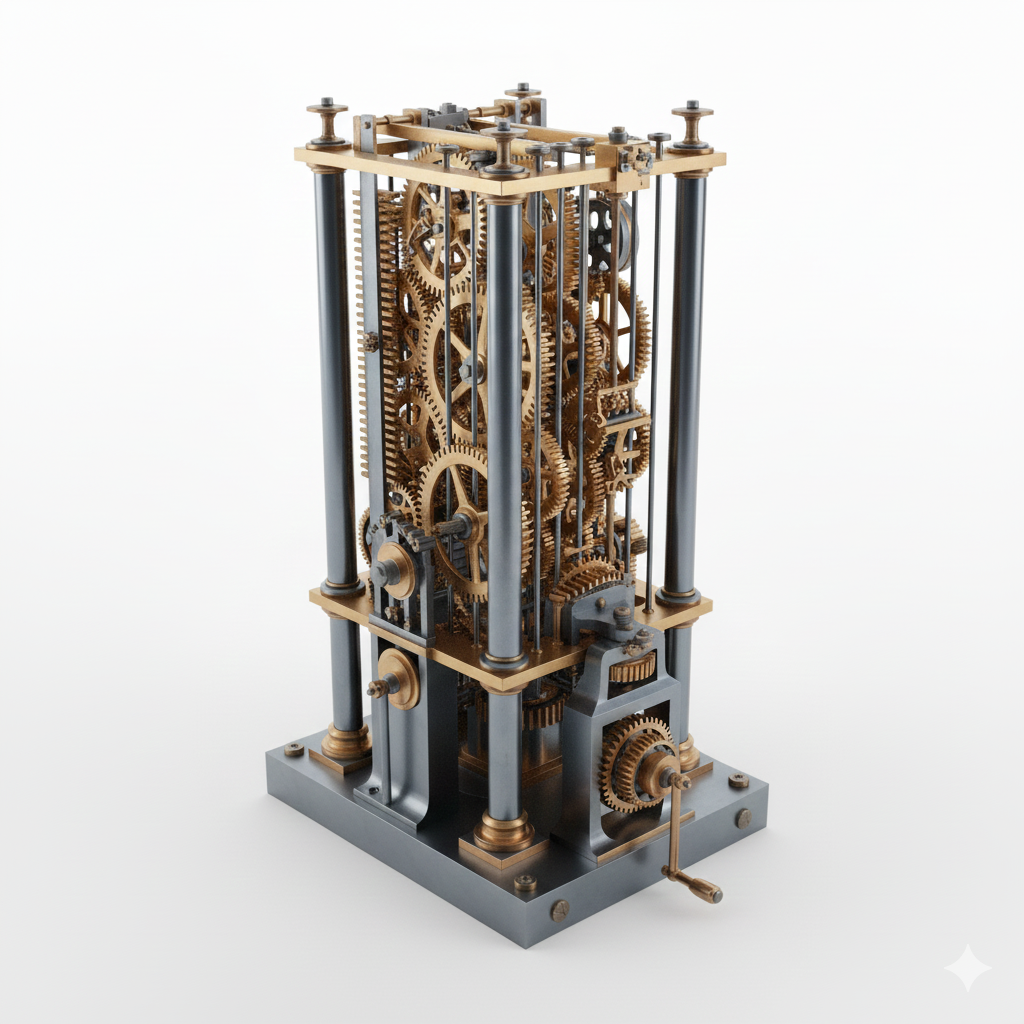
    Difference Engine:
    ○ Difference Engine was an early mechanical computing machine.
    ○ It was designed by Charles Babbage in the 1820s.
    ○ It was used to calculate mathematical tables automatically.
    ○ The machine worked using the method of differences to avoid errors.
    ○ The Difference Engine is considered an important invention in the history of computers.
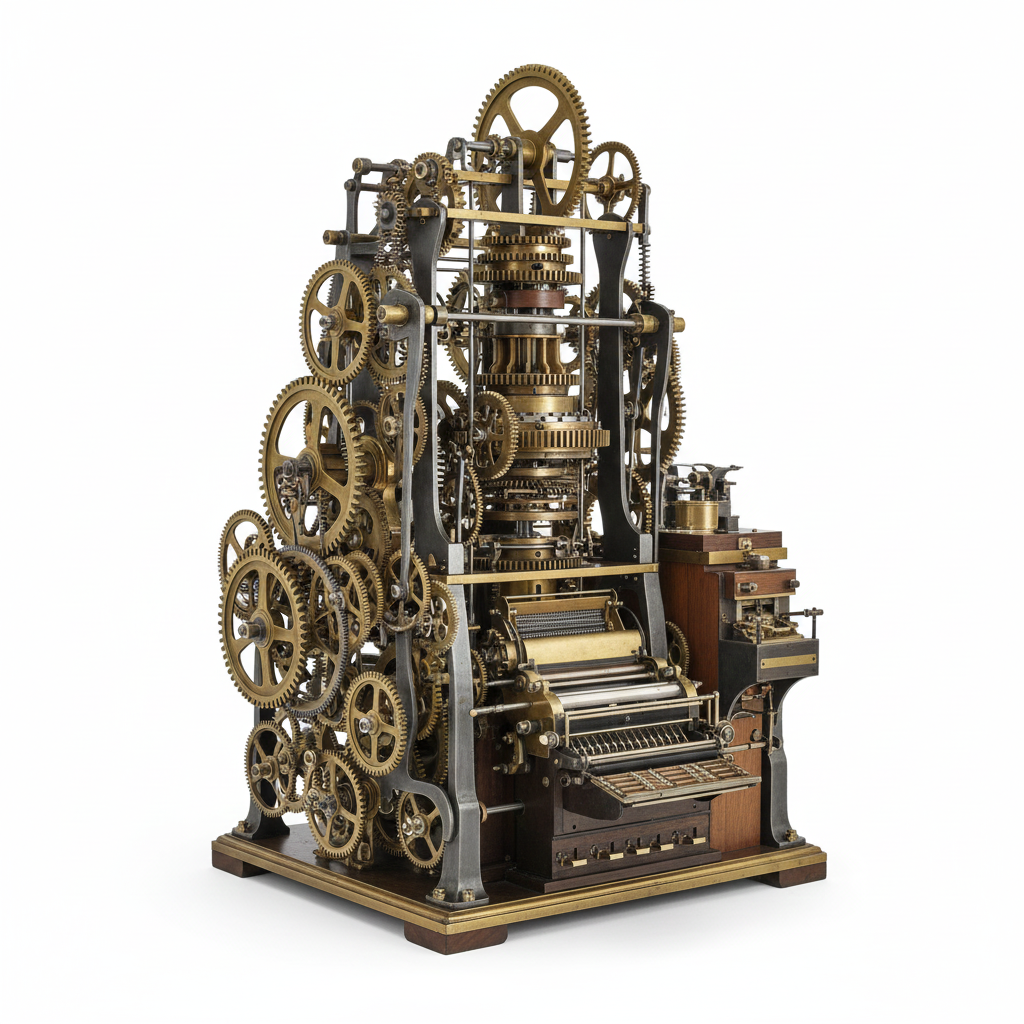
    Analytical Engine:
    ○ Analytical Engine was a proposed general-purpose mechanical computer.
    ○ It was designed by Charles Babbage in 1837.
    ○ It could perform complex calculations automatically.
    ○ The machine had parts similar to a modern computer: input, processing, memory, and output.
    ○ The Analytical Engine is considered the foundation of modern computer concepts.
    Mark-I:
    ○ The next successful computing machine invented was a digital computer known as Mark-I.
    ○ It was invented by Howard Aiken in 1944.
    Uses:
    ○ Mark-I could add three numbers having eight digits in one second.
    ○ It could print out its result on punched cards or on an electric typewriter.
    Structure:
    ○ Mark-I was 50 feet long, 8 feet high and weighed about 5 tons.
    ○ It used 3000 electric switches.
    Model:
    ○ Mark-II, Mark-III and Mark-IV.
    Q 2: Describe the evolution of computer generations from the first generation to the fourth generation, highlighting the key technological developments and their impact on computing
    Computer Generations:
    Computer generation means a stage in the development of computers, where each stage is marked by a major improvement in technology that makes computers faster, smaller, and more efficient.

    First Generation Computers (1940–1956)
    Technology Used / Development:
    ○ Vacuum tubes were used in the first-generation computers.
    ○ Input was based on punched cards.
    ○ Output was obtained on printouts through electric typewriter.
    Features / Impact:
    ○ Speed was slow and memory was very small.
    ○ They were huge in size taking up entire room.
    ○ They were very expensive and unreliable.
    ○ They consume a lot of power and generate a lot of heat.
    ○ Machine language was used in these computers.
    Model:
    ○ ENIAC, UNIVAC 1, IBM 604, Mark-I etc.

    Second Generation Computers (1956–1963)
    Technology Used:
    Transistors were used in the second-generation computers, developed by William Shockley, John Bardeen, and Walter Brattain in 1947.
    Features / Characteristics:
    ○ Transistors reduced the size of computers and increased the speed and memory capacity.
    ○ Input was based on punched card readers, magnetic tapes, and magnetic disks.
    ○ Output was obtained on printers.
    Model:
    ○ UNIVAC II, IBM 7030, NCR Series etc.


    Third Generation Computers (1963–1971)
    Technology Used:
    ICs (Integrated Circuits) were used in the third-generation computers, along with transistors, diodes, and resistors.
    Features / Impacts:
    ○ These computers were faster and had improved memory.
    ○ They were small in size.
    ○ They were cheaper and more reliable.
    ○ They consumed less power and generated less heat.
    ○ Input was based on keyboard.
    ○ Output was obtained on monitor.
    ○ These computers used more versatile programs like real-time programming.
    ○ These computers could run different application programs at the same time.
    Model:
    ○ Burroughs 6700, IBM System/360, System 3, and Control Corporation’s 3300 etc.


    Fourth Generation Computers (1971–Present)
    Technology Used:
    ○ LSI (Large Scale Integration) and VLSI (Very Large Scale Integration) chips having millions of transistors were developed.
    ○ Microprocessor was also used in this generation.
    Features / Impacts:
    ○ They are very fast and have large storage capacity.
    ○ They are small in size, very reliable, consume less power, and are affordable.
    ○ Large variety of software is available for use in this generation.
    ○ Advanced input/output devices are used.
    ○ Operating System with Graphical User Interface (GUI) was developed that supports multimedia.
    ○ They support a wide range of portable and wireless input/output devices.
    ○ These computers support modern languages such as Visual Basic, C++, Java etc.
    Model:
    ○ Pentium Series, Dual Core, Core2 Duo, Core i3, i5, i7 etc.


    Fifth Generation Computers:
    Potential Challenges / Objectives:
    ○ The objective of fifth generation is to develop devices that can understand and respond to natural languages, developing systems capable of NLP (Natural Language Processing) and have thinking power.
    ○ This generation of computers is based on Artificial Intelligence (AI) technologies and aims to develop machines (called robots) with the capability to learn, think, reason, and solve problems automatically and independently.
    Features / Impacts:
    ○ AI will minimize the need for typed programs.
    ○ The key objective is to develop advanced Expert Systems (ES), which are software that have decision-making abilities like a human expert in specific fields such as medical, mining, and engineering.
    ○ These computers will allow users to give commands in any natural language such as English using voice recognition.
    Model:
    ○ Robots and Expert Systems.
    Implications:
    ○ Job Market Transformation: Routine and even some skilled jobs may be at risk of automation.
    ○ Economic Growth: It will lead to new business models and economic growth.
    ○ Access to Education: Online platforms can make high-quality education more accessible to people worldwide.
    ○ Healthcare Improvements: It will lead to more accurate diagnoses, personalized treatment plans, and better patient outcomes.
  • 1.2 Understanding Systems and their Types
    Q. 3: Discuss the importance of categorizing and understanding different types of systems, both natural and artificial, and provide examples of each type. Or What is a System? Describe its types?
    System:
    ○ System is a group of resources which work collectively in order to produce desired results from given inputs.
    ○ It accepts input and produces output.
    Importance of Categorizing and Understanding:
    ○ It is important to categorize and understand different types of systems due to the following reasons:
    ○ Identification of Issues
    ○ To increase efficiency
    ○ Technological advancements
    ○ Teaching and learning
    ○ Policy making
    Types of System:
    1. Natural System:
    ○ A natural system is known as nature-made which purely exists in the natural world.
    ○ These systems are typically found in the environment.
    Examples / Types of Natural Systems:
    ○ Ecosystems: Consists of all the organisms in nature.
    ○ Weather Systems: Weather systems like rainfall, wind patterns, and temperature changes.
    ○ Hydrological Systems: Involve the movement, distribution, and quality of water on Earth, including rivers, lakes, and the water cycle.
    ○ Solar System: Our solar system itself is a natural system, with the Sun, planets, moons, asteroids, and comets all interacting under the influence of gravity.
    ○ Biological Systems: Include a wide range of living organisms and their interactions.
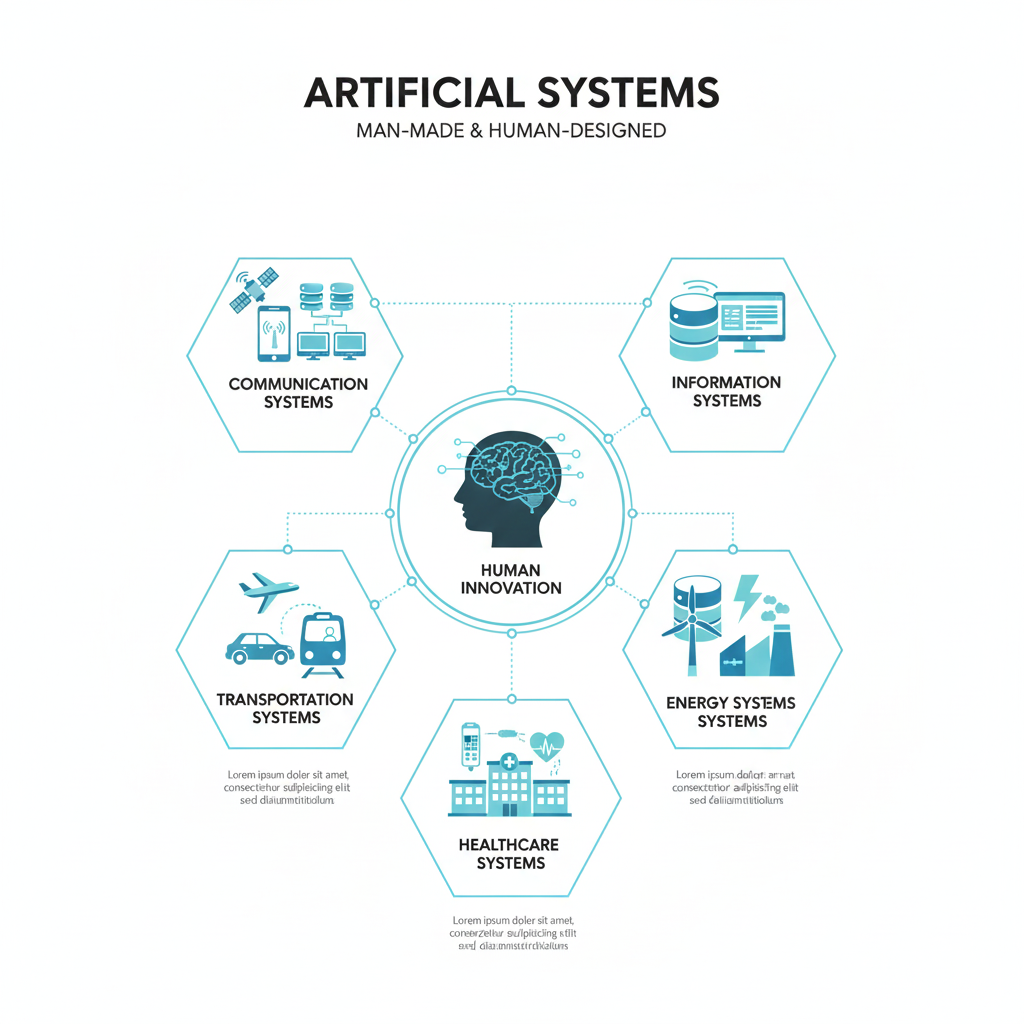
    2. Artificial Systems:
    ○ Artificial systems, also known as man-made or human-made systems, are created and designed by humans to solve problems or achieve particular goals.
    Examples / Types of Artificial Systems:
    ○ Communication Systems: Consist of Telephone Networks, Internet and Computer Networks, Satellite Communication Systems.
    ○ Information Systems: Consist of Databases, Software Applications.
    ○ Transportation Systems: Consist of Automobiles, Aircraft, Trains and Rail Systems.
    ○ Energy Systems: Consist of Power Plants, Renewable Energy Systems, Electrical Grids.
    ○ Healthcare Systems: Consist of Hospital Information Systems (HIS), Medical Devices.
  • 1.3 Core Components of a Computer System
    Q 4: Describe Core Components of a Computer system? 1. Input Devices 2. System Unit 3. Storage Devices 4. Output Devices 5. Ports, Expansion Slots and Expansion Cards:

    1. Input Devices:
    ○ Input devices are used to enter data into the computer system.
    ○ Input devices allow us to communicate with the computer.
    Commonly Used Input Devices:
    ○ Keyboard: It is the main input device to communicate with the computer. It allows the user to enter letters, numbers, and special symbols into the computer.
    ○ Mouse: A hand-held device used to control the movement of cursor or pointer on the screen. It has two or three buttons that allow the user to make selections, draw graphics, or open files, folders, and programs.
    ○ Microphone: A device that allows the user to input audio into the computer by converting audio signals into electrical signals.
    ○ Scanner: Captures images from photographs, magazines, books, etc., and stores them in digital form in the computer. These images can be edited, displayed, or inserted into documents.
    ○ Barcode Reader: Reads the barcode printed on products representing product code, description, and price. This information is used by the computer to print bills for customers.
    ○ Digital Camera: An input/output device used to capture pictures and store them digitally. Pictures can be downloaded to the computer for editing, viewing, or inserting into documents.
    ○ Touch Screen: A pressure-sensitive display screen used to interact with the computer by touching pictures or words with a finger. Commonly used in mobile phones and tablets.

    2. System Unit:
    ○ System unit is the main part of a computer.
    ○ It includes motherboard, power supply, and drives (such as DVD and hard disk) inside the computer casing.
    Motherboard:
    ○ Motherboard is the main circuit board inside the system unit.
    ○ It contains microprocessor, main memory, expansion cards, many IC chips, connectors, and other electronic components.
    ○ It has many buses (electric pathways) printed on it, used to transmit information between various components of the computer.
    ○ All input/output devices are connected to the motherboard.
    Microprocessor:
    ○ A microprocessor is the main chip on the motherboard that controls all the activities of the computer.
    ○ It is also known as Central Processing Unit (CPU) or simply processor.
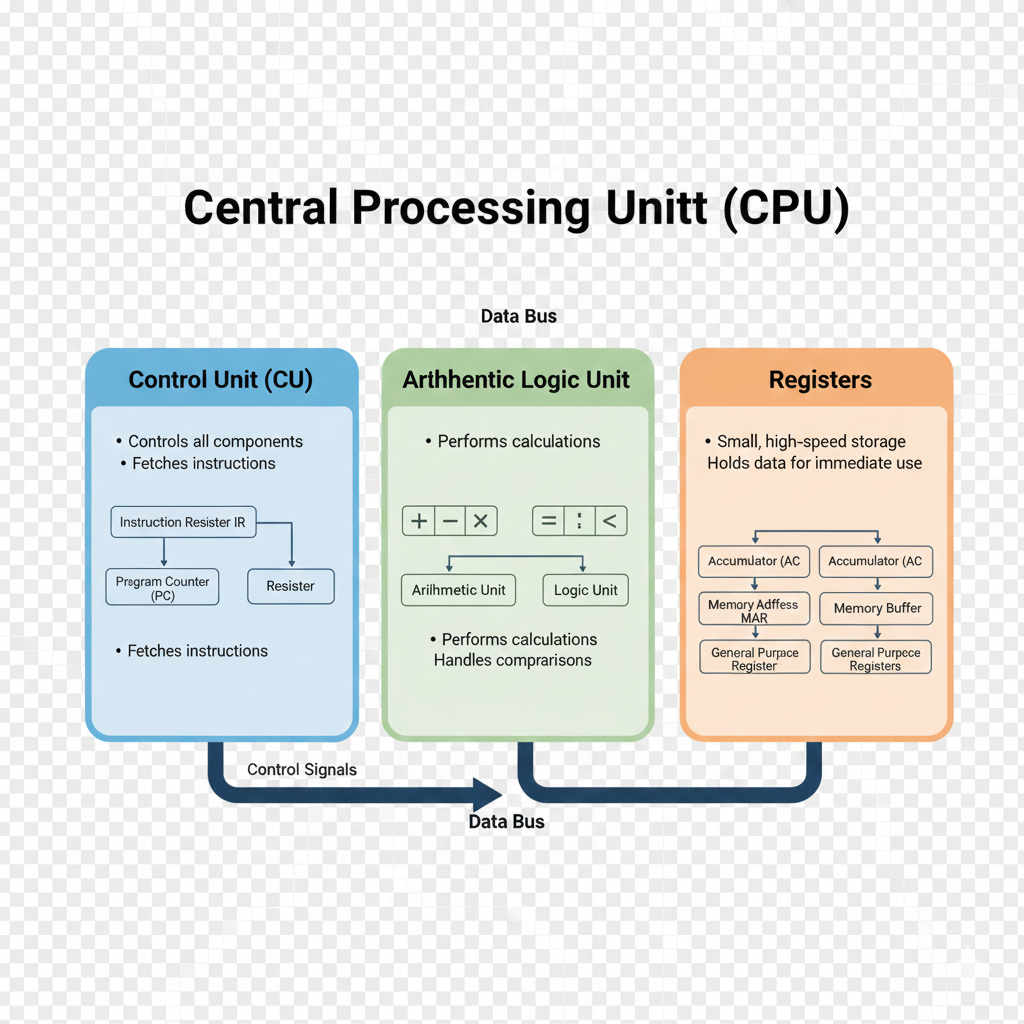
    ○ It contains Control Unit (CU), Arithmetic Logic Unit (ALU), and Registers.
    3. Storage Devices:
    ○ Storage devices are used to store programs and data that are not currently used by the computer.
    ○ They have huge storage capacity and are also known as mass storage devices or secondary memory.
    Commonly Used Storage Devices:
    ○ Hard Disk
    ○ Compact Disk (CD)
    ○ Digital Versatile Disk (DVD)
    ○ Memory Card
    ○ USB Flash Drive
    4. Output Devices:
    ○ Output devices are used to display text, graphics, and images on the monitor or to print information on paper.
    ○ Information displayed on the monitor is known as softcopy and anything printed on paper is known as hardcopy or printout.
    Commonly Used Output Devices:
    ○ Monitor: An output device that has a screen on which information is displayed.
    Types of Monitor:
    ■ CRT (Cathode Ray Tube) Monitor: Very similar to old television. Almost obsolete due to its big size and low display quality.
    ■ LED (Light Emitting Diode): Slim, uses less power, and has better display quality than CRT monitor.
    ○ Printer: An output device that prints text and graphics on paper (hardcopy).
    Types of Printers:
    ■ Impact Printer
    ■ Non-Impact Printer
    ○ Plotter: An output device used for printing on large size papers/sheets/panaflexes. Such large size printing is not possible on printers. More expensive than printers.
    Types of Plotters:
    ■ Ink Plotter: Used for printing images.
    ■ Pen Plotter: Used for printing engineering drawings, machine parts, building designs, etc.
    ○ Speaker: A device used to produce audio output. Pair of speakers are attached to the sound card on the motherboard. Commonly used with multimedia software and for playing music and videos on computer.
    5. Port:
    ○ Port is an interface for connecting various devices to the system unit.
    ○ Ports are located on the motherboard and are usually seen at the back of the system unit.
    ○ Various types of ports are used for connecting keyboard, mouse, monitor, microphone, speakers, digital camera, scanner, printer, external hard disk or DVD writer, and USB memory, etc.
    Types / Commonly Used Ports:
    ○ USB (Universal Serial Bus)
    ○ HDMI (High Definition Multimedia Interface)
    ○ DVI (Digital Visual Interface)
    ○ Audio and LAN (Local Area Network)
    Expansion Slots:
    ○ Expansion slots are long narrow sockets on the motherboard used for installing expansion cards.
    Expansion Cards:
    ○ Expansion cards are small circuit boards that add new capabilities to computers.
    ○ Types / Commonly Used Expansion Cards: Sound card, Graphics card, Modem card, and Network card.
    ○ In modern computers, these cards are often built-in on the motherboard.
  • 1.4 Von Neumann Architecture
    Q 5: Describe Von Neumann Architecture?
    Characteristics of Von Neumann-based Computer
    ○ Uses a single processor.
    ○ Uses one memory for both instructions and data.
    ○ Executes programs following the fetch-decode-execute cycle.
    Components of Von-Neumann Model
    1. Central Processing Unit
    2. Buses
    3. Memory Unit
    4. Input / Output (I/O) Controller
    1. Central Processing Unit (CPU)
    ○ A microprocessor is the main chip on the motherboard that controls all the activities of the computer.
    ○ It is known as Central Processing Unit (CPU) or simply processor.
    ○ It has three parts i.e. Control Unit (CU), Arithmetic Logic Unit (ALU) and registers.
    a. Control Unit (CU)
    ○ The Control Unit of a computer system controls the operations of components like ALU, memory and input/output devices.
    ○ The Control Unit consists of a program counter that contains the address of the instructions to be fetched and an instruction register into which instructions are fetched from memory for execution.
    b. Arithmetic Logic Unit (ALU)
    ○ ALU is the part of the Central Processing Unit (CPU) that performs all the arithmetic and logical operations.
    ○ It consists of two parts.
    ○ i. Arithmetic Unit: It performs all the arithmetic operations such as addition, subtraction, multiplication and division.
    ○ ii. Logic Unit: It performs logical operations which include comparisons of numbers or alphabets.
    c. Registers
    ○ Registers are small, high-speed storage units located within the CPU.
    ○ They hold data that is frequently used by the CPU during processing.
    ○ Data is quickly transferred between registers and main memory via the buses.
    Register Full Name Function
    IMR Memory Address Register Holds the memory location of data that needs to be accessed
    MDR Memory Data Register Holds data that is being transferred to or from memory
    AC Accumulator Stores intermediate arithmetic and logic results
    PC Program Counter Contains the memory address of the next instruction to be executed
    CIR Current Instruction Register Contains the current instruction during processing
    2. Buses
    ○ Buses are the pathways or lines by which data is transmitted from one part of a computer to another, connecting all major internal components to the CPU and memory.
    ○ A standard CPU system bus is comprised of a control bus, data bus and address bus.
    Types of Buses
    Von-Neumann Architecture is comprised of three major bus systems for data transfer.
    Bus Type Function
    Address Bus Carries the addresses of data (but not the data) between the processor and memory
    Data Bus Carries data between the processor, the memory unit and the input/output devices
    Control Bus Carries control signals or commands from the CPU in order to control and coordinate all the activities within the computer

    3. Memory Unit
    ○ In the Von Neumann architecture, the three types of memory commonly mentioned are:

    1. Primary Memory (Main Memory or RAM):
    ○ This is the memory directly accessible by the CPU for storing and retrieving data that is actively being used or processed.
    ○ It is volatile memory, meaning it loses its contents when the power is turned off.

    2. Cache Memory:
    ○ This is a smaller, faster type of volatile memory located closer to the CPU.
    ○ It is used to temporarily hold frequently accessed data and instructions, improving the speed and efficiency of data retrieval.

    3. Secondary Memory (Storage):
    ○ This refers to non-volatile memory used for long-term storage of data and programs.
    ○ Examples include hard drives, solid-state drives, and other storage devices.
    ○ Unlike primary memory, secondary memory retains data even when the power is off.

    ○ These three types of memory work together to provide the necessary storage and retrieval functions required by the Von Neumann architecture for executing programs and processing data.
    4. Input / Output (I/O) Controller
    This component manages the flow of data between the CPU and external devices such as hard drives, USB devices, and network interfaces.
  • 1.5 Data Transmission within a computer system
    Q 6. Define Data Transmission and its basic terms within a Computer System?
    Data Transmission:
    Data Transmission means sending data (information) from one place to another.
    In a computer system, this can be between:
    • Two computers
    • A computer and a printer
    • A computer and the internet
    The data can be in the form of text, audio, video, or images.

    Basic Terms in Data Transmission:
    Bus Architecture:
    Bus Architecture is the way data moves inside a computer.
    It refers to a system of wires or pathways (called "buses") that connect the different parts of a computer—like the CPU, memory, and input/output devices—so they can communicate with each other.

    Data Paths:
    Data Paths are the routes or paths inside a computer where data moves between different parts like the CPU, memory, and input/output devices.
    They include the buses, registers, and circuits that help in carrying and processing data.

    Instruction Cycle:
    The Instruction Cycle is the process a computer follows to fetch, understand, and carry out one instruction from a program.
    It’s like the computer’s way of thinking and acting step by step.

    Interrupts:
    Interrupts are signals that tell the CPU to pause what it’s doing and handle something important right away.
    It's like someone tapping you on the shoulder while you're working — you stop for a moment to see what they need.

    Parallelism:
    Parallelism in computers means doing many tasks at the same time instead of one after another.
    It helps a computer work faster and be more efficient by splitting work into smaller parts that run together.

    Simple Example:
    Imagine you are folding clothes and your friend is washing dishes.
    Both jobs are being done at the same time — that’s parallelism!
  • 1.6 Types and Hierarchy of Computer Memory
    Q 7: Describe Memory Built-up and Retention power and its Types
    1. Built-Up or Manufactured Memory:
    Memory Built-in means, memory chips that are physically integrated into the main circuit board, also known as the motherboard.
    Examples / Types: Chip memory, Magnetic memory and Optical memory.

    2. Chip Memory (How Chip Memory is better than other traditional forms of memories):
    Chip is a small piece of semi-conducting material (usually silicon).
    A small circuit called IC (Integrated Circuit) is embedded on it.
    A typical chip contains millions of electronic components (transistors).

    How Chip Memory is better than other traditional forms of memories:
    Chip memories are better in speed as compared to other memories due to the following reasons:
    • Chip memories do not have mechanical moving parts.
    • Unlike traditional forms of memory, chip memories rely on electric currents for their operation.
    • This reliance on electrical processes contributes to rapid data access and retrieval.

    Examples of Chip Memory:
    RAM, ROM and Cache memory
    Flash memory drives
    Memory cards
    Registers
    Solid State Drives (SSDs)

    3. Magnetic Memory (What are Magnetic Memories? How it works? Advantages and Disadvantages):
    Magnetic memory is a type of memory that uses magnetic materials to store data.
    This technology is based on the magnetic properties of materials to store binary information (0s and 1s).

    Types of Magnetic Memory:
    Hard Disk Drives (HDDs)
    Magnetic Tape

    Advantages of Magnetic Memory:
    Non-Volatility: Retains data even when power is turned off.
    High Capacity: Can store large amounts of data.
    Cost-Effective: Generally cheaper storage.

    Disadvantages of Magnetic Memory:
    Speed: Slower access speeds compared to solid-state drives (SSDs).
    Mechanical Parts: HDDs have moving parts that may fail mechanically.

    Modern Use of Magnetic Memory:
    While SSDs and newer technologies are becoming more popular due to speed and durability,
    magnetic memory is still important for large-scale data storage, backups, and archival purposes.

    4. Optical Memory:
    Optical memory is a type of memory that uses light, typically a laser, to read and write data.

    Examples of Optical Memory:
    CDs
    DVDs
    Blu-ray Discs (BDs)

    Advantages of Optical Memory:
    Portability: Optical discs are compact and easy to transport.
    Longevity: Can store data for many years if properly handled.
    Cost-Effective: Generally cheaper storage.

    Disadvantages of Optical Memory:
    Speed: Slower read/write speeds compared to hard drives and SSDs.
    Capacity: Lower storage capacity compared to modern SSDs and HDDs.
    Physical Damage: Can be damaged by scratches and cracks.

    Retention Power:
    The ability of a system to retain data even when the power is turned off is called retention power.

    Types of Retention Power:
    Volatile Memory
    Non-Volatile Memory
    Q 8: Define memory and its Types (Hierarchy of Computer Memory)?
    Memory:
    In computing, memory refers to the physical devices used to store programs (sequence of instructions) or data on a temporary or permanent basis for use in a computer or other digital / computing devices.

    1. Main Memory:
    The types of memories that are on the motherboard are called main memory.
    It also stores the results produced by the ALU after processing the data.

    Types of Main Memory:
    No. Type
    i RAM (Random Access Memory)
    ii ROM (Read Only Memory)
    iii Internal Processor Memory (Cache Memory)

    RAM (Random Access Memory) and ROM (Read Only Memory):
    RAM ROM
    It is temporary memory. It is permanent memory.
    It is volatile memory; data is lost when power is off. It is non-volatile memory; data is not lost when power is off.
    Data is written during program execution. Data is written during manufacturing (firmware).
    Types: SRAM and DRAM. Types: PROM, EPROM and EEPROM.

    Cache Memory:
    Cache is a very small amount of extremely fast memory inside the microprocessor or on the motherboard.
    It is faster and more expensive than RAM.
    It stores information that is most frequently used by the computer.
    The purpose of using cache is to improve the processing speed of the computer.

    Types of Cache Memory:
    Level Location Speed
    L1 Inside Microprocessor Fastest
    L2 On Motherboard Slower than L1
    L3 On Motherboard Slower than L1 & L2

    Registers:
    Registers are small, high-speed storage units located within the CPU.
    They hold data that is frequently used by the CPU during processing.
    Data is quickly transferred between registers and main memory via the buses.

    BIOS:
    BIOS stands for Basic Input Output System and is software stored on a small memory chip on the motherboard.
    It initializes and tests hardware components before the operating system loads.
    BIOS programs are permanently stored in ROM.
    It is non-volatile memory, so data is not lost when power is turned off.

    2. Secondary Devices:
    Storage devices are used to store programs and data that are not currently used by the computer.
    They have huge storage capacity and are also called mass storage devices or secondary memory.

    Types of Secondary Memory:
    Hard disk, DVD, Memory Card, USB Flash Drive.
  • 1.7 Software Engineering and Hardware Engineering
    Q 9: What is Software Engineering and Hardware Engineering? Write (explain) its types also?
    1. Software Engineering:
    Software engineering is the branch of computer science that deals with the design, development, testing, and maintenance of software applications.

    Some Common Types of Software Engineering:
    Type Description Examples
    Application Software Engineering It deals with designing and developing application software that fulfills specific user requirements. Web applications, mobile apps, desktop software
    System Software Engineering It deals with designing and developing software that provides a platform for other software to run on. Operating systems, compilers, device drivers
    Embedded Software Engineering It deals with designing and developing software that is embedded within hardware devices or systems. Automotive embedded systems, digital home appliances, industrial control systems
    Enterprise Software Engineering It deals with designing and developing software for large-scale enterprises to automate processes, manage data, and facilitate communication. ERP systems, business management software
    Game Development It involves designing and developing video games including graphics, audio, animation, and game engines. Video games, game engines

    2. Hardware Engineering:
    Hardware engineering involves designing, developing, and testing physical components of computer systems and electronic devices.
    This includes microprocessors, memory chips, circuit boards, and peripherals.

    Common Types of Hardware Engineering:
    Type Description
    Digital Hardware Engineering It deals with designing and developing digital circuits and components such as processors and memory units.
    Integrated Circuit (IC) Design It deals with designing and developing integrated circuits including CPUs and GPUs.
    Computer Architecture It deals with designing the structure and organization of computer systems, including CPU architecture and memory hierarchy.
    Embedded Systems Design It deals with designing and developing hardware systems integrated into larger systems or devices such as microcontrollers and sensors.
  • 1.8 Computer Software
    Q 10: Define Computer Software and its types?
    Computer Software:
    Computer software, often referred to simply as "software," is a collection of programs, data, and instructions that tell a computer how to perform specific tasks or functions.

    Types of Software:
    i. System Software
    ii. Application Software

    1. System Software
    The software’s that are used to solve the problems of computer system are known as system software.

    Common Types of System Software:
    i. Operating System (OS)
    ii. Device Drivers
    iii. Utilities
    iv. Compiler and Assembler
    v. Linkers and Loaders
    vi. Firmware

    2. Application Software:
    The software that are used to solve the problems of computer user are known as Application Software. Application software, often referred to as "apps" or "software applications".

    Commonly Used Application Software:
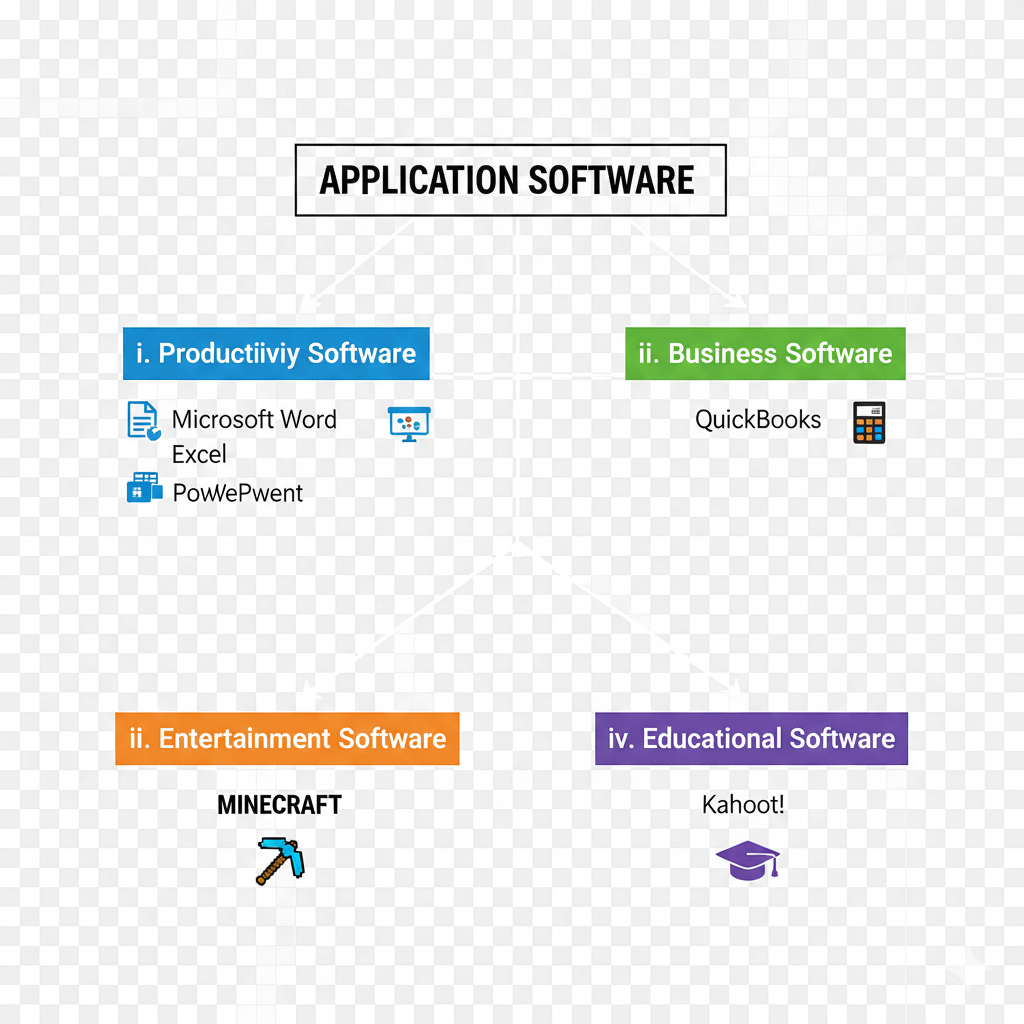
    i. Productivity Software
    ii. Business Software
    iii. Entertainment Software
    iv. Educational Software
    Q 10 (i): Explain Common Types of System software?
    There are following common types of System Software:

    i. Operating System (OS):
    An operating system is system software that manages computer hardware and software resources, and provides common services for computer programs.
    It is also link between hardware and application software.
    Example: Microsoft Windows, macOS, Linux, and Android

    ii. Device Drivers:
    • A device driver is system software that controls the operation of a computer device.
    • When users attach a device such as printer or scanner to their computer, they should install its driver to make it operational.
    Device drivers are provided by device manufactures.

    iii. Utility Programs:
    Utility programs perform specific tasks that are related to the management of the computer.

    Commonly Used Utility Programs:
    Window Explorer: It is used to manage files and folders.
    Backup Utility: It is used to make backup of data.
    WinZip Utility: It is used to compress files.
    Diagnostic Utility: It is used to detect hardware and software problems.
    Antivirus Software: It is used to detect and remove viruses.

    iv. Compiler and Assembler:
    • These tools are essential for converting high-level programming languages (like C++, Java, or Python) into machine code that the computers processor can understand.
    • Compilers translate high level language code (source code) into executable programs, while assembler is used to translate assembly language programs into machine code.

    v. Linkers and Loaders:
    • Linkers and loaders are programs that help with the execution of programs.
    • Linkers combine multiple object files (compiled code) into a single executable file, while loaders load these files into memory for execution.

    vi. Firmware:
    • Firmware is a type of software that is permanently stored on hardware devices.
    • It provides low-level control over the device's operation.
    Examples: BIOS (Basic Input/Output System) in a computers motherboard or the firmware in a digital washing machine.
    Q 10 (ii): Explain Common Types of Application software?
    There are following common types of Application Software:

    i. Productivity Software:
    These software’s help users to produce things such as documents, databases, graphs, spreadsheets and presentations.
    Examples: Microsoft Word (word processing), Excel (spreadsheets), and PowerPoint (presentation).

    ii. Business Software:
    Any software that helps in running business in a more efficient way to improve productivity is known as business software.
    Examples: QuickBooks: Accounting software for managing financial transactions and generating reports.

    iii. Entertainment Software:
    Software developed to entertain people is known as entertainment software.
    Example: Minecraft: A popular game that allows players to build and explore virtual worlds.

    iv. Educational Software:
    Software developed for educational purpose is known as education software.
    Examples: Kahoot!: An online learning platform that allows educators to create interactive quizzes and games for students.
    Q 11: Define Programming Languages and its types?
    A Programming Language
    • A programming language is a type of written language that tells computers what to do.
    • Programming languages are used to write computer programs and computer software.
    • Programming language is like a set of commands that tell the computer how to do things.
    • Programming languages can be classified into two categories, that is, low level languages and high level languages.

    Low Level Languages
    Low level language is machine-oriented language. To understand low level language, detailed knowledge of internal working of computer is required.

    Types of Low Level Languages:
    i. Machine Language
    ii. Assembly Language

    High Level Languages (HLLs)
    High level languages are English-oriented languages and they are commonly used for writing computer programs.
    These languages use English language words such as print, goto, if, end, etc.
    • Therefore, they are easy to learn and use.
    • A program known as compiler/interpreter is required to translate a high level program into machine language.
    • Coding and debugging of a high level language program is much easier than a program written in a low level language.
    • Some examples of high level languages are Visual Basic, C, Java and Pascal.

    Types of High-level Languages:
    i. Procedural
    ii. Structured
    iii. Object Oriented Programming Languages
    Q 12: Write uses with explanation of Low Level Languages?
    Use Explanation
    Operating System Development Writing the main software that controls the computer and manages its hardware.
    Device Drivers Creating programs that help the computer communicate with hardware devices.
    Embedded Systems Programming small chips in machines and IoT devices to perform specific tasks.
    Security Tools Building software that protects computers from attacks and keeps data safe.
    Game Development Creating fast and smooth game engines, graphics, and physics for better performance.
    Q 13: Write uses with explanation of High Level Languages?
    Use Explanation
    Applications (Apps) Development HLLs are used to develop desktop, mobile, and web applications (Apps) for various platforms.
    Web Development HLLs are used to develop websites, making them interactive and functional.
    Machine Learning and AI HLLs are used to develop machine learning models and AI algorithms.
    Game Development HLLs are used to develop gameplay logic, AI, and user interfaces for games.
    Business Software HLLs are used to develop enterprise-level software for various industries.
  • 1.9 Data Communication
    Q 14: Explain the fundamental components of network communication, and how do they work together to facilitate data transfer??
    Data Communication
    Data communication refers to the process of exchanging data or information (through a computer network) between two or more devices or systems through a transmission medium such as cables, optical fibers, or wireless mediums.

    Network Data Communication is the process of transferring information from one point to another in a networking environment.
    Component Description / Example
    Sender Sender, also called transmitter, is a computer/device that sends the message (data or information) from source to destination in a communication network.
    Example: Computer, cell phone, camera
    Message Message is the data or information that is to be transmitted.
    Example: Text, audio, video, or any combination of these
    Medium Medium is the path through which message travels from source to destination.
    Wired examples: Telephone cable, coaxial cable, fiber optics
    Wireless examples: Bluetooth, Wi-Fi, microwave, radio wave, satellite
    Receiver Receiver is the device which receives the transmitted message.
    Example: Computer, telephone handset, television set
    Protocol A protocol is a set of rules that governs data communications. It represents an agreement between the communicating devices. Without a protocol, two devices may be connected but may not communicate with each other.
    Working to Facilitate Data Transfer
    These components work together to facilitate data transfer by ensuring that data is encoded, transmitted, received, and decoded accurately. Protocols govern the format, timing, and error detection/correction, while the medium provides the physical pathway for data to travel between sender and receiver.
    Q 15: Define Modes of Network Communication and explain different modes of communications?
    Modes of Network Communication
    Modes of network communication refer to the methods or ways information is transmitted from one place to another.
    On the Base of Direction of Exchange of Information On the Base of Organization/Management between Transmitter and Receiver
    1. Simplex
    2. Half-duplex
    3. Full-duplex
    1. Synchronous
    2. Asynchronous
    Simplex Mode
    • Communication takes place in only one direction.
    • Unidirectional communication; receiver cannot send data back.
    Examples: Television, Radio Broadcasts
    Half-Duplex Mode
    • Communication takes place in both directions but not at the same time.
    • Signal can only be sent or received at one time.
    • It is a slow uni-directional mode of communication.
    Example: Walkie-talkies
    Full-Duplex Mode
    • Communication takes place in both directions at the same time.
    • Sender and receiver can send and receive data simultaneously.
    • Fastest bi-directional communication.
    Examples: Mobile phone calls, Video conferencing, Online gaming
    Asynchronous Transmission
    • Time interval between two characters is not the same.
    • Each character has additional control information: start and stop bits.
    • Ideal for slow-speed communication with gaps.
    Example: Data input from a keyboard.
    Advantages:
    • Cheap and effective mode of transmission.
    • High accuracy due to start and stop bits.
    Example of transmission: two bytes of data (10001101, 11001011) transmitted asynchronously.
    Synchronous Transmission
    • Time interval between two characters is always the same.
    • No control information added with the characters.
    • Ideal for fast-speed communication.
    Example: Communication in CPU, RAM.
    Advantages:
    • Fast transmission with no gaps between data bits.
    • Large volumes of data can be transmitted.
    Example of transmission: two bytes of data (10001101, 11001011) transmitted synchronously.
    Q 16: Describe the roles of common communication devices like hubs, switches, routers, and gateways in data communication?
    Communication Devices
    A device that is used in telecommunication systems for transmitting data from one location to another is known as a communication device.

    Commonly Used Communication Devices:
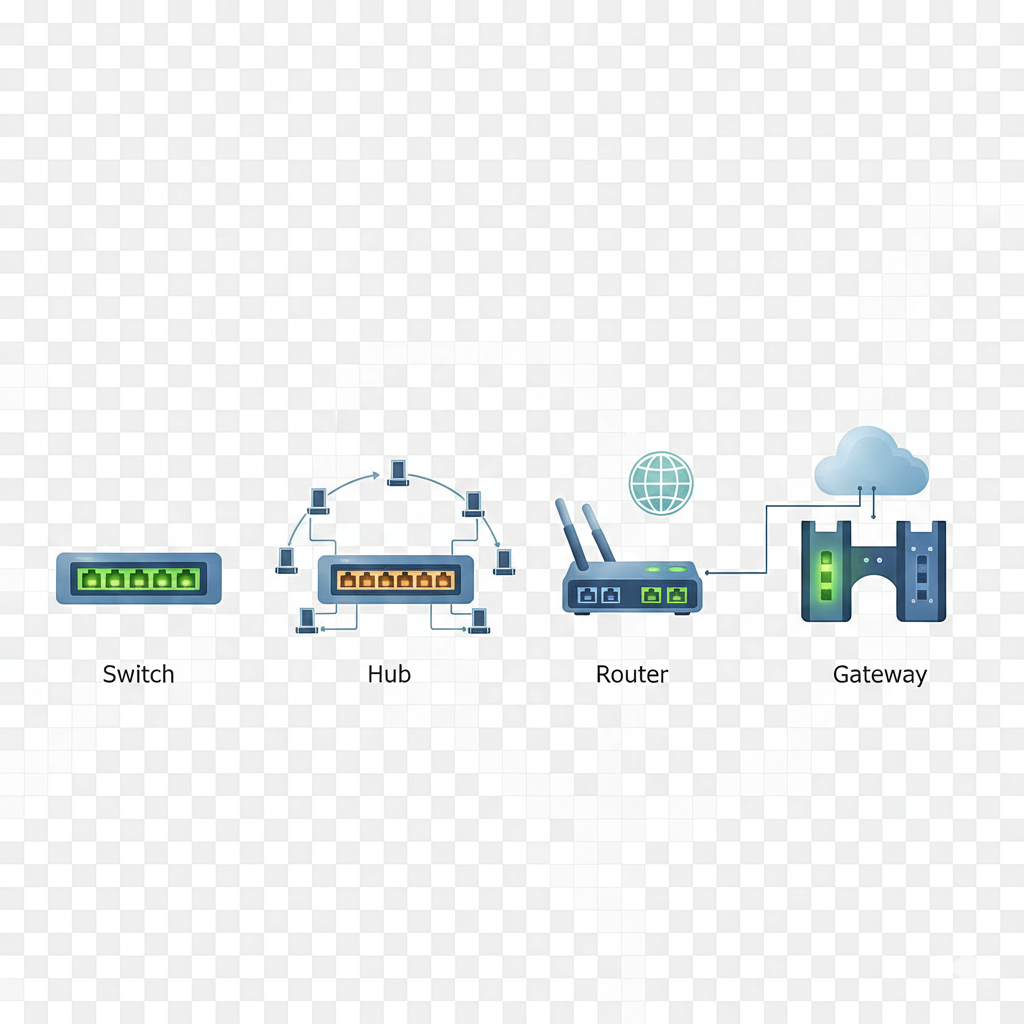
    Hub, Switch, Router, and Gateway.

    Hub
    Hub is a connectivity device used in LAN.
    It connects multiple LAN devices on one network and makes them act together as a single network.
    A hub is a non-intelligent device and sends output to all the devices on the network.
    A hub has multiple input/output (I/O) ports, in which an input in one port results in it being an output in all the other ports, except the port where it was input.

    Switch
    Switch is a networking device that performs the same job as hub but is considered more intelligent than hub.
    It gathers information about the data packet and forwards it to only the node (e.g., computer) it was intended for.
    A data packet is a basic unit of communication over a computer network.
    When data is transmitted, it is broken down into packets which are reassembled to the original form once they reach the destination.

    Router
    Router is a communication device that is used when two or more networks have to be connected for communication.
    They send information from one network to another by selecting the best pathway available.
    There are two types of routers i.e., wired and wireless.

    Gateway
    Gateway is a device that is used to connect a network to another network that uses different protocols.
    If we have to link different kinds of networks, such as a network of IBM mainframe computers and a network of PCs, we might have to use a gateway.
    Gateways change the format of the data packets but not the contents of the message, to make it conform to the application program of the remote computer.
    Q 17: Define Network Architecture? Differentiate between Server Computer and Client Computer? Explain the advantages of a peer-to-peer and a client/server network. ?
    Network Architecture
    Network architecture is the design of a network that consists of computers, communication devices, software, wired or wireless transmission of data and connectivity between components.
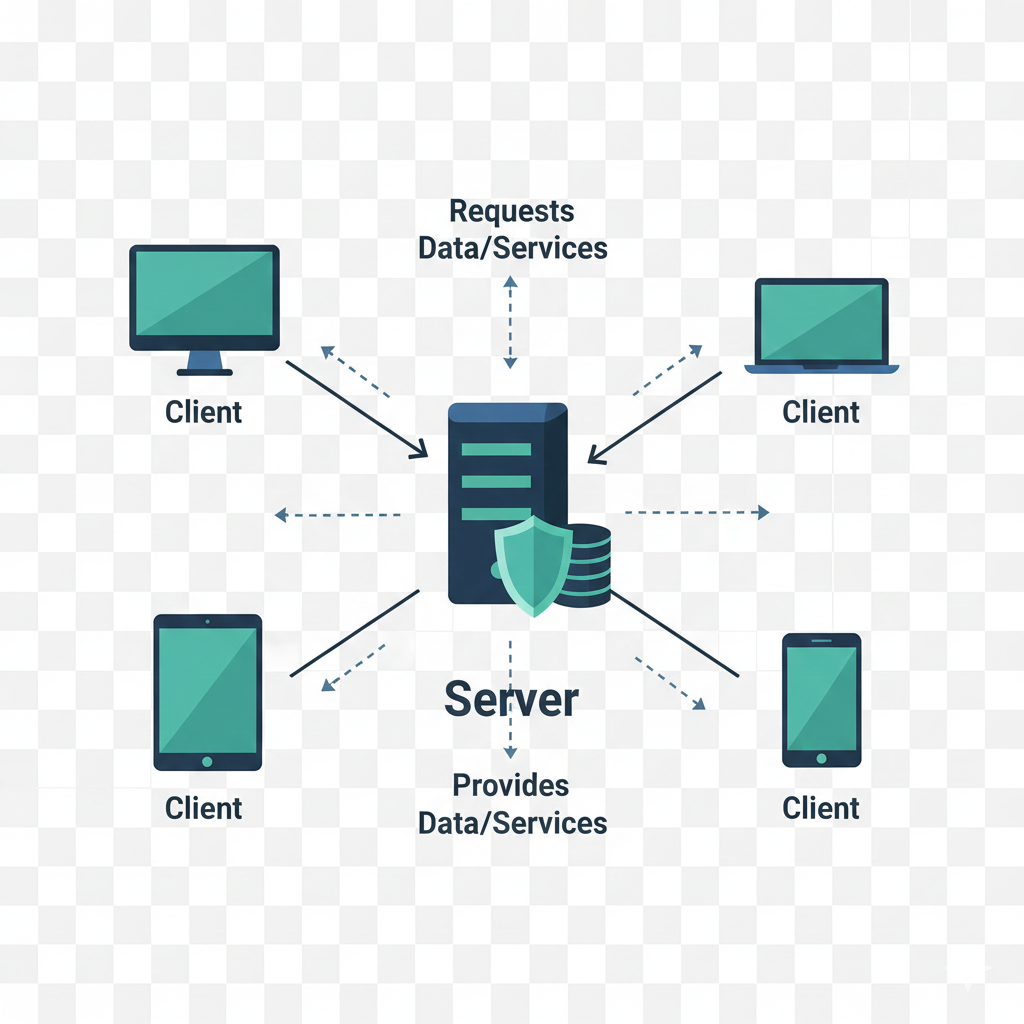
    Computer networks consist of server computers and client computers.

    Server Computer
    A computer on the network that shares resources to other computers for use is called a server computer or simply server.
    Shared resources include information, software, printer, plotter, Internet connection, hard disk, etc.

    Client Computer
    A computer on the network that accesses resources that are shared by server is known as client computer or simply client.

    The Two Commonly Used Network Architectures
    • Client/Server Network
    • Peer-to-Peer Network

    Features / Advantages of Client/Server Networks
    • A computer network in which each computer on the network acts as either a server or a client is called client/server or dedicated server network.
    • Each server computer on the network is called a dedicated server.
    • Client/Server network can be as small as two computers and can have hundreds or even thousands of computers.
    • In Client/Server network, a person known as Network Administrator is responsible for sharing resources, creating user accounts and assigning rights to all users of the network.

    Features / Advantages of Peer-to-Peer Networks
    • In Peer-to-Peer networks, every computer is capable of playing the role of client, server, or both at the same time.
    • In this network, each computer on the network is referred to as a peer.
    • Peer-to-Peer networks are suitable for a small number of users ranging between two to ten computers.
    • Individual users have complete control over resources of their computers. No single person is assigned to administer the resources of the network.
    Q 18: Explain different types of networks? What type of network (LAN, WAN, MAN, PAN etc) will be better and why?
    Types of Networks Based on Size and Physical Area
    LAN is better for the network between two buildings in the same geographical area.

    Local Area Networks (LAN)
    • A Local Area Network (LAN) covers a limited area.
    • It is confined to a single building or a group of nearby buildings.
    • Local area network is a commonly used network.
    • LANs are used for sharing applications, printers, group scheduling, e-mail, project tracking, and other tasks.

    Characteristics of LAN
    • Communication speed is fast.
    • It connects a limited number of computers.
    • Its design and maintenance are easy.
    Example: A computer lab in a college

    Wide Area Networks (WAN)
    • A Wide Area Network (WAN) covers a large area.
    • It connects several sites of an organization across cities, countries, and continents.
    • A WAN is often made up of two or more LANs connected together.

    Characteristics of WAN
    • Communication speed is slow as compared to LAN.
    • It connects multiple LANs.
    • Its design and maintenance is more difficult than LAN.
    Example: Internet

    Metropolitan Area Network (MAN)
    • MAN can span from several buildings or a large campus to entire cities.
    • MAN is used by many organizations. It also connects a number of LANs with high-speed communication lines.

    Characteristics of MAN
    • It offers moderate internet speed.
    • It connects a comparatively wider network that covers large regions like towns and cities.
    • Its design and maintenance is comparatively difficult.
    Example: Networks used by telecommunication companies for providing Cable TV and Internet services.

    Virtual Private Network (VPN)
    • VPN is a computer network that provides remote access to individuals and offices to their organization's networks.
    • It provides cheap communication by using public telecommunication infrastructure such as the Internet instead of expensive leased lines.
    • It allows employees at home or on trip to connect their laptops into the office network through public telecommunication networks and do their work.

    Characteristics of VPN
    • It uses public networks such as the Internet to connect computers.
    • Provides secure remote access.
    • Enables file sharing, video conferencing, and similar network services.
    • Provides cheap communication over long distances.
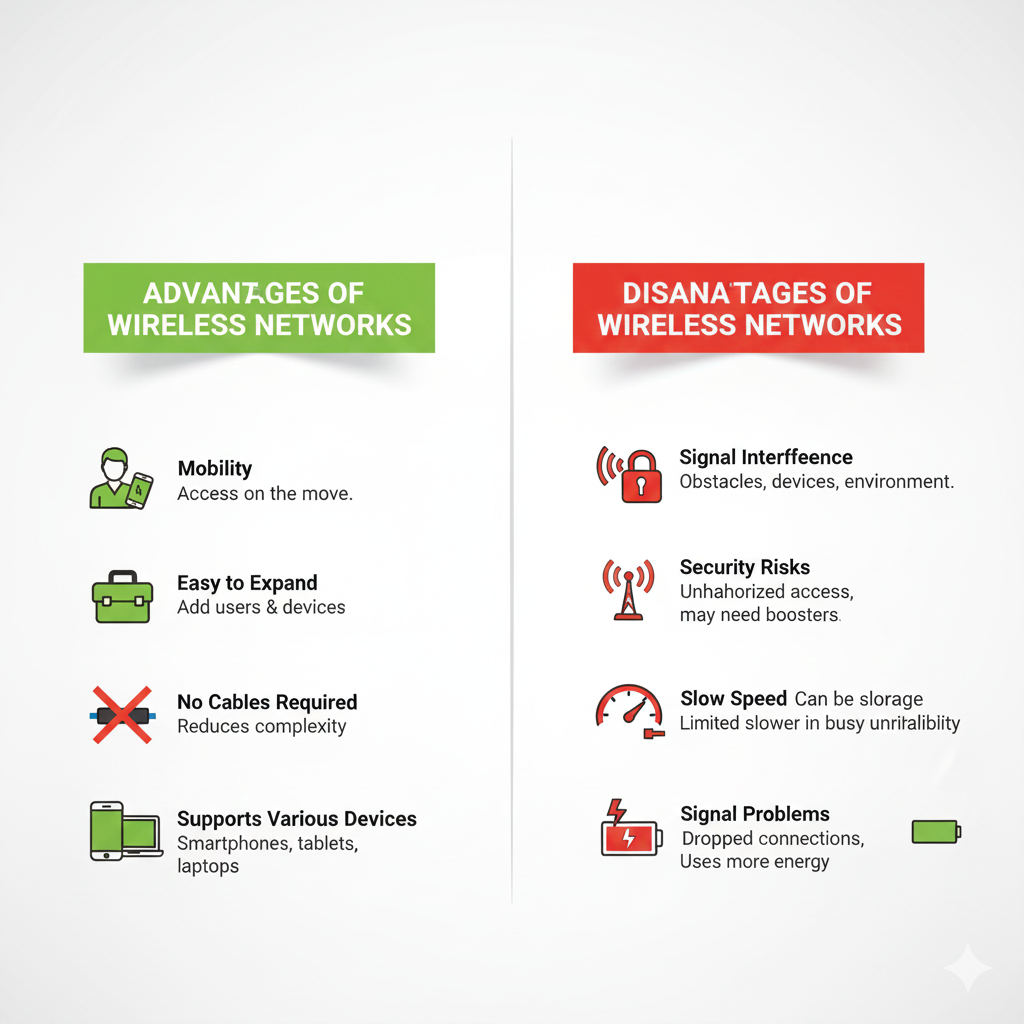
    Q 19: Write advantages and disadvantages of Wireless Networks?
    Advantages of Wireless Networks:
    • Mobility: Wireless network offers the facility of mobility i.e you can access network while you are on move.
    • Ease of Installation: The installation process of wireless network is simpler and faster.
    • Easy to Expand: Wireless network is relatively easy to expand a wireless network by adding more users and devices.
    • No Cables Required: Setting up a wireless network eliminates the need for extensive cabling, reducing installation time and complexity.
    • Supports Various Devices: Wireless networks support a wide range of devices like Smartphone’s, tablets, and laptops.

    Disadvantages of Wireless Networks:
    • Signal Interference: Wireless signals can be disrupted by physical obstacles (walls, buildings), other electronic devices, and environmental factors, which can cause performance problems.
    • Security Risks: Security risks like unauthorized access and data breaches.
    • Range and Coverage: Wireless networks have a limited range, so users might need extra boosters.
    • Slow Speed: Sometimes wireless networks can be slower, especially in busy places.
    • Signal or Connection Problems: There can be issues with reliability, like dropped signals or slow connections.
    • Power Consumption: Wireless devices use power, so they can use more energy than wired devices.
    Q 20: Discuss the advantages and limitations of different network topologies, including bus, star, ring, and mesh. When should each topology be used in a network design?
    Network Topology:
    Network topologies define the arrangement of various elements (links, nodes, etc.) in a computer network.
    A node represents a computer or a network device.
    Types of Network Topologies:
    Commonly used topologies are bus, ring, star and mesh.
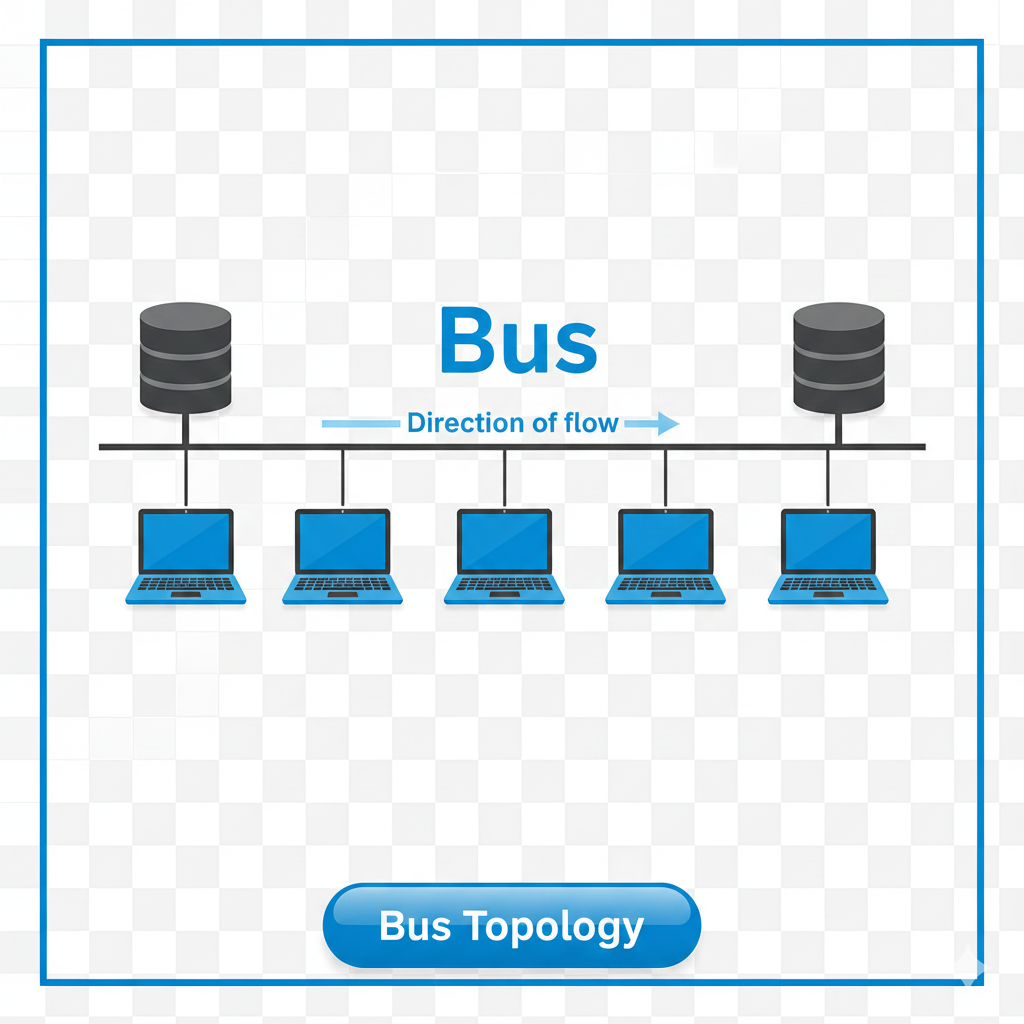
    1. Bus Topology:
    It is the simplest network topology.
    It consists of a single central cable known as bus.
    All the devices are connected to the bus along its length to communicate with each other.
    At each end of bus, a device called terminator is attached so that the signals do not bounce back on the bus causing errors.
    Features/Advantages of Bus Topology:
    • Suitable for small networks.
    • Easy to add new computers.
    • Requires less cable to implement.
    Limitations of Bus Topology:
    • If the single cable is damaged at any point, the entire network stops working.
    • Difficult to detect and fix faults.
    • Not suitable for large network.
    When to Use:
    Small, temporary networks or environments with a limited number of devices, such as a home or small office network.
    2. Star Topology:
    In star topology, all the nodes are connected to central device called switch or hub.
    It is one of the commonly used network topologies.
    A switch can connect 4, 8, 16, 24 or 32 nodes.
    A switch can be connected to another switch to expand the network.
    Features/Advantages of Star Topology:
    • Easy to connect new device to the network.
    • Easy to detect and fix faults.
    • Failure of one computer does not stop functioning of the entire network.
    Limitations of Star Topology:
    • Lengthy cable is required for connecting two computers.
    • Costly to implement.
    When to Use:
    It is suitable for both small and large networks, such as in corporate offices or data centers.
    3. Ring Topology:
    The ring network topology is shaped just like a ring.
    It is like a bus with both ends connected together.
    All the messages travel in the same direction.
    Message from one node is sent to the next node.
    Message is received by the intended node, otherwise it is ignored and passed on until the destination is reached.
    Features/Advantages of Ring Topology:
    • Each node is directly connected to the ring.
    • Easy to install and wire.
    • Data on the network flows in one direction.
    • Not costly to implement.
    Limitations of Ring Topology:
    • If ring is broken at any point, the entire network stops functioning.
    • Detection of fault is difficult.
    • If any computer in the ring is not working, the whole network is affected.
    When to Use:
    Situations requiring equal access and predictable performance, such as in token ring networks and some metropolitan area networks (MANs).
    4. Mesh Topology:
    In Mesh network topology, all the network nodes are directly connected to all other nodes.
    Message sent on a mesh network can take any possible path from source to destination.
    It is not commonly used since it is costly and difficult to implement.
    Features/Advantages of Mesh Topology:
    • It is the most reliable network topology.
    • Alternative paths are available in case a path is broken from source to destination.
    • Can manage high traffic.
    Limitations of Mesh Topology:
    • Most expensive topology to implement.
    • Difficult to implement as compared to other topologies.
    • Difficult to add new computer.
    When to Use:
    Best for environments where reliability and fault tolerance are critical, such as large-scale and critical infrastructure networks.
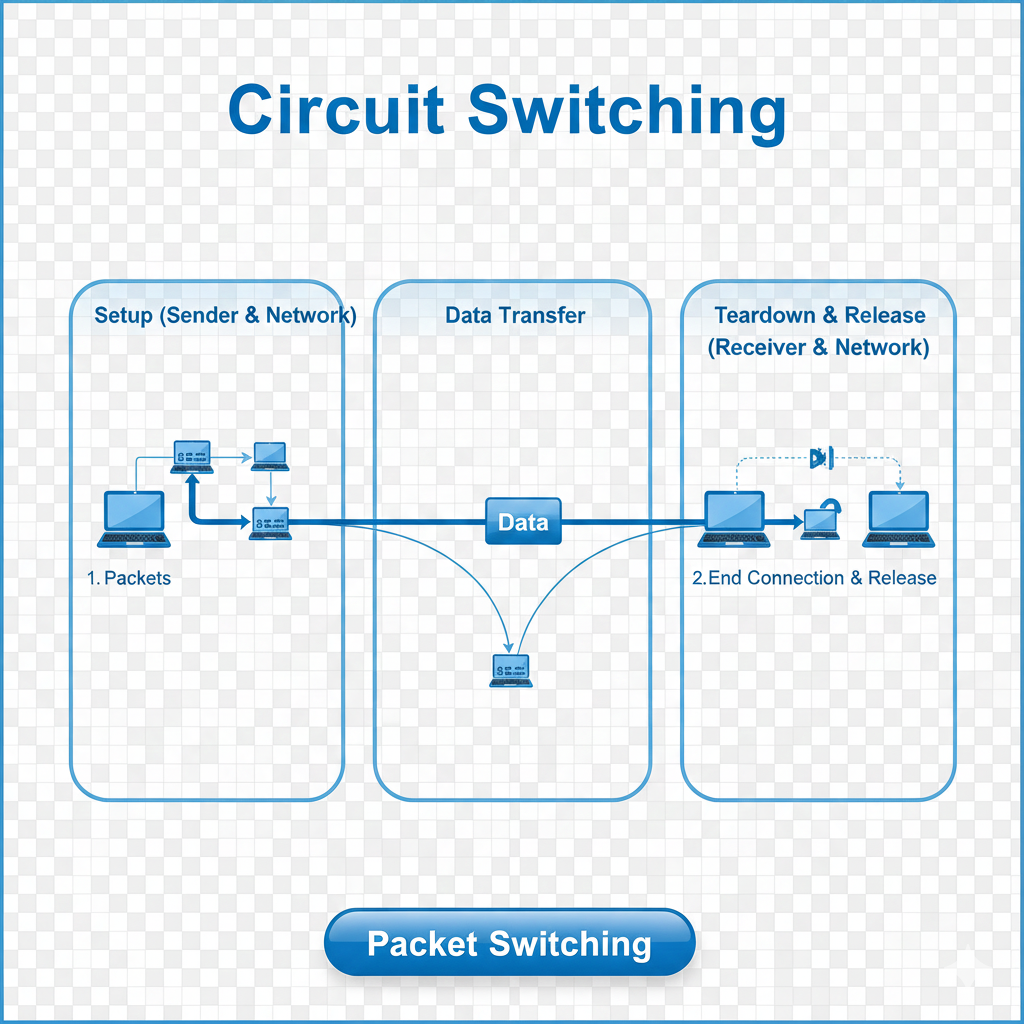
    Q 21: How data is transmitted across a computer network for example circuit switching, packet switching, layering, encapsulation, and protocols?
    1. Packet Switching (like sending letters)
    • Data is broken into small parts called packets.
    • Each packet may take a different path to reach the destination.
    • At the end, the packets are put back together.
    Example: Sending messages on WhatsApp or browsing the internet.
    Best for: Text, pictures, emails.
    2. Circuit Switching (like a phone call)
    • A direct path is made between sender and receiver.
    • That path stays open until the call ends.
    • No one else can use that path during the call.
    Example: Traditional landline phone call.
    Best for: Voice or video calls (real-time communication).
    3. Layering
    • Data travels through layers, like levels in a game.
    • Each layer has its own job (e.g., handling hardware, ensuring correct data, managing connections).
    • Most networks follow the OSI model or TCP/IP model.
    • Helps organize communication and make troubleshooting easier.
    4. Encapsulation
    • At each layer, extra information (called headers) is added to the data.
    • This helps the receiving device know how to handle and process the data.
    • Like putting a letter in an envelope, then into a bigger envelope with delivery instructions.
    5. Protocols
    • Protocols are rules that control how data is sent and received.
    • They ensure proper communication between devices.
    • Examples include HTTP, FTP, TCP/IP.
    Q 22: What is the OSI model, and how does it help in understanding the process of data communication? Explain each of the seven layers and their functions.?
    OSI (Open Systems Interconnection) Model:
    The OSI Model (Open Systems Interconnection Model) is like a step-by-step guide that explains how data moves through a computer network in 7 clear steps or layers.
    It helps different devices and systems communicate with each other, even if they are made by different manufacturers.

    How It Helps:
    The OSI model is like a map for data communication — it shows the path, explains each stop, and helps to fix issues when things go wrong.

    The Seven Layers of OSI Model:
    The seven layers of OSI model are described below:

    Layer 7 – Application Layer
    Application Layer provides services to end-user.
    It interacts with the operating system or application software whenever the user wants to send files, read messages or perform other network related activities.

    Layer 6 – Presentation Layer
    Presentation Layer takes the data provided by the Application Layer and converts it into a standard format that the other layers can understand.
    At the receiving end it also formats the information so that it looks the way the user can understand.

    Layer 5 – Session Layer
    Session Layer performs functions that enable two applications or two pieces of the same application to communicate across the network.
    It performs security, name recognition, logging and other similar functions.
    It also establishes, maintains and ends communication with the receiving computer.

    Layer 4 – Transport Layer
    Transport Layer establishes connections between two computers on the network.
    It handles quality control by making sure that the data received is in the right format and the right order.

    Layer 3 – Network Layer
    Network Layer decides which physical path-way the data should take to reach the destination.
    The communication device works in network layer.

    Layer 2 – Data Link Layer
    Data Link Layer defines the format of data on the network.
    This layer converts the data into packets and checks them before putting them on the path-way.
    The communication device Switch works in this layer.

    Layer 1 – Physical Layer
    Physical Layer defines cables and signaling.
    It provides hardware means such as cables and connectors for sending and receiving data.
    Cables, hubs and repeaters work in this layer.

    Practical Example: Sending an Email
    Consider sending an email:
    1. Application Layer: The email client application uses SMTP to send the email.
    2. Presentation Layer: The email content is encoded and possibly encrypted.
    3. Session Layer: A session is established between the sender’s email client and the mail server.
    4. Transport Layer: The email data is broken into segments, and TCP ensures reliable delivery.
    5. Network Layer: IP addresses are used to route the email through various networks to the recipient’s mail server.
    6. Data Link Layer: Frames are created for data transfer over the physical network.
    7. Physical Layer: The raw bits are transmitted over physical media such as Ethernet cables or Wi-Fi.
    Q 23: Define "Protocol" in the context of data communication?
    Protocols:
    Protocols are standardized sets of rules used to ensure successful and reliable data transfer between devices over a network.
    Here are some key data communication protocols:

    Types of Protocols:
    1. TCP/IP (Transmission Control Protocol/ Internet Protocol):
    Used for internet communication and provides reliable, connection-oriented data transfer.
    2. HTTP (Hypertext Transfer Protocol):
    Used for transferring web pages and related data on the World Wide Web.
    3. FTP (File Transfer Protocol):
    Used for transferring files between computers on a network.
    4. SMTP (Simple Mail Transfer Protocol):
    Used for sending email messages.
    Q 24: Explain the evolution of the Internet from its origins to the modern-day global network. What major technologies advancements contributed to its growth?
    Internet (International Network):
    The Internet is a global network of interconnected computer networks that allows for the exchange of data, information, and communication among users and devices across the world.
    It is a vast and decentralized network that spans continents and connects billions of computers, servers, and other devices.

    Evolution of the Internet:
    1. Early Beginnings (1960s-1980s):
    a. ARPANET: The Internet's origins trace back to the ARPANET (Advanced Research Projects Agency Network), developed by the U.S. Department of Defense's ARPA (now DARPA) in the late 1960s.
    b. Protocol Development: In the 1970s, the development of TCP/IP protocols established the foundation for the modern Internet, allowing different networks to communicate.

    2. Expansion and Standardization (1980s-1990s):
    a. Domain Name System (DNS): Developed in 1983, DNS translated human-readable domain names (e.g., www.example.com) into IP addresses.
    b. Birth of the World Wide Web: In 1989, Tim Berners-Lee proposed the World Wide Web.

    3. Commercialization and Growth (1990s-2000s):
    The 1990s saw the emergence of the World Wide Web and web browsers, revolutionizing how people access and share information over the Internet.

    4. Modern Internet (2000s-Present):
    The 2000s brought broadband internet and social media platforms, while the 2010s saw the rise of mobile internet and the Internet of Things (IoT).
    In the 2020s, the Internet continues to evolve with cloud computing, artificial intelligence, and 5G technology, impacting nearly every aspect of modern life.

    Key Technological Advancements:
    Packet Switching, TCP/IP Protocol, DNS, Web Browsers and HTML, Broadband and Wi-Fi, Mobile Networks (4G/5G), Cloud Computing, Cybersecurity.

    Working of the Internet:
    The Internet is the largest computer network ever built. It globally connects billions of devices and networks.
    It operates through a decentralized architecture using packet switching technology.
    Data is divided into packets, which are routed through a network of interconnected routers and switches.
    Protocols like TCP/IP ensure data is packaged, addressed, and transmitted correctly.
    The Domain Name System (DNS) translates human-readable domain names (e.g., www.ncc.gov.pk) into IP addresses.
    Content is hosted on servers, and data is transmitted as packets to and from these servers.
    As data travels through the network, it is encapsulated in headers at each layer of the OSI model (such as the IP and TCP headers).
    When the data reaches its destination, these headers are removed through a process called de-capsulation.
    Security measures like encryption protect data during transmission.
    The Internet's interoperable design allows diverse devices and networks to communicate, making it a global information and communication platform.
  • Short Question
    SRQ i: What is the function and significance of Napiers Bone in early computing?
    John Napier
    John Napier developed Napier's bones, a manually operated calculating device.
    Function
    Its main function was to help with multiplication, but it could also be used for division and finding square roots.
    Significance
    This invention was significant because it can simplify complex calculations very easily.
    It set the foundation for future mechanical calculators.
    SRQ ii: How did Charles Babbage's Difference Engine differ from the Analytical Engine?
    Difference Engine Analytical Engine
    It was a simple mechanical machine with gears and levers. It was a complex machine with Mill (CPU), Store (memory), and Control (punched cards).
    It was designed to perform basic mathematical calculations like addition and subtraction only (no multiplication or division). It was a more advanced design capable of solving all four arithmetic operations (addition, subtraction, multiplication, and division).
    The Difference Engine was designed to perform a specific set of calculations. It was programmable using punched cards.
    SRQ iii: What is the primary goal of fifth-generation computers?
    Technology Used / Goal
    The goal of the fifth generation is to develop devices that can understand and respond to natural languages.
    It focuses on developing systems capable of NLP (Natural Language Processing) and having thinking power.
    This generation of computers is based on Artificial Intelligence (AI) technologies.
    The aim is to develop machines (called robots) with the capability to learn, think, reason, and solve problems automatically and independently.
    SRQ iv: Name the three types of memory mentioned on the motherboard in the Von Neumann architecture?
    Von Neumann Architecture – Types of Memory
    In the Von Neumann architecture, the three types of memory commonly mentioned are:
    1. Primary Memory (Main Memory or RAM)
    ○ This is a temporary memory.
    ○ It is volatile memory, meaning it loses its contents when the power is turned off.
    Q. How does Cache Memory Increase the Processing Speed of a Computer System?
    ○ Cache memory increases processing speed by storing frequently used data and instructions close to the CPU.
    ○ This reduces the time needed to access data from main memory and speeds up execution.
    2. Cache Memory
    ○ This is a smaller and faster type of volatile memory located closer to the CPU.
    ○ It is used to temporarily hold frequently accessed data and instructions.
    ○ This improves the speed and efficiency of data retrieval.
    3. Secondary Memory (Storage)
    ○ This refers to non-volatile memory used for long-term storage of data and programs.
    ○ Examples include hard drives, solid-state drives, and other storage devices.
    ○ Unlike primary memory, secondary memory retains data even when the power is off.
    SRQ v: Differentiate between Volatile and Non-Volatile Memory?
    Volatile Memory Non-Volatile Memory
    Volatile memory is temporary and loses its data once the power is turned off. Non-volatile memory is permanent and retains its data even after power loss.
    It is also known as temporary memory. It is also known as permanent memory.
    Examples:
    i. RAM (Random Access Memory)
    ii. Cache Memory
    iii. Registers
    Examples:
    i. ROM (Read-Only Memory)
    ii. Flash Memory
    iii. Magnetic storage devices (e.g., hard disks and magnetic tapes)
    iv. Optical disks / Blu-ray disk
    SRQ vi: Define Memory Hierarchy and also show memory hierarchy with the help of a diagram.
    Memory Hierarchy
    Memory hierarchy is the organization of different types of computer memory such as registers, cache, RAM, and disk drives based on their speed, cost, and capacity.
    The hierarchy is designed so that the CPU can access the fastest memory first.
    If the required data is not found there, the system moves to slower memory types.
    This arrangement helps in improving overall system performance.
    Working of Memory Hierarchy
    The CPU first checks registers and cache memory for required data.
    If the data is not available, it is searched in main memory (RAM).
    If still not found, the system accesses secondary storage such as hard drives or SSDs.
    Memory Hierarchy Order
    (Fastest, most expensive, smallest capacity)
    Registers
    Cache Memory
    Main Memory (RAM)
    Secondary Storage (Hard Disk / SSD)
    (Slowest, least expensive, largest capacity)
    SRQ vii: Define Memory Word and Memory Size? Why is the word size of a processor important, and how does it affect the computer's performance?
    Memory Word
    In computing, the smallest amount or size of data that a computer can process is called memory word.
    It is a fixed-sized piece of data handled as a unit by the processor.
    Word Size
    The number of bits in a word is called the word size.
    Word size in modern computers typically ranges from 16 to 64 bits, depending on the size of the computer.
    Importance
    The word size of a processor (e.g., 32-bit or 64-bit) determines the amount of data it can process at once.
    It also determines the size of the memory addresses it can handle.
    Effect
    A larger word size allows for faster data processing.
    It allows handling larger amounts of memory.
    It improves overall performance.
    Example
    A CPU with a 32-bit word size can process data in 32-bit chunks.
    A CPU with a 64-bit word size can process data in 64-bit chunks.
    A computer with a bigger word size can transfer more bits into the microprocessor at a time for processing.
    This improves the processing speed of the computer.
    SRQ viii: What is pipelining, and how does it improve the efficiency of a CPU?
    Pipelining
    Pipelining is a technique used in CPU design to improve the efficiency and performance of the processor.
    How it Improves Efficiency
    It divides the execution process into stages (fetch, decode, execute, etc.).
    By processing multiple instructions simultaneously, pipelining improves the efficiency and throughput of the CPU.
    This leads to faster execution of instructions.
    SRQ ix: Imagine you are building a custom computer for a friend. Give three considerations you would take into account when choosing the type and size of memory for this computer?
    Considerations for Choosing Memory Type and Size
    1. Intended Use and Workload Requirements
    The primary factor to consider is the purpose of the computer (e.g., general use, gaming, graphic design, programming, and development).
    Different use cases have different memory requirements.
    2. Compatibility
    It is important to ensure that the chosen memory is compatible with other system components, such as the motherboard and CPU.
    3. Future Requirements and Upgradability
    Consider future needs and the ability to upgrade the system to meet increasing performance demands.
    SRQ x: You are a computer technician tasked with upgrading an older computer with a slow CPU. How might you improve its performance without replacing the entire CPU?
    Improving Performance Without Replacing the CPU
    1. Upgrade RAM
    Increasing the amount of RAM can reduce bottlenecks and improve multitasking.
    2. Install an SSD
    Replacing the hard drive with a solid-state drive can significantly speed up boot times and application loading.
    3. Optimize Software
    Remove unnecessary programs, update the operating system, and ensure all drivers are up-to-date.
    SRQ xi: Your school is planning to purchase new printers for the computer lab. Give three advantages and disadvantages of impact and non-impact printers to help them make a decision.
    Impact and Non-Impact Printers
    There are advantages and disadvantages of impact and non-impact printers that will help your school decide on purchasing new printers for the computer lab.
    Impact Printers
    Impact printers print by striking against the paper (e.g., Dot Matrix Printer).
    Advantages (Dot Matrix Printer)
    ○ Impact printers are cheaper to operate because ribbons are less expensive than ink or toner cartridges.
    ○ These printers are durable and reliable for high-volume printing tasks.
    ○ Impact printers can print multiple copies simultaneously by using carbon paper.
    Disadvantages
    ○ Their printing quality is low.
    ○ They produce a lot of noise while printing.
    ○ Their print quality is poor.
    Non-Impact Printers
    Non-impact printers print without striking the paper (e.g., Ink-Jet and Laser Printer).
    Advantages
    ○ Non-impact printers provide high-quality printouts.
    ○ These printers operate quietly.
    ○ Non-impact printers offer faster print speeds.
    Disadvantages
    ○ Non-impact printers are expensive to purchase.
    ○ The cost of consumables (toner, ink cartridges) is high.
    ○ Maintenance of these printers is costly.
    1. Inkjet Printers
    ○ Inkjet printers store ink in cartridges and spray it on paper through fine nozzles on the print-head.
    ○ Inkjet printers are used in all sectors such as homes and small businesses.
    2. Laser Printers
    ○ Laser printers use technology similar to a photocopying machine.
    ○ Laser printers are more expensive, faster, and have very high print quality compared to inkjet printers.
    ○ Laser printers are perfect for large-scale businesses.
    SRQ xii: Define “Protocol” in context of data Communication.
    Protocol
    A protocol is a set of rules that governs data communications.
    It represents an agreement between the communicating devices.
    Without a protocol, two devices may be connected but unable to communicate with each other.
    Working to Facilitate Data Transfer
    These components work together to facilitate data transfer by ensuring that data is encoded, transmitted, received, and decoded accurately.
    Protocols govern the format, timing, and error detection/correction.
    The medium provides the physical pathway for data to travel between sender and receiver.
    SRQ xiii: Define simplex, half-duplex, and full-duplex modes of communication with one example each.
    See Q 15
    SRQ xiv: What are start and stop bits, and where are they used in data transmission?
    Start and Stop Bits
    Start and stop bits signal the beginning and end of a data packet.
    The start bit indicates when the data bits are about to begin.
    The stop bit(s) indicates when the data bits have been transferred.
    Use
    They are used in asynchronous serial communication.
    SRQ xv: How does a switch differ from a hub in a network?
    Hub Switch
    Less efficient as it sends data to all connected devices More efficient as it sends data only to the intended recipient
    Suitable for small, low-traffic networks where performance is not critical. Suitable for larger, high-traffic networks requiring better performance and reliability.
    Less secure as data is broadcast to all devices More secure as data is sent only to the intended recipient
    Generally slower. It is faster.
    SRQ xvi: How does asynchronous transmission differ from synchronous transmission, and in what situations are they typically used?
    see Q 15
    SRQ xvii: Explain the concept of peer-to-peer network and its limitations compared to a client/ server network.
    see Q 17
    SRQ xviii: Compare and contrast the star and ring network topologies.
    see Q 20
    SRQ xix: Why is mesh topology considered the most reliable but also the most expensive to implement?
    Mesh Topology
    Mesh Topology is reliable because each device is connected to every other device, providing multiple paths for data to travel.
    However, it is expensive to implement due to the high number of connections and cables required, making it complex and costly.
    SRQ xx: What is the role of the Application Layer in the OSI model?
    Application Layer
    The Application Layer in the OSI model provides services directly to end-users and applications.
    It handles application-specific functions like email, file transfer, and network resource access.
    It facilitates communication between software applications and lower network layers.
    SRQ xxi: Briefly explain the significance of data representation in computing , including binary, decimal and hexadecimal systems?
    Data Representation Significance
    ○ Data representation is crucial in computing as it enables computers to understand and process information.
    ○ Understanding how data is represented helps in programming, debugging, and hardware design.
    ○ Computers use binary code (0s and 1s) to represent data, which is then translated into decimal or hexadecimal systems for human understanding.
    Bit (Binary Digit)
    The smallest unit of memory in a digital computer is a bit, which stands for binary digit 0 or 1.
    Everything in a computer is made from bits.
    Byte
    A group of 8 bits is known as one byte.
    It is like a small container that can hold information.
    Bytes are often used to represent things like letters, numbers, or symbols.
    Binary (Base-2)
    This uses only 0 and 1.
    Computers use binary because they work with electricity—something is either on (1) or off (0).
    Decimal (Base-10)
    This is the number system we use every day (0–9).
    It's easy for people to understand, so we often use it when we work with computers.
    Hexadecimal (Base-16)
    This uses numbers 0–9 and letters A–F.
    It’s a shorter way to write long binary numbers and is helpful for computer programmers.
    SRQ xxii: What is the relationship between the memory units?
    Memory Unit Equivalent To Memory Unit Equivalent To
    8 Bits 1 Byte 1024 Giga Bytes 1 Tera Byte (1 TB)
    1024 Bytes 1 Kilo Byte (KB) 1024 Tera Bytes 1 Peta Byte (PB)
    1024 Kilo Bytes 1 Megabyte (MB) 1024 Peta Bytes 1 Exa Byte
    1024 Mega Bytes 1 Gigabyte (GB)
    SRQ xxiii: Define Data Communication Standards?
    Data Communication Standards
    Data Communication Standards are rules and guidelines that ensure devices can communicate properly with each other by using the same language and format.
    They help computers, phones, printers, and other devices send and receive data correctly, even if they are made by different companies.
  • Long Question
    LRQ 1: Describe the evolution of computer generations from the first generation to the fourth generation, highlighting the key technological developments and their impact on computing?
    see Q 2
    LRQ 2: Discuss the importance of categorizing and understanding different types of systems, both natural and artificial, and provide examples of each type. Or What is a System? Describe its types?
    see Q 3
    LRQ 3: Explain the characteristics and potential challenges associated with fifth generation computers that aim to understand natural languages and possess thinking capabilities. What are the implications of such advancements in computing on society?
    Potential Challenges / Objectives
    ○ The objective of the fifth generation is to develop devices that can understand and respond to natural languages, developing systems capable of NLP (Natural Language Processing) and having thinking power.
    ○ This generation of computers is based on Artificial Intelligence (AI) technologies, aiming to develop machines (called robots) with the capability to learn, think, reason, and solve problems automatically and independently.
    Features / Impacts
    ○ AI will minimize the need to type programs.
    ○ The key objective is to develop advanced ES (Expert Systems), which are software that have decision-making abilities like a human expert in specific fields such as medical, mining, and engineering.
    ○ These computers will allow users to give commands in any natural language, such as English, using voice recognition.
    Model
    Robots and Expert Systems
    Implications
    Job Market Transformation: Routine and even some skilled jobs may be at risk of automation.
    Economic Growth: It will lead to new business models and economic growth.
    Access to Education: Online platforms can make high-quality education more accessible to people worldwide.
    Healthcare Improvements: It will lead to more accurate diagnoses, personalized treatment plans, and better patient outcomes.
    LRQ 4: Explain the fundamental components of network communication, and how do they work together to facilitate data transfer?
    see Q 14
    LRQ 5: Describe the roles of common communication devices like hub, switches, routers and gateways in data communication. How do they contribute to the functionality of a network?
    see Q 15
    LRQ 6: Discuss the advantages and limitations of different network topologies, including bus, star, ring, and mesh. When should each topology be used in a network design?
    see Q 20
    LRQ 7: What is the OSI model, and how does it help in understanding the process of data communication? Explain each of the seven layers and their functions.
    see Q 22
    LRQ 8: Explain the evolution of the Internet from its origins to the modern-day global network. What major technologies advancements contributed to its growth?
    see Q 24
    LRQ 9: Discuss the advantages and disadvantages of the Internet, considering factors like global connectivity, information access, privacy concern, and digital addiction?
    Advantages of the Internet
    Global Connectivity: Enables communication and access to information worldwide.
    Vast Information: Provides vast information resources and knowledge.
    Communication: Facilitates real-time communication and collaboration.
    E-commerce: Allows online shopping and digital transactions.
    Education: Supports online learning and research.
    Business: Enhances productivity and global reach.
    Entertainment: Offers streaming, gaming, and social media.
    Innovation: Promotes technological advancements and research.
    Disadvantages of the Internet
    Privacy Concerns: Threats to personal data and online privacy.
    Cyber Security Risks: Vulnerability to hacking and cyber-attacks.
    Information Overload: Overwhelming amount of data and misinformation.
    Digital Addiction: Excessive screen time and online dependency.
    Digital Divide: Unequal access to the Internet worldwide.
    Online Harassment: Cyber bullying and harassment issues.
    Health Concerns: Physical and mental health impacts.
    LRQ 10: Explore common applications of the Internet and their impact on the various aspects of society, including communication, education, business, entertainment, and research.
    Common Applications / Impact of the Internet
    Main applications/impact of the Internet include:
    1. Communication
    ○ People use email, messaging apps, and video calls.
    ○ Social media helps people stay connected.
    ○ Communication is faster and easier across the world.
    2. Education
    ○ Students learn through online classes and videos.
    ○ Websites and apps help with schoolwork and extra learning.
    ○ Education is now easier to access, even from home.
    3. Business
    ○ People buy and sell things online (e.g., Amazon).
    ○ Companies use online banking and digital tools.
    ○ Businesses work faster and reach more customers.
    4. Entertainment
    ○ People watch movies, listen to music, and play games online.
    ○ Platforms like YouTube and Netflix are very popular.
    ○ The Internet gives many fun choices, but too much can be unhealthy.
    5. Research
    ○ Students and researchers use the Internet to find information.
    ○ Search engines like Google help answer questions quickly.
    LRQ 11: Describe Main Functions of an Operating System? OR The main functions of systems software.
    1. Memory Management
    ○ Keeps track of what part of memory is being used and by which program.
    ○ Ensures programs don’t use each other’s memory space.
    2. Managing Hardware (Resource Management)
    ○ Controls the computer’s hardware like the CPU, memory, hard drive, and input/output devices.
    ○ Ensures each program gets the resources it needs.
    3. File Management
    ○ Helps you create, save, open, move, and delete files and folders.
    ○ Keeps track of where data is stored on the hard drive or SSD.
    4. User Interface
    ○ Provides a way for you to interact with the computer.
    ○ Can be graphical (with windows, icons, and menus) or text-based (command line).
    5. Running Applications
    ○ Starts and manages the software (apps) you use, like web browsers or games.
    ○ Ensures programs don’t crash into each other.
    6. Security Management
    ○ Protects the computer from unauthorized access or malware.
    ○ Lets users have passwords and different access rights.
    7. Multitasking
    ○ Allows several programs to run at the same time.
    ○ Switches quickly between programs so it feels smooth.
    LRQ 12: Define Wireless Networks and write a note on Bluetooth, Cellular OR Explain the examples of wireless network
    Wireless Networks
    Wireless networks refer to networks that use wireless communication technologies to transmit data between devices without the need for physical wired connections.
    Wireless networks can operate over short distances (e.g., within a building) or cover large geographical areas (e.g., cellular networks).
    Examples and Uses of Wireless Networks
    Wi-Fi (Wireless Fidelity)
    ○ Wi-Fi is a common wireless networking technology that enables devices to connect to the Internet and communicate wirelessly within a particular area.
    ○ It is widely used in homes, offices, airports, and public places.
    Bluetooth
    ○ Bluetooth is a wireless technology that enables devices to connect over a short distance.
    ○ It is commonly used to connect peripheral devices such as headphones, keyboards, and mice, as well as for file transfers and streaming audio.
    Cellular Networks
    ○ Cellular networks are wireless communication systems that provide connectivity to mobile devices over a large geographical area.
    ○ These networks are distributed over land areas called "cells," each served by a fixed-location tower known as a cell site or base station.
    ○ They are used for mobile voice calls, messaging, Internet access, and other data services to mobile devices.
    Satellite Networks
    ○ Satellite networks provide communication over large geographic areas, including remote and inaccessible regions.
    ○ Satellites are placed in Earth's orbit and act as relay stations, receiving signals from ground-based stations and retransmitting them to other ground stations.
    ○ They are used for satellite Internet access, satellite TV broadcasting, GPS (Global Positioning System) navigation, and more.
  • DO YOU KNOW?
    Unit 1 → DO YOU KNOW?
  • Multiple Choice Questions (MCQs)
    Unit 1 → Multiple Choice Questions (MCQs)
  • ACTIVITIES (Practicals)
    Unit 1 → ACTIVITIES (Practicals)
  • 2.1: Problems
    Q 1: Why it is important to understand real world problem?
    Importance of Understanding a Real-World Problem
    • Helps in find the right solution.
    • Saves time and resources.
    • Ensures correct instructions for the computer.
    • Reduces errors.
    • Supports better decision making.
  • 2.2: Identifying a Compututing Problem
    Q 2: Define Problem with real world examples OR What type of Problem present in the filed of transportation, health care and education
    What is a Problem?
    A problem is a challenge or situation that needs to be overcome using some action.
    The problems are present in all fields such as transportation, healthcare, education and many more.
    Examples of Problems
    Transportation Problems Healthcare Problems Education Problems
    • Why is the number of vehicles growing up?
    • Why the accidents on motorways are increasing?
    • How to expand access to medicines?
    • How to stop infectious diseases?
    • How to increase literacy rate in Pakistan?
    • What subject areas of education should be focused on more?
    Q 3: Define Computing Problem and write its types?
    1. A Computing Problem
    A computing problem is a task or question that requires a solution that can be carried out using a computer.
    It involves taking some input, processing it using a series of steps (algorithm), and producing an output.
    Types of Computing Problems
    Following are some of the computing problems: -
    1. Decision Problems    2. Search Problems    3. Counting Problems
    1. Decision Problems
    (How we can identify problems? Justify with example)
    A decision problem occurs when a given input requires a binary response, either Yes or No. Responses may take various forms, such as true or false.
    Examples of simple decision problems:
    ○ The problem whether a given number is odd (or even).
    ○ The problem whether a given number is a prime number.
    2. Search Problems
    (How we can search problems? Justify with example)
    In science and engineering, many problems are solved using the search. In such types of problems, we have a set of objects among which we search for the solution.
    Example: Finding a path between two cities. Search problems are often represented using graphs, where we have nodes and each link connects to nodes. A node can be connected to multiple nodes.
    To solve such problems, we have three stages:
    ○ Initial State: represents the node from where we need to start search.
    ○ Operations: represents the moves that transition from one node to another.
    ○ Goal: defines the target or end condition.
    3. Counting Problems
    These problems work on the principle that if an event/decision has A number of choices and another decision/event has B number of choices then total number of possible unique combinations would be A x B.
    Counting Problem Example:
    You visit a computer shop to buy a computer system for you.
    The vendor asks you to choose one of 4 monitors, one of 2 keyboards, one of 4 computers and one of 3 printers. How many numbers of possible systems you can choose from?
    Solution
    You must choose 1 monitor, 1 keyboard, 1 computer and 1 printer.
    For the computer system elements, we have 4 monitors, 2 keyboards, 4 computers and 3 printers.
    Using the counting principle, the number of all possible computer systems that you can buy is given by:
    N = 4 x 2 x 4 x 3 = 96
  • 2.3: Problem Solving
    Q 4: Define Problem Solving? What is the major difference in solving simple problems and complex problems? Compare simple and complex problems with one daily life example of each problem.
    Problem Solving
    Problem solving is the process of analyzing some situation and accordingly behaving to generate some response.
    Difference between Simple Problems and Complex Problems
    The major difference between solving simple problems and complex problems lies in the level of difficulty and the number of steps required to reach a solution.
    Simple Problems
    For simple problems the following 4 steps are used:
    ○ Define and analyze a problem: What is the problem and why it is happening.
    ○ Design a plan: What we are going to do (Algorithm).
    ○ Implement the plan: Code it by using some programming language.
    ○ Evaluate: Did our plan work?
    Daily Life Example: Deciding what book to read next from your shelf.
    You look at your available books and choose based on mood or interest.
    The decision has no significant consequences beyond personal enjoyment.
    Complex Problems
    However, for complex problems, the 6 step problem solving process could be used:
    ○ Define and analyze a problem.
    ○ Decompose the problem: Make sub-problems that are manageable.
    ○ Identify potential plans for each sub-problem: such as plan A, plan B and plan C.
    ○ Select and design best plan.
    ○ Implement that plan.
    ○ Evaluate.
    Daily Life Example: Balancing a monthly household budget.
    You must consider income, expenses, savings goals, and unexpected costs.
    Each decision impacts your financial stability and requires careful planning.
    Q 5: Before jumping into an action for a problem? What to do first?
    Define and Analyze a Problem
    Before jumping into an action for a problem, it must be thoroughly investigated to capture all the relevant aspects of the problem.
    For this purpose, we properly define and analyze a problem.
    In defining a problem, there must be clarity and the objectives of the problem must be specified.
  • 2.4: Input-Processing-Output (I-P-O) Model
    Q 6: Define Input-Processing-Output (I-P-O) Model and its components?
    Input-Process-Output (IPO) Model
    The input-process-output (IPO) model is a framework used in various fields to describe the flow of information or data within a system.
    It consists of three main components: input, process, and output.
    Components of IPO Model
    It requires us to have correct identification of:
    Input: The data or information that is fed into the system for processing.
    Process: The operations or steps that are performed on the input data to transform it into the desired output.
    Output: The result or information produced by the system after processing the input.
    Problem
    Calculate the average grade of a student.
    Inputs
    Student's grades (data).
    Processes
    Add grades, count grades, divide sum by count (calculations).
    Outputs
    Average grade (result).
  • 2.5: Input-Processing-Output (I-P-O) Chart
    Q 7: Define Input-Processing-Output (I-P-O) Chart with example?
    Input-Processing-Output (I-P-O) Chart
    An Input-Processing-Output (I-P-O) Chart is a tool used to visualize and represent the key components i.e. the input, process and output in tabular form.

    Example: IPO Chart to Compute Area of Rectangle
    Q 8: Consider the following problem: Y = 5x + 3. Identify the inputs and outputs to find the solution of a problem and fill the relevant boxes:
    Input-Process-Output (IPO) Table
    Ans
    Q 9: Draw an IPO Chart to calculate a student’s average based on his grades.
  • 2.6: Computational Thinking
    Q 10: Differentiate between Computational thinking and Logical thinking
    Difference between Computational Thinking and Logical Thinking
    Computational Thinking Logical Thinking
    • Computing problems refer to the tasks or questions that can be solved or answered using a computer or computational methods.
    • Widely used in computer science, programming and data analysis.
    • Logical thinking is a reasoning process that involves using rational, systematic steps and principles to arrive at a conclusion or solve a problem.
    • Widely used in mathematics, philosophy, law, and everyday decision-making.
  • 2.7: Principals of Computational Thinking
    Q 11: Write four properties/ Principles of Computational thinking.
    1. Decomposition:
    ○ Meaning: Breaking down a complex problem into smaller, manageable parts.
    These smaller problems are solved one after another until the bigger complex problem is solved.
    These smaller problems are referred as sub problems.
    ○ In website building, we can divide the work into designing the layout, writing content, coding, and testing.
    ○ This makes the big job easier to manage and complete step by step.
    2. Pattern Recognition:
    ○ Meaning: Finding similarities or patterns in problems or data.
    ○ While building websites, we notice most pages have headers, footers, navigation bars, and contact forms.
    ○ Knowing these patterns helps us reuse ideas and design faster.
    3. Abstraction:
    ○ Meaning: Focusing on the important information only, and ignoring irrelevant details.
    ○ While designing a website, we focus on how it looks and works, not on how the browser engine works internally.
    ○ This helps us avoid distractions and concentrate on what matters.
    4. Algorithm Design:
    ○ Meaning: Creating a step-by-step solution or rules to solve a problem.
    ○ In web development, we might follow steps like: choose a template → add content → style with CSS → test the site → publish.
    ○ These steps help ensure the website is built correctly and efficiently.
    Q 12: Define Algorithm?
    Algorithm:
    ○ An algorithm is a plan, a set of step-by-step instructions used to solve a problem.
    Importance of Techniques:
    ○ Each technique/cornerstone is as important as the others.
    ○ They are like legs on a table - if one leg is missing, the table will probably collapse.
    ○ Correctly applying all four techniques will help when programming a computer.
    Q 13: Why Problems are solved through Logical Thinking?
    Logical Thinking:
    ○ Logical thinking refers to analyzing a particular situation or problem using reason and accordingly reaching one or more sensible decisions.
    ○ The situation analysis requires gathering relevant facts and then deciding the best way based on the reasons.
    ○ Logical thinking is like building a tower with blocks, where each block (idea) is connected to the one below it (previous idea) in a clear and sturdy way.
    Example 1: Everyday Decisions
    ○ Scenario: You want to decide whether to bring an umbrella. The weather forecast predicts a 70% chance of rain.
    ○ Logical Thinking: Since there is a high probability of rain, it’s reasonable to bring an umbrella to avoid getting wet.
    Example 2: Puzzle Solving
    ○ Puzzle: You have a sequence of numbers: 2, 4, 8, 16. What is the next number?
    ○ Logical Thinking: The sequence doubles each time. Therefore, the next number is 16 × 2 = 32.
    Q 14: Define Algorithmic Thinking
    Note:
    ○ By developing algorithmic thinking skills, you can become a better problem solver.
    ○ Algorithmic thinking is a problem-solving approach that involves:
    Techniques of Algorithmic Thinking:
    ○ Breaking down complex problems into smaller, manageable steps.
    ○ Identifying patterns and relationships between steps.
    ○ Developing a clear, step-by-step procedure (algorithm) to solve the problem.
    ○ Using logical reasoning and decision-making to guide the process.
    Example: Find the Largest of Three Unequal Numbers
    Let's first draw the IPO (Input-Process-Output) chart of the problem.
    Input Process Output
    Three numbers Find Largest among the three numbers Display largest number
    Q 15: Write algorithm of the process part of IPO to find the largest of three unequal numbers?
    Steps to Find the Largest of Three Numbers (A=10, B=20, C=30)
    ○ Step 1: Let three numbers be A = 10, B = 20, and C = 30.
    ○ Step 2: Check if A is the largest.
    ○ Step 2.1: If A > B and A > C, then A is the largest.
    ○ Step 3: If A is largest, then stop the process; otherwise, proceed to the next step.
    ○ Step 4: Check if B is the largest.
    ○ Step 5: If B > A and B > C, then B is the largest.
    ○ Step 6: If B is largest, then stop the process; otherwise, proceed to the next step.
    ○ Step 7: C is the largest.
  • 2.8: Methods to Design a Solutaion
    Q 16: Discuss the various form in which algorithm can be expersses?
    Forms of Expressing Algorithms:
    Natural Language: Written in plain English or another human language, using descriptive words and sentences.
    Flowcharts: Visual diagrams using boxes, arrows, and symbols to represent steps and decisions.
    Pseudocode: A structured, high-level representation using programming-like syntax, but without specific programming language constraints.
    Programming Languages: Implemented in a specific programming language, such as Python or C++.
    Q 17: What are the methods used to design a solution? OR Write the names of different methods to design and construct solution to a simple problem?
    Methods to Design a Solution:
    1. Flowcharts:
    ○ Flowchart is a diagrammatic representation of an algorithm. It describes what operations are required to solve a given problem.
    ○ There are different software tools to draw flowcharts.
    ○ For example: Microsoft Visio, LARP.
    2. Concept Maps:
    ○ Like a flowchart, a concept map is another way of representing knowledge.
    ○ A concept map is a graphical tool that represents concepts and relationships between them.
    ○ The concepts in these maps are represented as boxes or circles, which are connected with lines.
    ○ These lines are labeled with linking words and phrases to represent the connections between concepts.
    ○ There are different software tools for concept mapping.
    ○ For example: CmapTools, Mind Manager.
    Q 18: What is the importance of flowchart in solving a problem?
    Importance of Flowchart in Solving a Problem:
    ○ Flowchart illustrates the sequence of operations to be performed to solve a problem in the form of a diagram.
    ○ Computer programmers draw flowcharts before writing computer programs.
    ○ It provides an easy way to analyze and find solutions to problems.
    ○ Once the flowchart is drawn, it becomes very easy to write the program in any computer language.
    ○ It is very helpful in communicating the problem-solving method to other people.
    ○ It also helps in finding and removing logical errors.
    Q 19: Write steps for drawing flowchart and Explain?
    Flowchart Requirements:
    ○ Start of the flowchart
    ○ Input to the flowchart
    ○ Type of processing required
    ○ Decision to be taken
    ○ Output of the operation
    ○ End of the flowchart
    Flowchart Symbols and Their Meaning
    Flowchart Component Description Symbol
    Start of the Flowchart The graphical representation of start of flowchart is oval shape. Oval
    Input to the Flowchart The flowchart designer must know what exactly the input is. For example, converting temperature from Fahrenheit to Celsius; input is temperature in Fahrenheit. Parallelogram
    Processing in the Flowchart The designer decides what calculation or formula to apply. For example, to find the area of a triangle: Area = (Base x Height)/2. Rectangle
    Decision Making in Flowchart The designer decides which control structure (sequence, repetition, selection) to apply. For example, selection to print letter grade based on marks. Diamond
    Output The flowchart provides the required output. For example, the result of the temperature conversion. Parallelogram
    End of Flowchart The graphical representation of end of flowchart is oval shape. Oval
    Q 20: Draw Flowchart to find sum, product, and average of five numbers.
    Q 21: Draw to flowchart to find the area of triangle when the lengths of height and base are given.
    Q 22: Draw flowchart to find the largest of three unequal numbers?
    Q 23: Draw a flowchart that reads a number and prints whether it is negative, positive or zero.
  • Short Question
    SRQ 1: What is the major difference in solving simple problems and complex problems?
    See Q 4
    SRQ 2: Why software designers prefer to use IPO charts?
    Reasons Software Designers Prefer IPO Charts:
    Improved Communication: IPO charts facilitate better communication among team members, customers, and non-technical users.
    Solve Problems: IPO charts are considered a handy tool that software designers use to solve problems.
    Highlight Data Flow: IPO charts highlight the flow of data.
    Planning and Analysis: They are useful during the planning and analysis phase of software development.
    SRQ 3: Differentiate between Computational thinking and Logical thinking
    See Q 11
    SRQ 4: Write four properties/ Principles of Computational thinking.
    1. Decomposition
    2. Pattern Recognition
    3. Abstraction
    4. Algorithm Design
    SRQ 5: What are the methods used to design a solution
    3. Flowcharts:
    Flowchart is a diagrammatic representation of an algorithm. It describes what operations are required to solve a given problem.
    There are different software tools to draw flowchart:
    For example, Microsoft Visio, LARP.
    4. Concept Maps:
    Like a flowchart, a concept map is another way of representing knowledge.
    A concept map is a graphical tool that represents concepts and relationships between them.
    The concepts in these maps are represented as boxes or circles, which are connected by lines.
    These lines are labeled with linking words and phrases to represent the connections between concepts.
    There are different software tools for concept mapping.
    For example, CmapTools, Mind Manager.
    SRQ 6: Which Computational thinking technique breaks down the problem into smaller parts?
    Decomposition:
    The computational thinking technique that breaks down a problem into smaller parts is decomposition.
    These smaller problems are referred to as sub-problems.
    This way we simplify the problem and solve it easily.
    SRQ 7: Identify 3 computing problems from other subjects that you are studying in your class.
    Problem 1 (Subject: Mathematics)
    Solving a system of linear equations with multiple variables.
    Computational Thinking Approach: Decompose the problem by breaking it into smaller steps, such as isolating variables, performing row operations in matrix form, and using elimination to find the solution.
    Problem 2 (Subject: Physics)
    Calculate the reaction time for the batsman to play any delivery.
    Computational Thinking Approach: Decompose the problem into smaller steps such as calculating bowling speed (v), displacement (s) of the batsman from the bowler, and applying the formula to calculate reaction time (t) i.e. t = s / v.
    Problem 3 (Subject: Chemistry)
    Calculate the Molecular mass of H2O.
    Computational Thinking Approach: Decompose the problem into smaller steps such as calculating atomic mass of H, atomic mass of Oxygen, and applying the formula.
    SRQ 8: Why do we need to think computationally?
    Importance of Thinking Computationally:
    1. Solve complex problems: Computational thinking helps us break down intricate problems into manageable parts, analyze data, and find efficient solutions.
    2. Understand digital technologies: As technology advances, computational thinking helps us comprehend how digital systems work, making us more effective users and creators.
    3. Prepare for the future: As technology continues to evolve, computational thinking will become an essential skill for navigating and shaping our world.
    SRQ 9: The telephone numbers usually have 9 digits. Out of these 9, the first two digits represent the area code and are it remained constant within a given area. The last 7 digits represent the number, and it cannot begin with O. How many different telephone numbers are possible with a given area code?
    Calculation of Different Telephone Numbers:
    1. The first digit (area code) has no restrictions, so it can be any digit from 0 to 9.
    2. The second digit (area code) also has no restrictions, so it can also be any digit from 0 to 9.
    3. The third digit (the first digit of the number part) cannot be 0, so there are 9 options (1 to 9).
    4. The remaining six digits (the number part) can each be any digit from 0 to 9, so there are 106 possible combinations.
    Therefore, the total number of possible telephone numbers with a given area code is:
    10 × 10 × 9 × 106 = 900,000,000
    SRQ 10: From city A to city B, there are 4 different roads and from city B to city C there are 2 different roads. Draw a map of given situation and identify how many possible routes are there that someone can follow to reach from city A to city C passing by city B?
    Calculation of Possible Routes:
    Number of possible routes = 4 × 2 = 8
    So, there are 8 possible routes from City A to City C passing by City B.
  • Long Question
    LRQ 1: Identify whether the given problems are Decision Problem, Counting Problem or Search Problem. Write your answer in front of each problem given below:
    Examples of Problem Types:
    a. Does a given binary string have an even number of zeros? --------- Decision Problem
    b. Flipping a coin results in Head or Tails. If I flip a coin 20 times, how many different sequences of heads and tails are possible? --------- Counting Problem
    c. Does a certain Java program say "yes" to an empty input? --------- Decision Problem
    d. How many ways can the letters of the word TRIANGLE be arranged? --------- Counting Problem
    e. N-queens problem: Place eight queens on a chessboard such that no queen attacks any other. --------- Search Problem
    LRQ 2: A student has to take one course of physics, one of science and one of mathematics. He may choose one of 3 physics courses (PI, P2, P3), one of 2 science courses (Sl , S2) and one of 2 mathematics courses (Ml, M2). In how many ways can this student select the 3 courses he has to take?
    Calculation of Total Number of Ways to Select 3 Courses:
    1. Number of physics courses to choose from = 3 (P1, P2, P3)
    2. Number of science courses to choose from = 2 (S1, S2)
    3. Number of mathematics courses to choose from = 2 (M1, M2)
    So, the total number of ways to select the courses is: 3 × 2 × 2 = 12
    Therefore, the student can select the 3 courses in 12 different ways.
    LRQ 3: Create an IPO chart which will accept the ages of four boys and calculate their total age and average age. The program must display both the total age and the average age.
    LRQ 4: Create an IPO chart of a scenario that allows a user to enter in two numbers. The operation to be performed is either addition, subtraction, multiplication or division and accordingly the output should be given to the user.
    LRQ 5: The child wants to plan a birthday party for their friend. Draw an IPO chart of this situation. Write down properties on computation thinking.
  • Multiple Choice Questions (MCQs)
    Unit 1 → Multiple Choice Questions (MCQs)
  • ACTIVITIES (Practicals)
    Unit 1 → ACTIVITIES (Practicals)
  • 3.1: Introduction
    Q 1: Define Basic Terms Used in Website Programming?
    WWW:
    The World Wide Web also known as the web, www or W3 refers to all the public websites or pages that users can access on their local computers and other devices through internet.
    Webpage:
    A webpage is a document written in HTML and can be viewed on any web browser.
    Website:
    A website is a collection of related web pages, typically identified by a common URL or domain name that is hosted on at least one web server.
    Websites are accessible through the web and provide information or services to users.
    Example: www.fbise.gov.pk.com
    Web Application:
    A web application is a software application that runs on a web server and is accessed through a web browser over the internet.
    Unlike traditional desktop applications, web applications do not need to be installed on the user's device; they are accessible through a network, typically the World Wide Web.
    Web Browser:
    Unlike other programming languages, HTML does not show output on the compiler.
    Web browsers show the results of an HTML code.
    It reads HTML files and determines how to show content with the help of HTML tags.
    Examples: Google Chrome, Mozilla Firefox etc.
    Web Hosting:
    Web hosting is a service that allows individuals, organizations, and businesses to host their websites or web applications on the Internet.
    It's like renting a virtual space where you can store your website's files, images, and data.
    Web Server:
    Web Server is a computer, hosting one or more websites.
    Web Development:
    Website development, also known as web development, is the process of creating, building, and maintaining websites and web applications that are accessible via the internet or an intranet.
    Website development can range from creating simple static pages to developing complex web applications and e-commerce platforms.
    URL:
    Uniform Resource Locator (URL) is the address of a file or resource on the Web.
    When the user types the URL of a website in the browser it retrieves the Web pages of that site.
    It consists of three parts.
    1. Protocol
    2. Resource name (Domain name)
    3. File path
    Search Engine:
    A search engine is a website or software that allows people to find information on the World Wide Web.
    Some Popular Search Engines:
    Google, Yahoo!, Internet Explorer, Bing etc.
    Q 2: What is the Difference between Static Webpage and Dynamic Webpage?
    Static Webpage Dynamic Webpage
    A website is static if the information is not changed or adjusted in accordance with user input or choice. A website is dynamic if the information is changed or adjusted in accordance with user input or choice.
    Static web page does not respond to user interactions, data input, and external factors. Dynamic web page responds to user interactions, data input, and external factors.
    In static web pages, database is not used. In dynamic web pages, database is used.
    Static web pages are written in languages such as: HTML, JavaScript, CSS, etc. Dynamic web pages are written in languages such as: AJAX, ASP.NET, etc.
    A static web page does not contain any application program. Dynamic web page contains application program.
    Examples: Personal blogs, Newsletter etc. Examples: Amazon, Facebook, Twitter.
    Q 3: Why a website needs to be dynamic?
    Q 4: What is the Difference between Front-End Development and Back-End Development
    Front-End Development Back-End Development
    A front-end development means writing code that defines its frontend i.e. GUI (Graphical User Interface). Back-end development means writing code that defines its functionality. It is the backbone of a website.
    Simply put, create things that the user sees. Simply put, create things that the user cannot see.
    Front-End refers to how a web page looks. Back-End refers to how it works.
    You can think of Front-End as client-side. You can think of Back-End as server-side.
    The front-end of a website is developed using HTML, CSS and JavaScript etc. The back-end of a website is developed using Python, PHP, ASP etc.
    A person who develops front-end websites and GUIs is termed as a Front-End Developer. A person who writes code for services provided by the website is called a Back-End Developer.
    Q 5: How does a search engine display and allow users to access relevant websites after keywords are entered?
    Working of a Search Engine
    ○ User types in one or more keywords in a search engine.
    ○ The search engine will look for matching websites from all over the Web.
    ○ User will see the total number of matches found and then the first ten sites that most closely match the keywords.
    ○ The information shown for each website includes a title and a brief description.
    ○ To display the next ten sites, the user clicks a button labeled Next Results, Next Page or a similar button at the bottom of the page.
    ○ If the user wants to open any site, he just clicks on the hyperlink.
    Popular Search Engines
    ○ Most popular search engines are Google and Yahoo!.
  • 3.2: HTML
    Q 6: Write a note on HTML (HyperText Markup Language)?
    HTML (HyperText Markup Language)
    ○ It is the standard markup language used to create web pages.
    ○ It’s a combination of Hypertext, which defines the link between web pages, and Markup language, which is used to define the text document within tags to structure web pages.
    ○ It uses HTML tags [Characters between angle brackets ‘<’ and ‘>’ or defined HTML rules] and attributes [attributes are qualities that describe that element (such as width and height)] to describe the structure and formatting of a web page.
    ○ HTML consists of various elements that are responsible for telling search engines how to display page content, for example, headings, lists, images, links, and more.
    Q 7: How file is created, open, save and open?
    HTML Code File
    ○ HTML code file is created in Notepad or Visual Studio Editor and saved with the extension of .HTM.
    ○ It can be opened in any web browser like Chrome, Internet Explorer, Firefox, etc.
    Q 8: Why learn HTML?
    Advantages of HTML
    ○ It is a simple markup language. Its implementation is easy.
    ○ It is used to create a website.
    ○ Helps in developing fundamentals about web programming.
    ○ Boosts professional career.
    Q 9: Write HTML Page Structure?
    HTML Page Structure Explanation of HTML Page Structure
    <!DOCTYPE html>
    <html>
    <head>
    <title>My Web Page</title>
    </head>
    <body>
    <h1>Welcome to My Website</h1>
    <p>This is a simple HTML page structure</p>
    </body>
    </html>
    <!DOCTYPE html> → Defines the document type (HTML5)
    <html> → Root element of the HTML document
    <head> → Contains meta information (title, CSS, scripts)
    <title> → Title shown on the browser tab
    <body> → Contains the visible content of the web page
    Q 10: What is Document Object Model? Explain with the help of an example.
    HTML Document Object Model (DOM)
    ○ The Document Object Model (DOM) represents a web document's structure as a tree of nodes that shows how a website is organized.
    ○ The first node in the DOM is Document node that represents your web page.
    ○ The "html" node is the root of the tree.
    ○ All other website parts like pictures, words, and buttons (branches) are child nodes that connect to the "html" node.
    ○ If you want to access any element in an HTML page, you always start with accessing the document object.
    HTML Code Output / Explanation
    <html>
    <head>
    <title>This text displays the title of the web page</title>
    </head>
    <body>
    <h1>HELLO WORD</h1>
    <p>The above text will be larger in size</p>
    </body>
    </html>
    HELLO WORD
    The word is larger in size.
    This is a simple example of the markup language with a few very basic tags. As you can see, the <title> tag is inside the <head> tag. The text, “This text displays the title of the web page” will be the title of the webpage in the header section. The main content of the webpage is what is inside the <body> tag.
    Q 11: What is the relationship between HTML and the DOM (How JavaScript is used to modify a website)
    HTML and DOM Interaction
    ○ When you write HTML to create a webpage, the browser reads the HTML and turns it into a DOM.
    ○ The DOM organizes everything in a tree structure, so we can easily change or interact with the different parts using JavaScript.
    Q 12: List out the frequent tags used webpage and what are they used for?
    <html> Tag
    ○ This is called the HTML root element. All other elements are contained within it.
    <head> Tag
    ○ The head tag contains the “behind the scenes” elements for a webpage.
    ○ Elements within the head aren’t visible on the front end of a webpage.
    ○ HTML elements used inside the <head> element include title, style, script, link etc.
    <title> Tag
    ○ Title tags are used to give title to the browser window.
    ○ This element is nested inside the <head> section.
    ○ Title tag is also important for our search engine point of view.
    ○ We should keep most important keywords inside the title tag.
    <body> Tag
    ○ The main part of the HTML is the <body> tag. The <body> tag defines the document's body.
    ○ The <body> tag contains all the contents of an HTML document, such as headings, paragraphs, images, tables, etc.
    ○ The content within the <body> tag is shown on the browser and user can interact with.
    Heading Tag
    ○ The <h1> to <h6> tags are used to define HTML headings tag.
    ○ <h1> defines the most important heading. <h6> defines the least important heading.
    Tag for Line Break
    ○ To split a sentence into multiple lines a <br/> tag is used.
    ○ If this tag is not used between 2 sentences, and even you write the second sentence on a new line; HTML does not recognize this style and will put both the sentences in the same line, one after the other.
    Q 13: List out the frequent tags which are used to Tag the Text?
    <p> Tag
    ○ It is used to define a paragraph.
    <b> or <strong> Tag
    ○ It is used to make the text bold.
    ○ <strong> tag: When you need to emphasize a word but bold.
    <small> Tag
    ○ Smaller text size, like footnote.
    <i> or <em> Tag
    ○ Italic tags are used to make the text italic like a note.
    <sup> Tag
    ○ This tag is used to convert the text to superscript.
    <sub> Tag
    ○ This tag is used to convert the text to subscript.
    <u> Tag
    ○ Underline tags are used to underline the text.
    <center> Tag
    ○ Center tags are used to make the text centered.
    <font size=?></font> Tag
    ○ These tags are used to change the font size. Replace the ? symbol with a number in the range 1 to 7. One is the smallest and seven is the largest font size.
    <font color=?></font> Tag
    ○ These tags are used to change the color of the text that is within the tags. Replace the ? symbol with color such as black, blue, brown, gray, green etc.
    <hr> Tag
    ○ Insert a horizontal rule (a horizontal line).
    Q 14: What is the difference between and
    tags?
    <span> Tag
    ○ The <span> tag is an inline element, which means it does not start on a new line and only takes up as much width as necessary.
    ○ It flows with the text around it.
    ○ It is used for smaller chunks of text.
    <div> Tag
    ○ The <div> tag is a block-level element, which means it starts on a new line and takes up the full width available, stretching out to the left and right as far as it can.
    ○ It is used for larger sections and layout purposes.
    Q 15: Describe the tags used for creating a table in HTML.
    HTML Tables
    Tables are very often used in Web pages to present information in an organized manner which is easy to read and understand by the user.
    A table consists of rows and columns.
    Tags Used for Creating a Table
    <table></table>: This tag is used to create a table.
    <tr></tr> (Table Row): This tag defines a row.
    <th></th> (Table Header): This tag defines a header cell in the table.
    <td></td> (Table Data): This tag defines a cell of a table that contains data. It contains the actual data. A data cell can contain text, image, paragraph etc.
    Q 16: Define Hyper Links or What is 'href' refers to and how to use it?
    Hyperlinks in HTML
    A hyperlink, often simply called a link, is a reference in a hypertext document that leads the user to another location, either within the same document or to a different document. When the link is activated, typically by clicking or tapping on it, the user is taken to that link.
    Syntax
    <a href="URL" target="value">Link Text</a>
    Example
    <a href="https://www.nbf.org/" target="_blank">National Book Foundation</a>
    Explanation of Attributes
    <a>: This is the anchor tag that creates the hyperlink. Hypertext Reference (href): This attribute specifies the destination URL of the hyperlink. "URL": This is the website address you want to link to. [e.g. https://www.nbf.org] target (value): Specifies where to open the linked document. _self (default): Opens the link in the same frame as it was clicked (default). _blank: Opens the link in a new tab or window. Link Text: This is the clickable text that appears on the webpage [e.g. National Book Foundation].
  • 3.3: Cascading Style Sheets (CSS)
    Q 17: What is Cascading Style Sheets (CSS)?
    Cascading Style Sheets (CSS)
    CSS stands for Cascading Style Sheets.
    It enables web developers to style the layout, fonts, colors, borders and other visual aspects, of a website.
    It can control the layout of multiple web pages all at once.
    External stylesheets are stored in CSS files.
    Q 18: Define Three ways of styling in css?
    CSS Method Example / Explanation
    1. Inline Styles:
    Inline styles are applied directly to HTML elements using the style attribute.

    <html>
    <head>
    <title>Inline Styles Example</title>
    </head>
    <body>
    2. Embedded (Internal) CSS :
    Instead of assigning styles for every heading and other component at the time of its first occurrence in the code, a better approach is to outline all the styles in the header under the tag-pair of <style>

    <html>
    <head>
    <title>Embedded (Internal) CSS Example</title>
    <style>
    body {background-color: yellow;}
    p {color: blue; font-size: 40px; font style: italic; text-align: center;}
    </style>
    </head>
    <body>
    <p>My Teaching Academy</p>
    </body>
    </html>
    3. External CSS:
    External styles are defined in a separate file with extension ‘.css’, which is linked to the HTML document using the <link> tag, in the head portion of HTML. External CSS are used with large projects, like in commercial purposes.

    <link rel="mystylesheet" href="my_own_SS.css"/>

    HTML File:
    <html>
    <head>
    <title>External Styles Example</title>
    <link rel="stylesheet" href="styles.css">
    </head>
    <body>
    <p>My Teaching Academy</p>
    </body>
    </html>

    CSS File (styles.css):
    body {
    background-color: yellow;
    }
    p {
    style="color: blue; font-size: 40px; font style: italic; text-align: center;"
    }

    NOTE: The priority of Inline is highest, followed by embedded styles and lastly the attributes of external are considered; if all three are present in a webpage.
    Q 19: What is the Basic Syntax of CSS and explain the types of selectors?
    CSS Syntax
    CSS consists of rules that define how HTML elements should be displayed. The basic syntax is:
    selector {
    property: value;
    }
    Selector: The HTML element you want to style (e.g., h1, .class-name, #id-name).
    Property: The aspect of the element you want to change (e.g., color, font-size, margin).
    Value: The value for the property (e.g., red, 16px, 10px).
    Types of Selectors
    1. Universal Selector (*)
    Selects all elements on a page.
    Example: * {margin:0; padding:0;}
    2. Type Selector (Element Selector)
    Selects all elements of a given type.
    Example: p { color: blue; } (Selects all <p> elements)
    3. Class Selector (.)
    Selects elements with a specific class attribute.
    Example: .intro { font-size: 18px; } (Selects all elements with class="intro")
    4. ID Selector (#)
    Selects an element with a specific id attribute.
    Example: #header {background-color: grey; } (Selects the element with id="header")
    Q 20: Write the use of different CSS Commands?
    # CSS Property Description & Example
    1 color Defines the text color.
    Example: color: blue;
    2 background-color Sets the background color of an element.
    Example: background-color: yellow;
    3 font-size Specifies the size of the text.
    Example: font-size: 16px;
    4 font-family Defines the font to be used for the text.
    Example: font-family: Arial, sans-serif;
    5 margin Sets the outer spacing around an element.
    Example: margin: 20px; or margin: 10px 20px 10px 20px;
    6 padding Sets the inner spacing within an element.
    Example: padding: 15px; or padding: 10px 20px 10px 20px;
    7 border Sets the border around an element.
    Example: border: 1px solid black;
    8 width and height Set the width and height of an element.
    Example: width: 200px;
    9 display Specifies how an element is displayed.
    Common values: block, inline, inline-block, none.
    Example: display: block;
    10 position Specifies the type of positioning for an element.
    Common values: static, relative, absolute, fixed, sticky.
    Example: position: absolute;
    11 top, right, bottom, left Used with the position property to set the position of an element.
    Example: top: 10px; left: 20px;
    12 flex A shorthand property for the flexible box layout.
    Example: display: flex;
    13 justify-content Aligns flex items along the main axis.
    Example: justify-content: center;
    14 align-items Aligns flex items along the cross axis.
    Example: align-items: center;
    15 text-align Aligns text horizontally within an element.
    Example: text-align: center;
    16 overflow Specifies what happens if content overflows an element's box.
    Common values: visible, hidden, scroll, auto.
    Example: overflow: hidden;
    17 z-index Specifies the stack order of an element.
    Example: z-index: 10;
    18 opacity Sets the opacity level of an element.
    Example: opacity: 0.5;
    19 box-shadow Adds shadow to an element's box.
    Example: box-shadow: 2px 2px 5px grey;
    20 transition Defines the transition effects for property changes.
    Example: transition: all 0.3s ease-in-out;
    Q 21: Sketch steps and provide code to apply border and color to a table in a webpage.
    CSS File (styles.css) HTML File
    table {
    border-collapse: collapse;
    width: 100%;
    }

    th, td {
    border: 1px solid black;
    padding: 8px;
    text-align: left;
    }

    th {
    background-color: #f2f2f2;
    }

    tr:nth-child(even) {
    background-color: #f9f9f9;
    }
    <html>
    <head>
    <title>Styled Table Example</title>
    <link rel="stylesheet" href="styles.css"> <!-- link style.css file -->
    </head>
    <body>
    <table>
    <tr>
    <th>Header 1</th> <th>Header 2</th> <th>Header 3</th>
    </tr>
    <tr>
    <td>Data 1</td> <td>Data 2</td> <td>Data 3</td>
    </tr>
    <tr>
    <td>Data 4</td> <td>Data 5</td> <td>Data 6</td>
    </tr>
    </table>
    </body>
    </html>
    Q 22: How to add a Video Clip in Website?
    Adding Video in HTML
    You can add a video clip directly in your website using the <video> tag.

    Syntax
    <video id="myVideo" width="420px" height="280px" controls>
    <source src="video.mp4" type="video/mp4"/>
    </video>

    Attributes Explanation
    width: Sets the width of the video player in pixels or percentage.
    height: Sets the height of the video player in pixels or percentage.
    controls: The control attribute is used to specify whether the video player should display controls such as play/pause, volume, and seek bar.
    source: Refers to the video file that will be played. There are several types of sources that can be used in the <video> element; the most commonly supported video type is MP4.
    "src" attribute: Specifies the URL of the video file.
    Q 23: Write code in HTML to load a video clip in website?
    HTML Video Example
    <html>
    <head>
    <title>This text displays the title of the web page</title>
    </head>
    <body style="text-align: center;">
    <h2 style="color: green;">Pakistan First Ever Win in international football</h2>
    <p>Congratulation</p>
    <video width="500px" height="500px" controls>
    <source src="fifa-win.mp4" type="video/mp4"/>
    </video>
    </body>
    </html>
  • 3.4: Java Script
    Q 24: What is JavaScript
    JavaScript
    JavaScript is a popular programming language used to make websites interactive and dynamic.
    It works together with HTML and CSS to create modern web pages.

    Purpose of JavaScript
    JavaScript adds behavior to web pages.
    It allows websites to respond to user actions like clicks, typing, and mouse movements.
    It makes web pages more interactive and user-friendly.
    Q 25: Write some key features/ characteristic?
    Features / Characteristics of JavaScript
    1. Lightweight: JavaScript is relatively lightweight, meaning it requires less memory and processing power.
    2. Event-Driven: JavaScript is designed to handle events (e.g., user actions like clicks and key presses) and respond to them.
    3. Browser Compatibility: JavaScript runs in all modern web browsers without needing any special setup or plugins, making it an essential tool for web development.
    4. DOM Manipulation: JavaScript can interact with and manipulate the Document Object Model (DOM), allowing developers to dynamically update content, style, and structure of web pages.
    5. Object-Oriented: JavaScript supports object-oriented programming (OOP) principles.
    Q 26: What aspects of HTML can be changed with JavaScript
    Main Aspects of HTML that can be Changed with JavaScript
    1. Content:
    You can change the text inside an element.
    document.getElementById("myElement").textContent = "New Text";

    2. Attributes:
    You can modify attributes of elements, like src for images, href for links, or custom data attributes.
    document.getElementById("myImage").setAttribute("src", "newImage.jpg");

    3. Styles:
    JavaScript can modify the styling of HTML elements, including properties like color, font size, background and positioning.
    document.getElementById("myElement").style.color = "red";
    document.getElementById("myElement").classList.add("newClass");

    4. Element Properties:
    JavaScript can change the properties of form inputs, like text fields, checkboxes, etc.
    document.getElementById("myInput").value = "New Value";

    5. Events:
    JavaScript can add event listener to HTML (e.g., clicks, keypresses) and modify HTML accordingly.
    document.getElementById("myButton").addEventListener("click", function() {
    alert("Button clicked!");
    });

    6. Form Handling:
    JavaScript can prevent or modify how forms are submitted and processed.
    document.getElementById("myForm").addEventListener("submit", function(event) {
    event.preventDefault(); // Prevent form submission
    });
    Q 27: What aspects of CSS can be changed with JavaScript
    Manipulating CSS Properties with JavaScript
    1. Inline CSS Styles:
    You can use JavaScript to manipulate an element’s inline style properties (e.g., color, font-size, width).
    document.getElementById("myElement").style.color = "blue";
    document.getElementById("myElement").style.fontSize = "20px";
    document.getElementById("myElement").style.width = "100px";

    2. Backgrounds:
    You can change background color, images, and other background-related properties.
    document.getElementById("myElement").style.backgroundColor = "yellow";
    document.getElementById("myElement").style.backgroundImage = "url('image.jpg')";

    3. Borders and Box Shadows:
    You can adjust an element’s borders and apply or change box shadows.
    document.getElementById("myElement").style.border = "2px solid red";
    document.getElementById("myElement").style.boxShadow = "10px 10px 5px #888";

    4. Fonts and Text Styles:
    JavaScript can modify font-related properties, like font-family, font-size and text-decoration.
    document.getElementById("myElement").style.fontFamily = "Arial";
    document.getElementById("myElement").style.fontSize = "18px";
    document.getElementById("myElement").style.textDecoration = "underline";

    5. Sizing and Spacing:
    You can change dimensions (e.g., width, height) or other spacing-related properties like margin and padding.
    document.getElementById("myElement").style.width = "300px";
    document.getElementById("myElement").style.padding = "10px";

    6. Transitions and Animations:
    JavaScript can trigger animations by changing CSS properties and can control the timing functions.
    document.getElementById("myElement").style.transition = "all 0.5s ease";
    document.getElementById("myElement").style.transform = "translateX(100px)";
    Q 28: How to embedded JavaScript in HTML?
    Embedding JavaScript in HTML
    JavaScript code can be embedded in HTML with starting and ending tag of <script> </script> in a webpage.
    There is no limitation of where to place the code inside an HTML file.
    Q 29: Explain document.write() function in Javascript?
    document.write() Function in JavaScript
    The document.write() function in JavaScript is used to write HTML or text directly into a document (webpage) while the page is being loaded.
    It's one of the simplest methods to add content dynamically to a webpage, but it comes with important considerations and limitations.

    Syntax
    document.write('content to be written');
    Q 30: Display a sentence by using document.write() function?
    JavaScript document.write() Example
    <html>
    <body>
    <script language="javascript">
    document.write("let’s Meet Javascript");
    </script>
    </body>
    </html>
    Q 31: Storing values in TWO variables and display it by using document.write() function
    JavaScript Variable Example
    <html>
    <body>
    <script type="text/javascript">
    var name = "Ahsan";
    var reward;
    reward = 5000;
    document.write(name, " gets a reward of Rupees ", reward);
    </script>
    </body>
    </html>
    Q 32: Define an Event in Javascript and its some common types?
    Events in JavaScript
    In JavaScript, an event is an action or occurrence that happens in the browser, which the browser or the user can sense and trigger (activate) some task to be done, is called an 'event'.
    Events can be triggered by user interactions, such as clicking a button, pressing a key, or moving the mouse, as well as by browser-related actions, such as the page loading or resizing.

    Common Types of Events
    Mouse Events
    click: Triggered when an element is clicked.
    dblclick: Triggered when an element is double-clicked.
    mousedown: Triggered when a mouse button is pressed down on an element.
    mouseup: Triggered when a mouse button is released over an element.

    Keyboard Events
    keydown: Triggered when a key is pressed down.
    keyup: Triggered when a key is released.
    keypress: Triggered when a key is pressed down and released.

    Window Events
    load: Triggered when the entire page, including all dependent resources, has loaded.
    resize: Triggered when the browser window is resized.

    Touch Events (for mobile devices)
    touchstart: Triggered when a touch point is placed on the touch surface.
    touchend: Triggered when a touch point is removed from the touch surface.
    Q 33: Define Handling Events with example?
    Handling Events with JavaScript
    To handle events, you typically use event listeners, which are functions that are executed when a specific event occurs.
    You can add event listeners to elements using the addEventListener method.

    Example: Handling a Click Event
    <html>
    <head> <title>Button-Click Event</title> </head>
    <body>

    <button id="myButton">Click me!</button>

    <script>
    // Select the button element
    const button = document.getElementById('myButton');

    // Define the event listener function
    function handleClick() {
    alert('Button was clicked!');
    }

    // Add the event listener to the button
    button.addEventListener('click', handleClick);
    </script>
    </body>
    </html>

    In this example, when the button with the ID myButton is clicked, the handleClick function is executed, displaying an alert message.
    Q 34: What is the function of prompt() in Javascript?
    JavaScript prompt() Function
    The prompt() function in JavaScript is used to display a dialog box that prompts the user for input.
    It is a simple and effective way to collect input from the user.
    The function pauses the execution of the script until the user provides the input or cancels the dialog.

    Syntax
    var userInput = prompt(message);
    message (optional): A string that is displayed as the message inside the prompt dialog.

    Example
    <html>
    <body>
    <script type="text/javascript">
    var ip = prompt("Input a number, please.");
    document.write("Input from the user was, number=", ip);
    </script>
    </body>
    </html>
    Q 35: What is the function of alert() in Javascript?
    alert() Method in JavaScript
    The alert() method displays an alert box with a message and an OK button.
    It is commonly used to inform the user about the result of their action or for notifications.
    In website development, it is the easiest way to allow some event to occur and respond.
    It is mostly used to give a warning message to the users.
    The alert dialog box takes the focus and forces the user to read the specified message.

    Syntax
    alert(message);
    message: It specifies the text to display in the alert box. It consists of the information that we want to show to the users.

    Example 1
    alert("Hello, world!");

    Example 2: Display Message When Button is Clicked
    Here, there is an HTML button used for displaying the alert box. We are using the onclick attribute and call the msgSure() function where the alert() is defined.

    <html>
    <head>
    <script type="text/javascript">
    function msgSure() {
    alert("Are You Sure???");
    }
    </script>
    </head>
    <body>
    Do You Mind, CLICKING on the Button -
    <input type="button" onclick="msgSure();" value="Be Sure"/>
    </body>
    </html>
    Q 36: Define Comments and how are used in javascript?
    Comments in JavaScript
    There are two types of comments in JavaScript: single-line comments and multi-line comments.

    1. Single-Line Comments
    Single-line comments start with two forward slashes (//). Everything following the // on that line is considered a comment and is ignored by the JavaScript engine.
    Example: // This is a single-line comment

    2. Multi-Line Comments
    Multi-line comments start with /* and end with */. They can span multiple lines, making them useful for longer explanations or for commenting out blocks of code.
    Example: /* This is a multi-line comment.
    It can span multiple lines. */
    Q 37: Explain different Data Types used in JavaScript?
    Data Types in JavaScript
    There are basically two data types in JavaScript:

    1. Primitive Data Types
    Primitive data types represent single values. These are predefined by JavaScript. Primitive data types are also known as in-built data types.

    There are following five types of primitive data types in JavaScript:
    i. String: represents sequence of characters e.g. "hello"
    ii. Number: represents numeric values e.g. 100
    iii. Boolean: represents boolean value either false or true
    iv. Undefined: represents undefined value
    v. Null: represents null i.e. no value at all

    2. Non-Primitive Data Types
    The data types that are derived from primitive data types of the JavaScript language are known as non-primitive data types.
    It is also known as derived data types or reference data types.

    There are following types of non-primitive data types in JavaScript:
    i. Object: Objects can have fields with different values and types inside
    ii. Array: It can hold more than one value in a single variable
    iii. Date: You can use the JavaScript Date object to manipulate the date.
    Q 38: Define variable, write rule for naming variables, how variables are Declaration and initialization (represented) and write Basic Data Types?
    Variables in JavaScript
    A variable is a temporary container to store information.
    A variable is a container (storage area) whose value can be changed during program execution.
    The variables are used to represent unknowns.
    The basic value that a variable can hold in JavaScript is either a number or set of characters (called string) or a Boolean which is either 'true' or 'false'.
    Syntax: var variableName = value;

    Variable Naming Rules
    Variable names (identifiers) in JavaScript must follow certain rules:
    They can contain letters (a-z, A-Z), digits (0-9), underscores (_), and dollar signs ($).
    They cannot start with a digit (number).
    JavaScript is case-sensitive (reward is different from Reward).

    How Variables are Declared in JavaScript?
    JavaScript Variables can be declared in 4 ways:
    1. Automatically (e.g. x = 5;)
    2. var:
      - Declares a variable that can be reassigned.
      - Scope is function-level (hoisted to the top of the function).
      - Can be redeclared.
    3. let:
      - Declares a variable that can be reassigned.
      - Scope is block-level (only exists within curly braces {}).
      - Cannot be redeclared.
    4. const:
      - Declares a constant variable that cannot be reassigned.
      - Scope is block-level (not hoisted).
      - Cannot be redeclared.

    How Variables are Initialized in JavaScript?
    The first ever assignment of a value to a variable in the lifespan of program is called 'initialization'.
    You can assign a value to a variable using the = operator when you declare it or after the declaration and before accessing it.
    Example: Let msg;
    msg = "Hello JavaScript";
    Note: A good programming practice is to declare and initialize the variable at the same time.
    Q 39: What will the output of the following programme?
    <html>
    <body>
    <script type="text/javascript">
    var a, b, reward;
    reward = 5555;
    a = reward % 10;
    b = reward / 10;
    document.write(a, "-----", b);
    </script>
    </body>
    </html>

    Output
    5-----555.5

    Note: It is important to note that sequence of instructions in programming matters.
    Q 40: What will the output of the following programme?
    <html>
    <body>
    <script type="text/javascript">
    var a, b, reward;
    reward = 5555;
    a = reward % 10;
    b = reward / 10;
    document.write("Value of variable a is ", a);
    document.write("<br />");
    document.write("Value of variable b is ", b);
    </script>
    </body>
    </html>

    Output
    Value of variable a is 5
    Value of variable b is 555.5
    Q 41: Define Operators and explain its typs?
    Operators in JavaScript
    Operators are symbols or keywords that tell a compiler or interpreter to perform specific mathematical, relational, or logical operations and produce a result.
    They are used to manipulate data, variables, and values.
    Example: let x = 10 + 5;

    1. Arithmetic Operators
    These perform basic mathematical operations.

    Operator Description Operator Description
    + Addition % Modulus (Remainder)
    - Subtraction ++ Increment (Unary)
    * Multiplication -- Decrement (Unary)
    / Division

    2. Relational (or Comparison) Operators
    These compare two values and return a Boolean result (True or False).

    Operator Description Operator Description
    == Equal to < Less than
    != Not equal to >= Greater than or equal to
    > Greater than <= Less than or equal to

    3. Logical Operators
    These combine or modify Boolean expressions and also return a Boolean result.

    Operator Description
    && (AND) Logical AND (True if both are True)
    || (OR) Logical OR (True if at least one is True)
    ! (NOT) Logical NOT (Reverses the result)

    4. Assignment Operators
    These assign a value to a variable.

    Operator Description Operator Description
    = Simple Assignment -= Subtract and Assign
    += Add and Assign *= Multiply and Assign
    Q 42: What is control structure? Explain conditional control structure with examples?
    Control Structure in JavaScript
    In JavaScript, control structures determine the flow of execution of the code. The three basic types of control structures are sequence, selection, and iteration.

    1. Sequence
    The sequence control structure is the default mode; instructions are executed one after the other in the order in which they are written.
    Syntax:
    statement1;
    statement2;
    statement3;

    2. Selection (Conditional Statements)
    Selection control structures allow the code to make decisions, based on conditions.
    Types/ scenarios of Control Structures in JavaScript: if, if-else, if...else if...else

    i. if Statement:
    If the condition is true then the block of statements following if will be executed.
    If the condition is false then the block of statements following if will be skipped and the control will transfer to the next statement if any exists.
    Syntax:
    if (condition) {
      Block of statements
    }
    Example:
    <html>
    <body>
    <script type="text/javascript">
    var kid_age = 5;
    if(kid_age > 3) {
      document.write("<b> Admission Granted !!! </b>");
    }
    </script>
    </body>
    </html>
    Output: Admission Granted !!!

    ii. if...else Statement:
    If the condition is true then the block of statements following if will be executed and the block of statements following else will be skipped.
    If the condition is false then the block of statements following if will be skipped and the block of statements following else will be executed.
    Syntax:
    if (condition) {
      Block of statements
    } else {
      Block of statements
    }
    Example:
    <html>
    <body>
    <script type="text/javascript">
    var kid_age = 5;
    if(kid_age > 6) {
      document.write("<b> Admission Granted !!! </b>");
    } else {
      document.write("<b> Age Requirement is not met !!! </b>");
    }
    </script>
    </body>
    </html>
    Output: Age Requirement is not met !!!

    iii. if...else if...else Statement:
    It is used when there is more than two/multiple conditions to be tested.
    If none of the conditions is true then the block of statements following else is executed automatically.
    Syntax:
    if (condition1) {
      Block of statements
    } else if (condition2) {
      Block of statements
    } ... else {
      Block of statements
    }
    Example:
    <html>
    <body>
    <script type="text/javascript">
    var kid_age = 5;
    if(kid_age > 6) {
      document.write("<b> Admission in Primary School !!! </b>");
    } else if (kid_age > 4) {
      document.write("<b> Admission Granted in KG Class !!! </b>");
    } else if (kid_age > 3) {
      document.write("<b> Admission Granted in Nursery Class !!! </b>");
    } else {
      document.write("<b> Kid is Underage !!! </b>");
    }
    </script>
    </body>
    </html>
    Output: Kid is Underage !!!

    3. Iteration (Loops)
    Execute a block of code repeatedly as long as a specified condition is true. Iteration is another term for looping.
    Types of Iteration (Loops): for, while, do...while

    i. For loop: Executes a block of code a specific number of times.
    Syntax:
    for (initialization; condition; increment) {
      // code to be executed
    }
    Q 43: Write a programme in Javascript using for loop to show how index value increases
    <html>
    <body>
    <script type="text/javascript">
    var index;
    document.write("For-Loop Starts After This .. <br />");
    for(index = 0; index<10;index+1){
        document.write("Index No:", index,"<br />");
    }
    document.write("For-Loop Stopped !");
    </script>
    </body>
    </html>
    
    Q 44: How the sequence of instructions affects the result?
    Here are some key points on how the sequence of instructions affects the result:
    1. Order of operations:
    Changing the order of instructions can alter the order of operations, leading to different results.
    2. Dependency on previous steps:
    Instructions often rely on the results of previous steps. If the sequence is changed, the dependencies may be broken, leading to incorrect results.
    3. Error Prevention:
    Following the correct sequence helps to prevent mistakes, such as attempting to perform actions before necessary conditions are met.
    4. Efficiency:
    A well-ordered sequence can improve the speed and resource usage of the task, making it more efficient.
    5. Final Output:
    Different orders of execution can lead to different results and desired outcomes to incorrect or unexpected ones.
    Q 45: Define Nested Loops in Javascript?
    A Nested loop:
    A Nested loop is a loop statement within another loop statement.
    Hence, nested loops in Java are also known as ‘loop inside loop.’
    There can be multiple loops inside another loop.
    Working of Nested Loop:
    In nested loop, initially the outer loop will start and then the inner loop will run and finish. So, the value of the outer loop will increase, and the inner loop will start and finish again. This will keep happening until the outer loop stops.
    Syntax:
    for ( initialization; condition; increment/decrement ) {
      for ( initialization; condition; increment/decrement ) {
        // inner for loop body
      }
      // outer for loop body
    }
    Q 46: Write a programme in Javascript to print the table from 2-5 using nested loop?
    Show Code in Browser
    <html>
    <body>
    <script type="text/javascript">
    for(var i = 2; i <= 5; i++) {
        document.write("<br /> Table of:", i, "<br />");
        for(var j = 1; j <= 10; j++) {
            document.write("x", j, " = ,  ");
        }
        document.write("<br /><br />");
    }
    </script>
    </body>
    </html>
    
    Q 47: Write a programme in Javascript to declare and initialize array in a single line?
    Show JavaScript Code in Table
    Code Output
    <html>
    <head>
    <title>Arrays in JavaScript</title>
    </head>
    <body>
    <script type="text/javascript">
    var Arr = [4,2,5,1,3];
    document.write("Array is:", Arr);
    </script>
    </body>
    </html>
                
    Array is: 4,2,5,1,3
    Q 48: Write a programme in Javascript to show nested loop?
    Nested Loops Example
    Code Output
    <html>
    <body>
    <script type="text/javascript">
    document.write("About to Enter the loops !!! <br />");
    for(var i = 0; i<5; i++)
    {
        document.write("<br />The Outer Loop:", i, "<br />");
        for(var j = 0; j<3; j++)
        {
            document.write("Inner Loop:", j, " ");
        }
    }
    document.write("<br /><br /><br /> Loops Terminates !!! <br />");
    </script>
    </body>
    </html>
                
    About to Enter the Loops !!!
    The Outer Loop: 0
    Inner Loop: 0 Inner Loop: 1 Inner Loop: 2 
    The Outer Loop: 1
    Inner Loop: 0 Inner Loop: 1 Inner Loop: 2 
    The Outer Loop: 2
    Inner Loop: 0 Inner Loop: 1 Inner Loop: 2 
    The Outer Loop: 3
    Inner Loop: 0 Inner Loop: 1 Inner Loop: 2 
    The Outer Loop: 4
    Inner Loop: 0 Inner Loop: 1 Inner Loop: 2 
    Loops Terminates !!!
    Q 49: Define Array?
    JavaScript Arrays
    In JavaScript, An array is a special variable that is used to store more than one value.
    These values, called elements, can be of any type (e.g., numbers, strings, objects, other arrays).
    Array elements are accessed using their specific position (index), which starts at 0.
    Arrays are denoted by square brackets [] and elements are separated by commas.
    Syntax:
    let array_name = [element1, element2, ...];
    It is a common practice to declare arrays with the let (var and const are also used) keyword.
    Example:
    let cars = ["Saab", "Volvo", "BMW"];
    Creating an Empty Array and Adding Elements:
    let cars = [];
    cars[0] = "";
    cars[1] = "";
    cars[2] = "";
    Q 50: How to access elements in an array?
    Syntax:
    ArrayName[index] (e.g. Arr[0] for the first element)
    Why we use Arrays?
    If you have a list of items (a list of car names, for example), storing the cars in single variables could look like this:
    let car1 = "Saab";
    let car2 = "Volvo";
    let car3 = "BMW";
    However, what if you want to loop through the cars and find a specific one? And what if you had not 3 cars, but 300?
    The solution is an array!
    An array can hold many values under a single name, and you can access the values by referring to an index number.
    Q 51: Write a programme in Javascript that input via prompt() using for-loop and prints the elements of the array?
    <html>
    <head>
    <title>Arrays in JavaScript</title>
    </head>
    <body>
    <script type=”text/javascript”>
    var Arr = [];
    for (i=0; i<5; i++)
        Arr[i] = prompt (“Input Array element”);
    document.write(“Elements of Array using For-Loop are, after declaring a null array”, Arr);
    </script>
    </body>
    <html>
    Output:
    Elements of Array using For-Loop are, after declaring a null array: 5,3,7,1,9
    Q 52: Define Functions and its types?
    Function
    Function is a block of code that can be executed repeatedly with different inputs.
    It is defined once and can be called again and again.
    Function can manage a large computer program easily without rewriting the code again.
    Types of functions:
    1. Built-in Functions: Built-in functions in JavaScript are predefined functions provided by the language that perform common tasks e.g prompt(), alert(), etc. Whenever the function is called, the caller does not necessarily need to know the code behind that function to use it.
    2. User Defined Functions: It is defined by the user (developer) to solve a particular problem or perform a specific operation.
    Syntax of Function in Javascript?
    Syntax:
    function functionName (parameters) {
      // code to be executed
    }
    o function keyword indicates that we're defining a function.
    o functionName is defined by the user through which it is identified and called. (e.g., calculateArea, validateInput, etc.)
    o parameters are the inputs that the function accepts (e.g., x, y, name, etc.).
    o The code inside the curly braces {} is the function body, which is executed when the function is called.
    Q 53: How function is called (Invoked)?
    Calling a Function in JavaScript
    In JavaScript, a function is called (or invoked) by using the function name followed by parentheses () containing any required arguments.
    Syntax:
    functionName(argument1, argument2, ...);
    o functionName is the name of the function you want to call.
    o argument1, argument2, etc. are the values passed to the function.
    Q 54: Write a programme in Javascript that show function with arguments?
    Example: Function with Return Value
    <html>
    <body>
    <script type="text/javascript">
    function calcBill (bill, amount_rcvd){
        document.write("Your Balance is: ");
        return(amount_rcvd-bill);
    }
    var balance = calcBill(2345,5000);
    document.write(balance);
    </script>
    </body>
    </html>

    
  • 3.5: Debug The Code
    Q 55: What is meant by Bug, Debugging and Debugger? How do the Pause, Continue, and Step Into options of a debugger help a programmer find and fix errors in a program?
    Bug:
    A bug is just a mistake in a computer program.
    Debugging:
    Debugging is the process of finding and fixing mistakes (bugs) in a computer program so that it works correctly and behaves as expected.
    Debugger:
    During debugging, programmers use tools (Debugger) that help them control and observe program execution:
    Pause:
    Temporarily stops the program while it is running.
    This allows the programmer to check the current values of variables and understand what the program is doing at that moment.
    Continue:
    Resumes the execution of the program after it has been paused, allowing it to run normally again.
    Step Into:
    Executes the program one line at a time, and if there is a function, it goes inside the function to examine its working in detail.
    Q 56: Explain Common Types of "Bugs"?
    Common Types of "Bugs"
    Syntax Errors:
    Like "grammar" mistakes in coding. If you forget a bracket or misspell a command, the program won't even start.
    Runtime Errors:
    The code starts running but crashes midway (for example, trying to divide a number by zero).
    Logic Errors:
    The trickiest kind. Errors that occur while the program is running and produce wrong results.
  • 3.6: Create a Dynamic Website
    Q 56: Create a Dynamic Website?
  • Short Question
    SRQ 1: Contrast between website and web application.
    See Q 1
    SRQ 2: Define Hyper Links or What is 'href' refers to and how to use it?
    See Q 16
    SRQ 3: Enlist the optional parameters (attributes) to open a webpage.
    HTML Hyperlink Example
    <a href="URL" target="value" title="text" download="filename">Link Text</a>
    
    Examples of optional attributes:
    
    1. target (value):
       _self (default): Opens the link in the same frame.
       _blank: Opens the link in a new tab or window.
    
    2. title:
       Provides additional information displayed as a tooltip.
    
    3. download:
       Specifies that the link target should be downloaded when clicked.
    
    SRQ 4: List out the frequent tags used in text of a webpage and what are they used for?
    See Q 13
    SRQ 5: Explain the role of tag-pair in a document.
    <body> Tag in HTML
    <body> tag: The main part of the HTML document.
    - The <body> tag defines the document's body.
    - It contains all the contents of an HTML document, such as headings, paragraphs, images, hyperlinks, tables, lists, etc.
    - The content within the <body> tag is shown in the browser and users can interact with it.
    - Note: There can only be one <body> element in an HTML document.
    SRQ 6: How the event based code is used in JavaScript?
    Event-based Code in JavaScript
    Event-based code in JavaScript allows you to execute certain pieces of code in response to events such as user actions (e.g., clicks, key presses) or browser events (e.g., page load). This is central to making interactive web pages.
    Event Listeners
    Event listeners are functions that are called when an event occurs. You can attach event listeners to HTML elements using the addEventListener method.
    SRQ 7: Infer about the External CSS? Where are External CSS generally used?
    Inference about External CSS
    CSS code is stored outside the HTML file
    One CSS file can control the design of many web pages
    It helps in separating content (HTML) from presentation (CSS)
    Makes web pages consistent, clean, and easy to maintain
    Any change in the CSS file updates the design of all linked pages at once
    Where External CSS is Generally Used
    Large websites with multiple web pages
    Professional and commercial websites
    Educational and institutional websites
    Web applications where the same design is reused
    Projects where easy maintenance and consistency are required
  • Long Question
    ERQ 1: What is Document Object Model? Explain with the help of an example.
    See Q 10
    ERQ 2: Write code to differentiate between different types of headings in HTML,
    <html> <head> <title>Heading Levels Example</title> </head> <body> <h1> Heading </h1> <h2> Sub Heading 1 </h2> <h3> Sub Heading 2 </h3> <h4> Sub Heading 3 </h4> <h5> Sub Heading 4 </h5> <h6> Sub Heading 5 </h6> </body> </html>
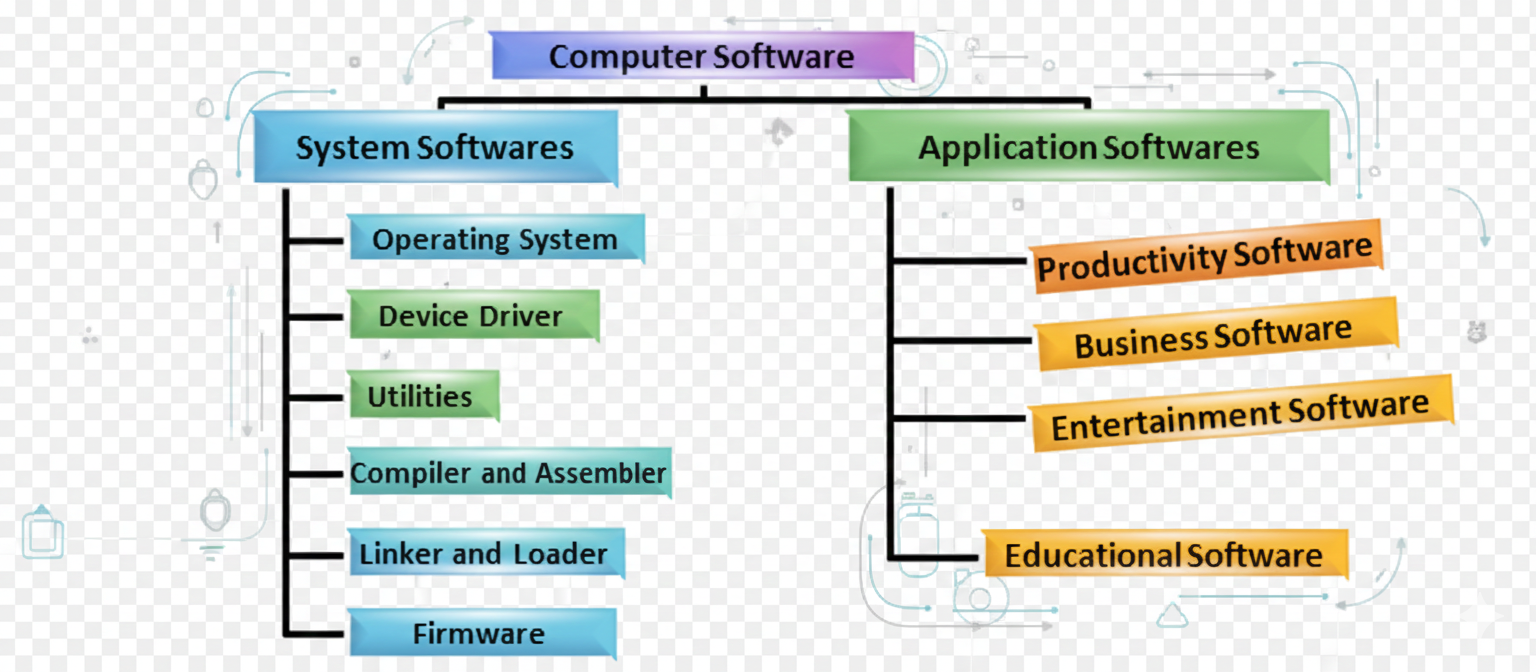
    ERQ 3: Elaborate steps and provide code to load a background image in a webpage.
    HTML Code for Specifying Image Size:
    <html>
    <head><title>Specifying Image size</title></head>
    <body>
    <img src="computer.jpg" width="350" height="220" alt="image of Faisal Mosque">
    </body>
    </html>
    ERQ 4: Define CSS (Cascading Style Sheet) and define Three ways of styling in css?
    See Q 17 & 18
    ERQ 5: Sketch steps and provide code to apply border and color to a table in a webpage.
    See Q 21
    ERQ 6: Discuss the functionality JavaScript can provide in a webpage with the help of a suitable example code,
    Its functionality includes:
    1. Dynamic Content: Update content in real-time without reloading the page.
    2. User Interaction: Respond to user events like clicks, hover, and keyboard input.
    3. Animations and Effects: Create visual effects, transitions, and animations.
    4. Data Manipulation: Store, retrieve, and manipulate data in web storage.
    5. Game Development: Create interactive games and simulations.
    See example in practical notes.
    ERQ 7: Articulate steps and write code to create a scrolling text on a webpage.
    See example in practical notes
    ERQ 8: Enlist steps to add a video clip in a website which starts playing as the web page loads.
    1. Prepare the Video File
    Ensure your video file is in a web-friendly format, such as MP4.
    2. Add the HTML Video Element
    Use the <video> element in your HTML to embed the video.
    3. Set the Autoplay Attribute
    Add the autoplay attribute to the <video> element to make the video play automatically when the page loads.
    You may also want to add the muted attribute to ensure that the video plays automatically without sound, as many browsers restrict autoplay with sound for user experience reasons.
    4. Optionally, Add Additional Attributes
    You may add other attributes like loop to make the video play in a loop, controls to provide play/pause controls, and preload to specify how the video should be loaded.
    ERQ 9: Cite steps on compiling result of your last examination in a tabular form and display it in a webpage.
    See example in practical notes
    ERQ 10: In context of Fig. 40(d), add another button namely 'Revert' which when is pressed, it will reverse both the color and index values.
    See example in practical notes
  • Multiple Choice Questions (MCQs)
    Unit 1 → Multiple Choice Questions (MCQs)
  • ACTIVITIES (Practicals)
    Unit 1 → ACTIVITIES (Practicals)
  • 4.1: Data and Analysis
    Q 1: What is difference between Data and Data Analytics?
    Data:
    ♦ It is facts, observations or information collected in different forms like numbers, words etc.
    ♦ It can be structured (processed) like tables or unstructured (unprocessed), such as videos or audio.
    ♦ Examples: In a science experiment when you record the temperatures at different times, that temperature values are data.

    Data Analytics:
    ♦ Data Analytics refers to the process of carefully examining and studying data to identify patterns, draw conclusions, or make the data meaningful.
    ♦ To analyze data, you can use mathematical calculations, statistical techniques, charts, or other tools to understand data.
    ♦ Example: When you record the temperature, after, every hour during a science experiment. You make a graph to see how the temperature changes throughout the day. By looking at the graph, you might notice that the temperature increases as time passed during the day. This information will be the result of your data analysis.
    Q 2: Define Data Science and Explain key concepts/ Components of Data Science?
    Data Science:
    Data Science is a subject that combines three main areas: mathematics, statistics, and computer science.
    The main goal of data science is to find useful information from the data we have. This data can be in any form – organized (structured) or messy (unstructured).

    Key concepts/ Components of Data Science:
    Followings are the key concepts or components of data science:

    Data:
    ♦ It is facts, observations or information collected in different forms like numbers, words etc.
    ♦ It can be structured (processed) like tables or unstructured (unprocessed), such as videos or audio.
    ♦ Examples: In a science experiment when you record the temperatures at different times, that temperature values are data.

    Dataset:
    ♦ A dataset is a collection of related data, organized in a structured format, often stored in the form of tables, spreadsheets, or databases.
    ♦ The data is usually organized into rows and columns.
    ♦ Each row is called record/ tuple/ object and each column is called attribute/ identifier/ field.
    ♦ Example: Each student's test scores in a certain class.

    Statistics and Probability:
    Statistics is the analysis of the frequency of past events and probability is to predict the possibility of future events.
    Data scientists use statistics and probability to find patterns and trends in data.

    Mathematics:
    Mathematics is a fundamental part of data science. It helps to solve problems and make decisions by simplifying complex data.

    Machine Learning:
    ♦ Machine learning is a way to teach computers how to learn from data, without writing program, so they can make predictions or decisions.
    ♦ It is like training a computer to understand and solve problems by showing it lots of examples and patterns such as pictures, words or numbers.
    ♦ For example, if you show a computer many pictures of cats, it can learn to recognize a cat in a new picture.

    Deep Learning:
    ♦ Deep learning is a type of artificial intelligence that teaches computers to learn and make decisions on their own by processing large amounts of data.
    ♦ It uses layers of artificial "neurons," similar to the brain, to recognize patterns, like identifying objects in images or understanding speech.
    ♦ The more data it has, the better it can improve its understanding and predictions over time.

    Data Mining:
    ♦ Data mining is the process of discovering patterns, trends, and useful information from large sets of data.
    ♦ This can help organizations make better decisions, predict future trends, and identify relationships within the data.
    ♦ For example, a restaurant may want to use data mining to determine which specials it should offer and on what days.

    Data Visualization:
    ♦ Data visualization is the process of turning numbers and information into pictures, like charts, graphs, and maps, to make it easier to understand and analyze.
    ♦ It helps people see patterns, trends, and insights in data by creating colorful and easy-to-understand images.
    ♦ These pictures or graphs help to tell stories about the information, making it simpler to explain and explore what the data is trying to tell us.

    Big Data:
    ♦ Big data refers to extremely large and complex sets of data that are difficult to manage, process, and analyze using traditional data processing tools.
    In email:
    ♦ Volume: Hundreds of emails stored in inboxes.
    ♦ Velocity: Rapid arrival of new emails.
    ♦ Variety: Text, attachments, and metadata.

    Predictive Analysis:
    Predictive analysis is the process of using statistical techniques, machine learning, and data mining to analyze historical data and make predictions about future events or trends.

    Natural Language Processing (NLP):
    ♦ Natural language processing (NLP) is a field of artificial intelligence (AI) that enables computers to understand and communicate with human language.
    ♦ NLP enables computers and digital devices to recognize, understand, and translate human language as it is spoken or written.
    ♦ NLP combines human languages, computer science, and machine learning to allow machines to perform tasks such as language translation, speech recognition, and chatbots.
    ♦ The goal of NLP is to bridge the gap between human languages and computer understanding.
    Q 3: Write Applications or scopes of Data Science
    Applications/Scopes of Data Science:
    Followings are the applications or scopes of data science:

    Healthcare:
    ♦ Data Science helps to track patient information and data from devices like health monitors.
    ♦ It can predict disease dangers and help doctors provide better treatments by monitoring patients in real time.

    Media and Entertainment:
    ♦ Data Science is used to understand what viewers like.
    ♦ Media companies use this data to create content that interests people and to target ads better.

    Internet of Things (IoT):
    ♦ Data Science helps IoT devices, like smart home gadgets, work better.
    ♦ It analyzes the data of these devices and makes them more personalized, like turning on lights based on user habits.

    Education:
    ♦ Schools use Data Science to customize learning experiences and predict student performance.

    Manufacturing:
    ♦ Data Science helps factories predict when machines need repair.
    ♦ It also helps in planning the supply of materials and making customized products.

    Government:
    ♦ Governments use Data Science to improve public services.
    ♦ It helps them understand what citizens need, stop fraud, and make sectors like farming and security better.
  • 4.2: Data types in Data Science
    Q 4: Develop your own thinking on the various data types used in data science.
    Data Types in Data Science
    Qualitative Data (Categorical Attributes) Quantitative Data (Numeric Data)
    Describes objects that can be labeled by categories and cannot be represented numerically.
    Examples: Colors, Places

    Subdivisions:
    i. Ordinal Data: Data with a specific order or ranking; uses a scale or measure to group data.
    Examples: Test grades (A, B, C), Economic status (low, medium, high)

    ii. Nominal Data: Data without order; labeled into mutually exclusive categories.
    Examples: Types of transportation (car, bus, train), Gender
    Deals with numerical values and can be analyzed mathematically.
    Examples: Height, Weight, Number of students

    Subdivisions:
    i. Discrete Data: Countable values that cannot be subdivided into smaller units.
    Examples: Tickets sold, Number of employees in a company

    ii. Continuous Data: Measurable values that can take any value within a range.
    Examples: Daily wind speed, Weight of newborn babies
    Q 5: What is meant by sources of data and its types and list the differences sources of data?
    Source of Data:
    Source of data refers to the various origins or channels from which data is collected or obtained for analysis.
    Types of Data Sources:
    1. Primary Data Source: Collecting original data directly from sources.
    2. Secondary Data Source: Using existing data from external sources.
    Examples of Data Sources:
    ○ Surveys and Questionnaires: Collecting data by asking questions through forms or interviews.
    ○ Interviews: Collecting data by talking directly to someone.
    ○ Experiments: Conducting tests to see how things change.
    ○ Government and Public Records: Data published by government agencies, such as census data.
    ○ Online Databases: Finding information on the internet.
    ○ Institutional Data: Data from institutions like universities or hospitals.
    Q 6: Define and Differentiate between database and dataset.
    Dataset:
    ○ A dataset is a collection of related data, organized in a structured format, often stored in the form of tables, spreadsheets, or databases.
    ○ The data is usually organized into rows and columns.
    ○ Each row is called a record/tuple/object and each column is called an attribute/identifier/field.
    Example: Each student's test scores in a certain class.
    Database:
    ○ A database is an organized collection of data, often stored in multiple tables or datasets.
    ○ In a database, each table is called a Relation.
    Example: All students’ test scores in all classes.
    Difference Between Dataset and Database
    Dataset Database
    Data is stored in a single file or table. Data is stored in multiple files or tables.
    Designed to store and manage simple/small amounts of data. Designed to store and manage complex/large amounts of data.
    Data is managed using Excel spreadsheets. Data is managed using a Database Management System (DBMS), e.g., MySQL, MongoDB.
    Q 7: Define Database Management Systems (DBMS) and its types?
    Database Management Systems (DBMS)
    ○ To perform actions on data stored in a database, we need a database management system (DBMS).
    ○ DBMS is the link between the database and the end user, providing a platform to create, modify, and retrieve data.
    ○ There are many different database management systems available, depending on the type of database being used.

    1. Relational Database Management Systems (RDBMS)
    ○ Organize data into tables with defined relationships.
    ○ Use SQL (Structured Query Language).
    Examples: MySQL, Oracle, MS-Access.

    2. Non-Relational Database Management Systems (NoSQL DBMS)
    ○ Store data in non-tabular formats.
    ○ Ideal for big data and real-time web applications.
    Examples: MongoDB, Cassandra.
    Q 8: Differentiate between Entity and Attributes?
    Entity:
    ○ An entity is anything about which you want to keep information in the database.
    ○ Example: In a “Student Information System”, entities include student, teacher, course list, time-tabling, etc.
    ○ The entity “student” can be defined in database modeling as:
    STUDENT (Student_ID, Name, Age, Grade)

    Attributes:
    ○ In a relational database, an attribute is equivalent to a column in a table.
    ○ Each column represents an attribute, and each row in the table represents a specific record or entity.
    ○ Example: In a table representing "STUDENT", attributes could include Student_ID, Name, Age, Grade, etc.
    ○ Each column corresponds to a specific attribute (like "Name" or "Age"), and the values in those columns represent the properties of individual students (rows).
    Q 9: Why were databases introduced? Write two reasons why databases have become popular in recent years? OR What is the role of database in data science?
    Why Were Databases Introduced:
    Before the advent of database systems, computer scientists relied on file management systems to store and manage data.
    However, without a structured method of storing data, it would be of little use.
    This is why databases were introduced to manage and store large amounts of data.
    The first database management system was developed in the 1960s.

    Reasons Why Databases Are Popular:
    There are two key reasons why databases have become so popular in recent years:
    ○ The rapid increase in data generation.
    ○ The dependence of data science on data.
    Q 10: Define Data Collection and its Types?
    Data Collection
    Data collection is the process of gathering and looking at information from various sources to find answers or solve problems.
    Types of Data Collection:
    1. Primary Data Collection: Collecting original data directly from sources.
    2. Secondary Data Collection: Using existing data from external sources.

    Methods of Data Collection
    Primary Data Collection Methods (Sources of Data) Secondary Data Collection Methods (Sources of Data)
    Surveys and Questionnaires
    Interviews
    Observations
    Experiments
    Focus Groups
    Sensors
    IoT Devices
    Biometric Devices
    Published Sources
    Online Databases
    Government and Institutional Records
    Surveys and Questions Conducted in Past
    Social Media Data/Posts
    Publicly Available Data
    Past Research Studies
    Q 11: Illustrate the purpose of data storage and Methods of data storage?
    Purpose of Data Storage:
    ○ Data storage is used to save information so it can be accessed and used later. It helps in keeping data safe and organized for future use.
    ○ Data storage also allows easy retrieval for analysis or sharing when needed.

    Methods of Data Storage:
    There are various data storage methods according to the nature of data as follows:
    i. Relational/NoSQL databases
    ii. Data warehouse
    iii. Distributed file systems
    iv. Cloud-based data storage
    v. Blockchain
    Q 12: What is Data Visualization?
    Data Visualization:
    ○ Data visualization is the process of turning numbers and information into pictures, like charts, graphs, and maps, to make it easier to understand and analyze.
    ○ It helps people see patterns, trends, and insights in data by creating colorful and easy-to-understand images.
    ○ These pictures or graphs help to tell stories about the information, making it simpler to explain and explore what the data is trying to tell us.
    Q 13: Why are summary statistics needed?
    Summary Statistics:
    ○ Summary statistics is information about the data in a sample to understand it better.
    ○ It may include the total number of values, mean value, standard deviation, etc.
    ○ It provides a quick overview of the characteristics of data to understand the trends, outliers, and distribution of values in a dataset.
    ○ It leads to a better understanding of data cleaning, data preprocessing, feature selection, and data visualization.
  • 4.3: Big Data
    Q 14: Express big data in your own words. Explain three V's of big data with reference to email data. (Hint: An email box that contains hundreds of emails)
    Characteristics of Big Data:
    There are five V’s of Big Data that explain the characteristics of Big Data.

    1. Volume:
    ○ Volume refers to the vast amount of data.
    ○ Big Data can generate vast amounts of data from various sources, such as social media, sensors, online transactions, and more.
    ○ Example: Facebook generates billions of messages, records likes, and uploads new posts each day.

    2. Variety:
    ○ Variety refers to the different types of data.
    ○ Big Data can be structured, semi-structured, and unstructured, collected from different sources.
    ○ The data comes in PDFs, emails, audio, videos, photos, etc.

    Types of Data:
    1. Structured Data: Organized in tables with rows and columns.
    ○ Examples: Relational databases (e.g., customer info), Spreadsheets (e.g., sales data)

    2. Unstructured Data: Not organized in tables.
    ○ Examples: Images (photos, videos), Audio files (voice recordings)

    3. Semi-Structured Data: Combines elements of structured and unstructured data.
    ○ Examples: XML files, CSV files

    4. Quasi-Structured Data: Some organizational elements but lacks strict formatting.
    ○ Examples: Emails (structured headers, unstructured body), HTML web pages with structured markup

    3. Veracity:
    ○ Veracity refers to how much data is reliable.
    ○ It involves filtering, handling, and managing data efficiently.
    ○ Example: Facebook posts with hashtags.

    4. Value:
    ○ Value is the usefulness of the data.
    ○ It is not just data we process or store, but valuable and reliable data that is meaningful and actionable.

    5. Velocity:
    ○ Velocity represents the speed at which data is generated.
    ○ It plays an important role compared to other V’s.
    ○ Velocity ensures that data is created and processed in real-time.
    ○ The primary aspect of Big Data is to provide demanding data rapidly.
    Q 15: Relate the advantages (Application of Big Data in Business) and challenges of big data?
    Advantages of Big Data (Application in Business)
    1. Product Development: Big data helps companies know what customers want, so they can create new products.
    2. Predictive Maintenance: Big data helps predict when machines will break, so repairs can be done early to avoid problems.
    3. Customer Experience: By analyzing data from many sources, companies can improve customer satisfaction.
    4. Fraud Detection: Big data identifies unusual patterns that might indicate fraud and helps prevent it.

    Challenges of Big Data
    1. Data Quality: Poor data quality can cause mistakes and problems.
    2. Data Security: Keeping big data safe from hackers is difficult.
    3. Data Growth: Managing the large and rapidly growing amount of data is challenging.
    4. Tool Selection: Finding tools that work well together can be difficult.
    5. Data Integration: Combining data from different formats and sources is challenging.
    Q 16: What is the importance of big data and explain some tools used in big data?
    Importance of Big Data Tools
    Information is essential for any company. It helps them to learn new things, plan, and grow.
    The following important tools are used:

    Apache Hadoop: It is like a computer system that is free for everyone. It helps to store and work with vast amounts of information.
    RapidMiner: It is software used by lots of companies. It helps them to sell more and spend less money.
    Q 17: What is Predictive Modeling?
    Predictive Modeling
    ○ Predictive modeling is a statistical technique that uses historical data to forecast future outcomes.
    ○ Imagine you have information about what people do, like what they buy and when.
    ○ You can use this information to create a computer program that learns from it.
    ○ Then, you can ask this program questions like, “What might happen next?” or “Is this a good plan?”.
    ○ It helps you make more intelligent choices using the knowledge you have.
    Q 18: What is Internet of Things (IoT)?
    Internet of Things (IoT)
    ○ The Internet of Things (IoT) means connecting regular things, like objects and devices, to the Internet.
    ○ This helps these things collect and share data, making them smarter.
    ○ IoT connects our natural world to the Internet, linking many devices and systems.
    ○ The main idea is to make things work efficiently by letting them share information and work together.
    Q 19: Why is data analytics important for determining the number of students who prefer various ice cream flavors in our school cafeteria?
    Data Analytics
    ○ Data analytics helps collect and study information.
    ○ It shows which ice cream flavors students like the most.
    ○ This helps the school know what to offer and avoid wasting money on flavors students don't like.
  • Short Question
    SRQ 1: Define data analytics and data science. Are they similar or different? Give reason.
    Data Analytics
    ○ Data Analytics refers to the process of carefully examining and studying data to identify patterns, draw conclusions, or make the data meaningful.
    ○ To analyze data, you can use mathematical calculations, statistical techniques, charts, or other tools to understand data.

    Data Science
    ○ Data Science is a subject that combines three main areas: mathematics, statistics, and computer science.
    ○ The main goal of data science is to find useful information from the data we have. This data can be in any form – organized (structured) or messy (unstructured).

    Similarity
    ○ Both involve working with data to discover insights and support decision-making.
    ○ Both use statistical methods and visualization tools to interpret information.

    Difference
    ○ Data analytics focuses on analyzing existing data to find trends, while data science focuses on creating models and making predictions.
    ○ Data analytics answers “What happened and why?”, whereas data science answers “What will happen and how can we make it happen?”

    Reason
    ○ They are related but not the same — data analytics is a subset of data science.
    ○ Data science covers the entire data lifecycle, while data analytics focuses mainly on analyzing and interpreting the data.
    SRQ 2: Can you relate how data science is helpful in solving business problems?
    Importance of Data Science in Solving Business Problems
    Data science is very helpful in solving business problems due to the following reasons:

    Smart Business Decisions: Data science helps businesses make smart decisions by studying past data to predict future trends.
    Manage Inventory: Data science helps manage inventory by predicting demand for specific products in certain social groups, communities, and age groups.
    Improve Logistics: Companies can use data science to improve routes, track shipments in real-time, choose carriers, and cut costs.
    Help in E-commerce: Data science suggests products to customers and helps group them for better marketing. It is also used to analyze shopping carts.
    SRQ 3: Database is useful in the field of data science. Defend this statement.
    Role of Databases in Data Science
    Yes, this statement is true because databases play a key role in data science. Here’s why:

    Data Storage and Management: Databases store large amounts of data in an organized way, making it easy for data scientists to access, manage, and update information efficiently.
    Data Retrieval and Analysis: Data scientists use databases to extract and query data using tools like SQL before performing analysis. This helps in preparing clean and structured data for machine learning and research.
    SRQ 4: Compare machine learning and deep learning, in the context of formal & informal education.
    Machine Learning
    ○ Machine learning is a way to teach computers how to learn from data, without writing programs, so they can make predictions or decisions.
    ○ It is like training a computer to understand and solve problems by showing it lots of examples and patterns such as pictures, words, or numbers.
    ○ Example: If you show a computer many pictures of cats, it can learn to recognize a cat in a new picture.

    Deep Learning
    ○ Deep learning is a type of artificial intelligence that teaches computers to learn and make decisions on their own by processing large amounts of data.
    ○ It uses layers of artificial "neurons," similar to the brain, to recognize patterns, like identifying objects in images or understanding speech.
    ○ The more data it has, the better it can improve its understanding and predictions over time.
    SRQ 5: What is meant by sources of data and Data Collection?
    Source of Data
    Source of data refers to the various origins or channels from which data is collected or obtained for analysis.
    Some of the sources of data are as follows:

    Surveys and Questions: Collecting data by asking questions through forms or interviews.
    Interviews: Talking directly to someone to gather information.
    Experiments: Conducting tests to observe changes and collect data.
    SRQ 6: Define and Differentiate between database and dataset.
    Difference Between Dataset and Database
    Dataset Database
    Data is stored in a single file or table. Data is stored in multiple files or tables.
    Designed to store and manage simple/small amounts of data. Designed to store and manage complex/large amounts of data.
    Data is managed using Excel spreadsheets. Data is managed using a Database Management System (DBMS), e.g., MySQL, MongoDB.
    SRQ 7: Argue about the trends, outliers, and distribution of values in a data set? Describe.
    Trends, Outliers, and Distribution
    Trends: Trends show how data is moving over time and reveal patterns.
    Outliers: Outliers are data points that are very different from others and may indicate mistakes or significant changes.
    Distribution: Distribution shows how data is spread out, helping to understand overall patterns.
    SRQ 8: Why are summary statistics needed?
    Summary Statistics
    ○ Summary statistics is information about the data in a sample to understand it better.
    ○ It may include the total number of values, mean value, standard deviation, etc.
    ○ It provides a quick overview of the characteristics of data to understand trends, outliers, and distribution of values in a dataset.
    ○ It leads to a better understanding of data cleaning, data preprocessing, feature selection, and data visualization.
    SRQ 9: Express big data in your own words. Explain three V's of big data with reference to email data. (Hint: An email box that contains hundreds of emails)
    Big Data
    Big data refers to extremely large and complex sets of data that are difficult to manage, process, and analyze using traditional data processing tools.

    Three V’s of Big Data (with reference to email data)
    Volume: Volume refers to the vast amount of data.
    Example: Hundreds of emails stored in inboxes.

    Variety: Variety refers to the different types of data.
    Example: Text, attachments, and metadata.

    Velocity: Velocity represents the speed at which data is generated.
    Example: Rapid arrival of new emails.
    SRQ 10: Illustrate the purpose of data storage and Methods of data storage?
    Purpose of Data Storage
    ○ Data storage is used to save information so it can be accessed and used later. It helps in keeping data safe and organized for future use.
    ○ Data storage also allows easy retrieval for analysis or sharing when needed.
  • Long Question
    ERQ 1: Sketch the key concepts of data science in your own words.
    See Q 2
    ERQ 2: Develop your own thinking on the various data types used in data science.
    Types of Data
    Structured Data: Structured data is organized in tables with rows and columns.
    Examples:
    • Relational databases (e.g., customer info)
    • Spreadsheets (e.g., sales data)
    My view: Structured data is easy to store, search, and analyze — it forms the base for statistical and machine learning models.

    Unstructured Data: Unstructured data is not organized in tables with rows and columns.
    Examples:
    1. Images (e.g., photos, videos)
    2. Audio files (e.g., voice recordings)
    My view: Though harder to manage, unstructured data gives richer insights because it reflects real human communication and behavior.

    Semi-Structured Data: Semi-structured data combines elements of both structured and unstructured data.
    Examples:
    1. XML (Extensible Markup Language) files
    2. CSV (Comma Separated Values) files
    My view: Semi-structured data helps connect different sources of information and is very useful in web-based data systems.

    Quasi-Structured Data: Quasi-structured data combines elements of structured and unstructured data, with some organizational elements, but lacks strict formatting.
    Examples:
    1. Emails (structured headers, unstructured body)
    2. HTML web pages with structured markup
    ERQ 3: Compare how big data is applicable to various fields of life. Illustrate your answer with suitable examples.
    See Q 3
    ERQ 2: Develop your own thinking on the various data types used in data science.
    ERQ 4: Relate the advantages (Application of Big Data in Business) and challenges of big data?
    Advantages of Big Data (Application in Business)
    Product Development: Big data helps companies know what customers want, so they can create new products.
    Predictive Maintenance: Big data helps predict when machines will break, so repairs can be done early to avoid problems.
    Customer Experience: By looking at data from many sources, companies can improve customer satisfaction.
    Fraud Detection: Big data finds unusual patterns that might indicate fraud and helps prevent it.

    Challenges of Big Data
    Data Quality: If the data is not good, it can cause mistakes and problems.
    Data Security: Keeping big data safe from hackers is hard.
    Data Growth: It’s difficult to manage the large and growing amount of data.
    Tool Selection: It is hard to find tools that work well together.
    Data Integration: Combining data from different formats is challenging.
    ERQ 5: Design a case study about how data science and big data have revolutionized the field of healthcare.
    Case Study: Revolutionizing Healthcare with Data Science and Big Data
    Background
    The healthcare industry generates massive amounts of data, from patient records to medical imaging. Utilizing data science and big data has transformed patient care, research, and operations.

    Application
    Predictive Analytics: Machine learning models predict disease outbreaks or patient deterioration.
    Personalized Medicine: Analyzing genetic data to recommend targeted treatments.
    Operational Efficiency: Optimizing hospital workflows and resource allocation.

    Example
    A major hospital chain implemented an AI-based system to predict sepsis, a life-threatening condition. Using patient data like heart rate, blood pressure, and temperature, the model identifies at-risk patients early, reducing mortality rates by 20%.

    Challenges
    ○ The project faced hurdles like data integration from multiple systems.

    Outcome
    The adoption of data science and big data improved patient outcomes, reduced costs, and set a precedent for other hospitals.
    ERQ 6: Write the Principles of Data Science?
    Principles of Data Science
    Data science is based on several key principles that guide how data is collected, processed, analyzed, and used to make decisions. The main principles are:

    Data Collection: Gather accurate, relevant, and sufficient data from reliable sources. Poor data leads to poor results.
    Data Cleaning and Preparation: Remove errors, duplicates, and missing values so that the data is ready for analysis. Clean data ensures accuracy and reliability.
    Data Analysis: Apply statistical methods, algorithms, and visualization tools to discover patterns, trends, and relationships in the data.
    Data Visualization: Present the analyzed data through charts, graphs, or dashboards to make it easy to understand and communicate insights.
    Data Interpretation and Decision-Making: Draw meaningful conclusions from the results and use them to support decisions or predict future outcomes.
    Ethical Use of Data: Handle data responsibly, ensuring privacy, security, and fairness. Avoid misuse or bias in data analysis.
  • Multiple Choice Questions (MCQs)
  • ACTIVITIES (Practicals)
    Unit 1 → ACTIVITIES (Practicals)
  • 5.1: Artificial Intellegence and Machine learning
    Q1. What is Artificial Intelligence (AI) and write positive impact of AI in our daily life?
    Artificial Intelligence (AI)
    Artificial Intelligence (AI) means making machines think and act like humans. It involves using different ways and tools to help machines do tasks that usually need human thinking. AI can learn from information, adapt as things change, and decide based on what it has learned.

    Positive Impact of AI in Our Daily Life
    The following are some positive impacts/benefits of AI in our daily life:

    ○ AI-based systems make correct decisions, help solve complex problems efficiently, and increase output.
    ○ AI systems used in hospitals provide better diagnosis and treatment of diseases at an early stage, such as cancer.
    ○ AI helps in designing and producing high-quality products and increasing production in a safe environment.
    ○ AI assists in travel and transportation by suggesting the shortest routes for drivers and providing real-time traffic updates.
    ○ AI helps in developing better learning software and introducing new teaching techniques.
    ○ AI-based assistants such as Siri and Alexa suggest products by monitoring our browsing habits.
    ○ AI provides better security against cyber-attacks.
    Q2. Define Machine Learning and explain how machine learning works?
    Machine Learning
    ○ Machine learning is a way to teach computers how to learn from data, without writing programs, so they can make predictions or decisions.
    ○ It is like training a computer to understand and solve problems by showing it lots of examples and patterns such as pictures, words, or numbers.

    How Machine Learning Works
    Machine learning works in the following steps:

    Data Collection: The system gathers data (for example, pictures, numbers, or text).
    Example: Collecting photos of cats and dogs.

    Data Preparation: The data is cleaned and organized so that the computer can understand it.

    Training the Model: The computer is given the data and learns patterns from it using algorithms.
    Example: It learns what features make a cat different from a dog.

    Testing the Model: The model is tested with new data to see how well it can make predictions.

    Making Predictions: Once trained, the model can identify or predict new things on its own.
    Example: It can now correctly tell whether a new picture is a cat or a dog.
    Q3. Explain its types (Differentiate between supervised and unsupervised machine learning).
    Supervised Learning Unsupervised Learning
    In supervised learning, the model is trained on labeled data. This means that each input comes with the correct output.
    Supervised learning uses labeled data to predict known outputs.
    Example: Like a teacher showing labeled examples (e.g., "This is a cat"). The model learns from labeled data to make predictions.
    In unsupervised learning, the model is trained on data without any labels. The model must find patterns or groupings on its own.
    Unsupervised learning finds patterns in unlabeled data without specific guidance.
    Example: Like grouping puzzle pieces by color and shape without labels. The model finds patterns on its own.
    Q4. Compare traditional algorithms and AI-based algorithms that use machine learning. Criticize AI-based algorithms for producing wrong results, at times.
    Traditional Algorithms AI-based Algorithms (Machine Learning)
    They use fixed rules and sequences and are suitable for well-defined problems.
    They are not adaptable to new and unseen problems.
    AI-based algorithms can make mistakes due to poor or biased data.
    They learn from data and improve over time and can handle complex problems.
    They need more training data to perform well; less data may result in bias.
    They might perform well on training data but fail with new data if they overfit. Additionally, their decision-making process is often unclear, making it hard to find and fix errors.
    Q5. Write some harms or disadvantages of AI algorithms.
    Harms or Disadvantages of AI Algorithms
    ○ AI algorithms are developed by humans who can intentionally or unintentionally introduce bias in them. These algorithms can produce biased results.
    ○ Driverless/self-driving cars can have accidents, showing how AI algorithms can cause harm or death.
    ○ Errors in AI algorithms in healthcare systems can output inaccurate information. For example, an AI system can recommend the wrong medicine for a patient, which can be very harmful.
    ○ Hackers can develop powerful AI algorithms to bypass cybersecurity and cause serious cyber attacks.
    ○ AI-based automation can lead to job losses in many areas such as automobile manufacturing, business, education, healthcare, agriculture, etc.
    ○ Dependence on AI systems can cause loss of creativity and critical thinking skills in humans.
    Q6. What ethical issues arise due to the usage of AI tools? OR Describe the negative impact of AI in our daily life.
    Common Ethical Issues in AI Tools
    Privacy: AI needs lots of data to learn, some of which includes private information about people. People worry about who can access this data and how they might use it.
    Security: Keeping AI safe is very important. Evil people might try to attack AI systems, causing problems. For example, they might hack into self-driving cars or security cameras, making them do the wrong things.
    Making People Lazy: AI may do repetitive tasks, so people might rely on it too much and stop using their brains for these tasks. This could be a problem for future generations.
    Ethical Concerns: AI can be misused for bad purposes, like making fake videos. This raises serious ethical issues.
    Not Creative: AI can write reports using given information. No creativity is involved in this process.
    Job Loss: AI can do tasks that humans used to do, leading to unemployment in some industries.
    Q7. Write a note on:a) ChatGPT b) Lovo AI c) Virtual Assistants
    AI Tools and Applications
    ChatGPT: ChatGPT, which stands for Chat Generative Pre-trained Transformer, is an AI model developed by OpenAI, a prominent American research lab in artificial intelligence. OpenAI has created this tool to assist users by generating text-based responses that are coherent, informative, and helpful in completing various tasks.
    Grammarly: Grammarly is an AI-based tool for correcting grammar, spelling, and style issues, helping users improve their writing quality. Users paste their text into Grammarly, which checks for errors and suggests improvements.
    Lovo AI: Lovo AI is an AI-powered tool that converts text into realistic speech. It is recognized as one of the most accurate text-to-speech generators available online, using advanced AI techniques to match the best voice for your text.
    Virtual Assistants: A virtual assistant is an AI-powered application that understands natural language and interacts with users to perform tasks. Popular virtual assistants include Siri, Alexa, Google Assistant, ChatGPT, and Cortana. Virtual assistants have become part of our daily life.
  • 5.2: different Areas of AI
    Q8. Describe different areas of AI.
    Different Areas of Artificial Intelligence (AI)
    1. Speech Recognition:
    Speech Recognition is the process of converting spoken language into text. This technology enables devices and applications to understand and respond to human speech, which has many practical applications.
    Advantages:
    ○ These include dictating text into a computer instead of typing it to save time.
    ○ It is used by virtual assistants like Siri and Alexa.
    ○ It is also very helpful for people who have physical disabilities in typing on the keyboard.
    Disadvantages:
    ○ People have different pronunciation and this may make it difficult for the speech recognition system to understand all the words.
    ○ Due to lack of accuracy in communication, some users may hesitate to use it.

    2. Computer Vision:
    Computer vision is a field of artificial intelligence (AI) that enables computers and machines to see, recognize, and understand images or videos just like humans do. It involves using cameras, sensors, and algorithms to identify objects, people, or patterns in visual data.
    Application/Advantages:
    ○ Manufacturing and Quality Control: Inspect products in factories, detecting defects in real-time, ensuring higher accuracy and speed than human inspection.
    ○ Self-Driving Vehicles: Helps vehicles understand surroundings, enabling safe driving without human input.
    ○ Retail and Inventory Management: Tracks product stock in stores and warehouses, automating inventory checks.
    ○ Healthcare: Assists doctors in analyzing medical images like X-rays or MRIs to detect abnormalities early.
    ○ Security: Facial recognition and inspection systems enhance safety in high-risk areas like airports and borders.

    3. Natural Language Processing (NLP):
    ○ NLP is a field of AI that enables computers to understand and communicate with human language.
    ○ It allows computers and digital devices to recognize, understand, and translate human language as it is spoken or written.
    ○ Combines human languages, computer science, and machine learning to perform tasks such as language translation, speech recognition, and chatbots.
    ○ The goal of NLP is to bridge the gap between human languages and computer understanding.
    Applications of NLP:
    ○ Translation: Machine translation tools (e.g., Google Translate) and real-time translation apps.
    ○ Sentiment Analysis: Social media monitoring and customer feedback.
    ○ Text Summarization: Summarizes lengthy documents, news, and reports.
    ○ Speech Recognition: Converts speech to text.
    ○ Text Classification: Identifies spam and harmful content in documents.

    4. Expert Systems:
    Expert system is an interactive AI-based computer program designed to solve complex problems. It has decision-making ability like human experts and uses knowledge and reasoning to find solutions of problems related to a specific area.
    Applications of Expert Systems:
    ○ Diagnosis in hospitals such as cancer detection.
    ○ Loan analysis and fraud detection in finance industry.
    ○ Cyber security.
    ○ Designing and manufacturing of products such as automobiles.
    ○ Planning and scheduling projects.
    ○ Monitoring operation of a plant.
  • 5.3: Application of of AI
    Q9. Write different applications of AI in different areas/domains? OR Problems an AI (Artificial Intelligence / Machine Learning) can solve in different areas.
    Applications of AI in Different Areas
    Robotics:
    ○ Robotics is a computer-controlled machine that can perform specific tasks with little or no human intervention. A robot contains sensors, cameras, microphones, control systems, etc.
    ○ Robots can work underwater to study sea life or check underwater objects.
    ○ Robots can help in dangerous situations like fires or disasters.
    ○ Robots can build and move heavy things at construction sites.

    Healthcare:
    ○ AI assists doctors in diagnosing diseases early, suggesting treatment plans, and improving patient health.
    ○ It monitors patient real-time data like heart rate, blood pressure, temperature, etc.
    ○ It can scan harmful substances and bacteria in blood samples.

    Education:
    ○ AI helps students learn and understand concepts better.
    ○ AI helps teachers grade students' assignments, examinations, and essays.
    ○ AI helps educational administrators schedule courses, create timetables, and analyze student data for better decisions.
    ○ AI can help university administration review student enrollment applications for admission.

    Gaming:
    ○ AI gaming refers to using AI in video games to create realistic, interactive, and immersive experiences.
    ○ AI helps to test games and adjust difficulty for players.
    ○ Many video games, such as car racing, shooting, and adventure games, are developed using AI.

    Agriculture:
    ○ AI in agriculture uses modern techniques to help farmers produce high-quality crops and increase efficiency.
    ○ AI scans images of insects that attack crops and livestock to detect and prevent disease.
    ○ AI-based drone technology is used for efficient pesticide spraying.
    ○ AI helps farmers decide when to plant and water crops to reduce waste and increase yield.

    Self-Driving Cars:
    ○ AI is used to build self-driving cars.
    ○ Self-driving cars use AI software connected with sensors, cameras, and radars to travel without a driver.
    ○ Many automobile companies, including BMW, Tesla, and General Motors, are developing self-driving cars.

    Business:
    ○ AI is widely used in business, especially in e-commerce, marketing, and management.
    ○ AI improves customer service, boosts business growth, and increases revenue.
    ○ AI also plays a role in cybersecurity, smart pricing, and automated recruitment.

    Defense:
    ○ AI detects threats from hackers and prevents unauthorized access.
    ○ AI improves supervision and develops advanced arms and ammunition.
    ○ AI trains soldiers using computer-simulated wars.

    Chatbots:
    A chatbot is a computer program that can talk or chat with people like a human. It uses AI and NLP to understand users and respond helpfully.
    Examples:
    ○ Customer service bots on websites that answer questions.
    ○ Virtual assistants like ChatGPT, Siri, or Alexa that help users by voice or text.
    Uses of Chatbots:
    1. Answer customer questions quickly.
    2. Provide 24/7 support on websites.
    3. Help in online shopping by suggesting products.
    4. Assist in education by helping students learn and practice.
  • 5.4: Cloud computing
    Q10. Define Cloud Computing. Categorize the benefits of cloud computing. Contrast between public, private, and hybrid clouds.
    Cloud Computing
    Definition:
    Cloud computing is a technology that enables users to access and store data, applications, and computing services over the internet instead of relying on local servers or personal devices.

    Benefits of Cloud Computing:
    Saving Money: Organizations can avoid the costs associated with purchasing hardware and software by utilizing cloud services.
    Going Faster: The cloud improves internet speed and ensures smooth operations even during failures.
    Keeping Things Safe: Cloud ensures information security and protects data from malicious activities.
    Working from Anywhere: The cloud allows access from any location using devices like phones or tablets.
    Working Together and Doing Better: Cloud-based tools allow multiple users to work on projects simultaneously in real-time.
    Security: Leading cloud providers implement advanced security protocols to protect sensitive information.

    Types of Cloud:
    Public Cloud: Resources like servers, software, and storage are owned and operated by a cloud service provider. High-speed connectivity ensures rapid access to applications and data.
    Private Cloud: Resources are owned and used by a single organization, which manages and maintains the infrastructure. Provides more control over servers and networks.
    Hybrid Cloud: A combination of public and private cloud. It allows data and applications to be shared between them efficiently.
  • Short Question
    SRQ 1: Briefly describe the positive impact of AI in our daily life.
    Positive Impact of AI in Our Daily Life
    The following are some positive impacts / benefits of AI in our daily life: -
    Correct Decision Making: AI-based systems make correct decisions and help us solve complex problems efficiently, increasing output.
    Healthcare Improvements: AI systems in hospitals provide better diagnosis and treatment of diseases at early stages, such as cancer.
    Product Design and Production: Helps in designing high-quality products and increasing production safely.
    Travel and Transportation: Suggests shortest routes for drivers and informs about traffic conditions in real time.
    Education: Helps develop better learning software and introduces new teaching techniques.
    AI Assistants: Usage of AI-based assistants such as Siri and Alexa to suggest products by monitoring browsing habits.
    Cybersecurity: Provides better security against cyber-attacks.
    Innovation: Enables new innovations in developing intelligent computer software.
    SRQ 2: Differentiate between supervised and unsupervised machine learning.
    Supervised Learning Unsupervised Learning
    In supervised learning, the model is trained on labeled data. This means that each input comes with the correct output.
    Supervised learning uses labeled data to predict known outputs.
    Like a teacher showing labeled examples (e.g., "This is a cat"). The model learns from labeled data to make predictions.
    In unsupervised learning, the model is trained on data without any labels. The model must find patterns or groupings on its own.
    Unsupervised learning finds patterns in unlabeled data without specific guidance.
    Like grouping puzzle pieces by color and shape without labels. The model finds patterns on its own.
    SRQ 3: Describe how computer vision applications help in automation of tasks.
    Applications of Computer Vision
    There are following applications of computer vision in various areas: -
    Manufacturing and Quality Control: Computer vision systems in factories can inspect products, detecting defects in real-time. This automation ensures higher accuracy and speed compared to human inspection.
    Self-Driving Vehicles: Computer vision helps vehicles understand their surroundings, enabling safe driving without human input.
    Retail and Inventory Management: In stores and warehouses, computer vision tracks product stock and alerts when shelves need restocking. This automation reduces manual checking, making inventory management faster and more accurate.
    Healthcare: Computer vision assists doctors in analyzing medical images like X-rays or MRIs to detect abnormalities (e.g., tumors) early. This automation speeds up diagnosis and improves patient care.
    Security: Computer vision helps in facial recognition and inspection systems. It enhances safety in high-risk areas like airports and borders by identifying suspicious activities and unauthorized access.
    SRQ 4: Compare the use of Natural Language Processing with computer languages for interaction with computers and write the areas of application of Natural Language Processing.
    Natural Language Processing (NLP) Computer Languages
    • NLP allows computers to understand and respond to human language, like English or Spanish, making interactions more natural and intuitive.
    • User-friendly for non-technical users.
    • Used for tasks like voice recognition and translation.
    • Requires users to write code using programming languages such as Python, Java, or C++ to perform specific tasks.
    • Requires technical knowledge.
    • Used for writing software and applications.
    SRQ 5: What is a robot? Mention four areas where robots can replace humans that are not mentioned in this unit.
    Robotics
    • Robotics is a computer-controlled machine that can perform specific tasks with little or no human intervention. A robot is a machine that contains sensors, cameras, microphones, control systems, etc.

    Four Areas Where Robots Can Replace Humans
    • Robots can work underwater to study sea life or check underwater objects.
    • Robots can help in dangerous situations like fires or disasters.
    • Robots can build and move heavy things at construction sites.
    • Robots can enter collapsed buildings, fire zones, or radioactive areas to search for survivors.
    SRQ 6: Is the use of Grammarly AI tool a perfect replacement for manual proofreading?
    Use of Grammarly AI Tool
    • No, the use of Grammarly AI tool is not a perfect replacement for manual proofreading.
    • While Grammarly helps detect grammar, spelling, and punctuation errors quickly, it cannot fully understand context, tone, creativity, or complex meanings like a human can.
    • Manual proofreading ensures accuracy, clarity, and style that AI might miss.
  • Long Question
    ERQ 1: Relate how AI can be beneficial in education and business.
    Applications of AI in Education
    • Personalized Learning: AI helps create custom learning plans for each student based on their progress and needs.
    • Smart Tutoring Systems: Virtual tutors or chatbots can help students 24/7, answer questions, and explain lessons.
    • Automatic Grading: AI can check assignments, quizzes, and exams quickly, saving teachers’ time.
    • Improved Accessibility: AI tools help students with disabilities — for example, speech-to-text for hearing-impaired students.
    • Data Analysis for Teachers: AI analyzes student performance and helps teachers identify weak areas for better teaching.
    Applications of AI in Business
    • Better Decision-Making: AI analyzes large data sets and helps companies make smart business choices.
    • Customer Support: AI chatbots provide instant help to customers, improving satisfaction.
    • Sales and Marketing: AI predicts what customers want and helps in targeted advertising.
    • Automation of Work: AI performs repetitive tasks automatically, saving time and money.
    • Fraud Detection and Security: AI detects unusual activities or transactions, protecting businesses from fraud.
    ERQ 2: Articulate how AI-based technology can improve healthcare professionals and assist farmers to increase crop production.
    1. Applications of AI in Healthcare
    • Disease Detection: AI can analyze X-rays, CT scans, or MRI images to detect diseases like cancer or pneumonia early.
    • Patient Monitoring: AI-powered devices track heart rate, blood pressure, and sugar levels, helping doctors monitor patients remotely.
    • Drug Discovery: AI helps in finding new medicines quickly by analyzing medical data.
    • Virtual Health Assistants: Chatbots or AI apps can remind patients to take medicine and answer health questions anytime.
    2. Applications of AI in Agriculture (Farming)
    • Crop Monitoring: AI drones and sensors check crop health, detect diseases, and suggest treatments.
    • Weather Prediction: AI predicts rain, drought, or storms, helping farmers plan the best time to plant or harvest.
    • Soil Analysis: AI tools test soil quality and nutrients, guiding farmers on which crops to grow.
    • Automated Farming: AI machines help in planting, watering, and harvesting crops automatically.
    ERQ 3: Categorize the benefits of cloud computing and contrast between public, private, and hybrid clouds.
    See Q 10
    ERQ 4: Compare between traditional algorithms and AI-based algorithms that use machine learning and criticize AI-based algorithms for producing wrong results at times.
    See Q 5
    ERQ 5: What ethical issues arise due to the usage of AI tools such as ChatGPT, Lovo AI, and Virtual Assistants?
    • Privacy concerns: AI tools may collect and store user data, risking misuse or leaks of personal information.
    • Bias and fairness: AI systems can produce biased results based on the data they are trained on.
    • Misinformation: Tools like ChatGPT may generate false or misleading information.
    • Job displacement: Increased use of AI may reduce human employment opportunities.
    • Dependence on technology: Overreliance on virtual assistants can reduce human decision-making and critical thinking.
    • Intellectual property issues: Voice or text generated by AI (like Lovo AI) may copy or imitate others’ creative work without permission.
  • Multiple Choice Questions (MCQs)
  • ACTIVITIES (Practicals)
    Unit 1 → ACTIVITIES (Practicals)
  • 6.1: Safe and Responsible Use of Computer
    Q1. What are the fundamental principles of safe and responsible use of computers?
    How to Use Computers Safely and Avoid Online Cheating:
    Keep System Updated: Regularly update your computer’s operating system, software, and antivirus.

    Use Strong and Unique Passwords: Create complex passwords with letters, numbers, and symbols.

    Be Careful with Emails: Don’t click on links in emails you weren’t expecting. Check if the link looks real.

    Backup Your Data: Save copies (i.e. backup) of important files on an external drive or cloud storage. This protects your data in case of computer failure or theft.

    Use Secure Wi-Fi Connections: Protect your Wi-Fi with strong passwords and avoid using public Wi-Fi for sensitive activities like online banking.

    Be Careful What You Download: Only download files and apps from trusted sources. Be cautious with email attachments from unknown senders.

    Adjust Privacy Settings: Set privacy settings on social media and apps to limit what personal information is shared publicly. Secure your computer physically by locking it when not in use.

    Practice Safe Online Shopping and Banking: Use websites with "https://" and a padlock symbol for online transactions. Avoid sharing unnecessary personal details.

    Be Careful on Social Media: Don’t share too much personal info on social media. Only accept friend requests from people you know.
  • 6.2: Responsible use of Hardware and Software
    Q2. Write fundamental principles of responsible hardware use OR write computer hardware safety precautions OR identify the precautions that need to be taken to ensure the physical safety of computers.
    Precautions to Keep Your Computer Safe (Responsible Hardware Use):
    1. Proper Placement: Keep your computer on a stable surface to prevent it from falling.

    2. Keep Liquids Away: Avoid drinks or liquids near your computer to prevent spills that could damage it.

    3. Keep It Clean: Dust and dirt can damage the computer, so clean it regularly.

    4. Prevent Overheating: Make sure your computer has enough space for air to flow. Use cooling pads if you use a laptop.

    5. Backup Power Supply: Use backup power supply to keep your computer safe from sudden power increase.

    6. Physical Security: Lock your computer in public places to prevent theft. Keep portable devices in safe places.

    7. Cable Management: Keep cables neat and out of the way to prevent tripping or unplugging.

    8. Backup Data: Save your important files in case the computer breaks.
    Q3. Write fundamental principles of responsible software use OR write principles of responsible software use like observing the law, privacy and data property, proper licensing, and user education.
    Fundamental Principles of Responsible Software Use:
    Responsible software use means using computer programs in a legal, ethical, and safe way. The following are the main principles:

    1. Observing the Law:
    Always follow software laws and rules. Do not copy, share, or install software illegally. Using pirated software is against the law and can cause security risks.
    Example: Buying genuine Microsoft Office instead of downloading a cracked version.

    2. Ethical Use:
    Use software in a fair and honest way. Do not harm others, spread false information, or use software for illegal or unfair activities.
    Example: Avoid using editing software to create fake or misleading images or videos.

    3. Privacy and Data Protection:
    Respect the privacy of others and protect personal data. Do not use software to steal, share, or misuse someone’s information.
    Example: Avoid installing unknown apps that collect personal data without permission.

    4. Respect for Intellectual Property:
    Give credit to the creators of software and avoid copying their work without permission. Software is the property of its developers.
    Example: Not copying or modifying someone else’s code without their consent.

    5. Proper Licensing:
    Use only properly licensed software. Software licenses show how and where the program can be used legally.
    Example: Reading and accepting a software license agreement before installing it.

    6. User Education:
    Users should be educated about safe and legal software practices. Knowing how to update, use, and protect software helps prevent misuse and data loss.
    Example: Learning about antivirus software, updates, and safe downloading habits.

    7. Security and Maintenance:
    Keep software updated to protect against viruses, errors, and hackers. Secure software ensures data safety and system performance.
    Example: Regularly updating your operating system and antivirus software.
    Q4. What is irresponsible software use?
    Irresponsible Software Use:
    Irresponsible software use includes using programs to do the following:

    1. Using Unlicensed or Pirated Software
    2. Sharing or Distributing Software Illegally
    3. Ignoring Software Security Practices
    4. Misusing Software in Organizations
    5. Violating Software Terms of Use
  • 6.3: Safe use of Digital Platform
    Q5. Judge the meaning of using software legally and ethically OR what is the appropriate and responsible use of software OR safe use of software OR precautions for the use of software.
    Using Software Legally and Ethically:
    Using software legally and ethically means following the rules and being responsible with how you use, share, and get software.
    Following points will help for appropriate and responsible use of software:

    1. Legal Use:
    • Always get software legally by buying it or using free versions.
    • Don’t use pirated or illegal copies of software.
    • Follow the rules that come with the software.

    2. Ethical Use:
    • Don’t invade others’ privacy by using software to steal personal information.
    • Use software in ways that don’t harm others or cause problems.
    • Don’t cheat in games or school using software.
    • Only share software if you’re allowed to.

    3. Responsible Use:
    • Keep your software safe by updating it and using antivirus programs.
    • Make sure your internet protection and firewalls are always working and up to date.

    4. Respect for Creators:
    • Always give credit to the people who made the software.
    • Don’t change or share software without permission.
    Q6. What is safe use of digital platforms?
    Safe Use of Digital Platforms:
    • Always use strong passwords and keep them private.
    • Do not share personal information (like your address or phone number) online.
    • Be kind and respectful to others on social media and messaging apps.
    • Don’t click on unknown links or talk to strangers online.
    • Use privacy settings to control who can see your posts.
    Q7. What is safe use of data searches?
    Safe Use of Data Searches:
    • Use trusted websites for information (like .org, .gov, or .edu).
    • Don’t believe everything you read—check from more than one source.
    • Be careful not to enter personal details on unknown websites.
    • Use safe search settings to block harmful or adult content.
    • Avoid downloading files or images from unsafe or unknown sites.
    Q8. What is safe use of social networking OR sketch the positive impacts of social networking in today’s society.
    Positive Impacts of Social Networking:
    Global Connectivity: It helps to connect with people and build relationships with others.
    Education: It allows people to learn and share knowledge online.
    Real-Time Information: It gives real-time information about current news and events.
    Community Building: It brings people together who have similar interests and goals.
    Q9. What are some important computer-related laws?
    Laws for Safe Use of Computers and Internet:
    These laws are made to keep people safe when using computers and the internet. Examples include:
    Cybercrime Laws: To stop online crimes like hacking and fraud.
    Data Protection Laws: To protect your personal data online.
    Anti-Piracy Laws: To stop illegal copying of software, movies, and music.
    Computer Misuse Act (UK): Stops hacking and other misuse of computer systems.
  • 6.4: Laws to protect user Privacy and Intellectual Property
    Q10. How do computer-related laws protect user privacy, intellectual property, and prevent unauthorized use of data or software?
    User Privacy:
    • These laws protect personal information shared online or on digital platforms.
    • Companies must keep your data (like name, email, or location) safe and private.
    • You have the right to know what data is collected and how it is used.
    Example: GDPR (General Data Protection Regulation) in Europe.

    Intellectual Property:
    • These laws protect original work like music, videos, software, books, and images.
    • It means you cannot copy, share, or use someone else's work without permission.
    Example: Copyright Law, Patent Law, and Trademark Law.

    Prevention of Unauthorized Use:
    • These laws stop people from hacking, stealing passwords, or using data or software without permission.
    • It is illegal to install or use pirated software or to break into someone else’s system.
    Q11. Briefly explain computer-related laws.
    Computer-Related Laws:
    Computer-related laws are rules and regulations designed to protect individuals, organizations, and governments from misuse of computers and digital technologies.
    These laws ensure ethical and legal use of computer systems, data, and networks.

    Key Areas:
    1. Cybercrime Laws: Prevent and punish crimes like hacking, identity theft, cyberbullying, and online fraud.
    2. Data Protection and Privacy Laws: Protect personal information from unauthorized access, misuse, or sharing.
    3. Intellectual Property Laws: Safeguard software, digital content, and innovations from illegal copying or piracy.
    4. Electronic Transactions Laws: Provide legal recognition to digital contracts, e-signatures, and online business activities.
    5. Computer Misuse Acts: Prohibit unauthorized access, data alteration, or damage to computer systems.
  • 6.5: Computing Innovation
    Q12. What is computing innovation?
    Computing Innovation:
    Computer innovation means creating and using new ideas and technologies in the computer world.
    It helps to solve problems, improves things, and radically changes different areas.

    Examples of Computing Innovations:
    • Smart phones and mobile apps.
    • Artificial intelligence and machine learning applications.
    • Cloud computing services.
    Q13. Explain the importance of computing innovation in hardware advancements, software development, emerging technologies, and human-computer interaction (HCI).
    Importance of Computing Innovation:
    Computing innovation is important because it helps in improving technology, increasing efficiency, and making communication and problem-solving faster and smarter.
    Its importance can be seen in the following areas:

    1. Hardware Advancements:
    Innovations in hardware make computers faster, smaller, and more powerful. New devices use less energy and provide better performance.
    Example: The invention of microprocessors, SSDs (Solid-State Drives), and lightweight laptops has improved speed and storage capacity.

    2. Software Development:
    Innovative software allows users to perform complex tasks easily and safely. New programming tools, apps, and operating systems help improve productivity and creativity.
    Example: Operating systems like Windows 11 or Android, and apps like Microsoft Office or Photoshop, are results of software innovation.

    3. Emerging Technologies:
    Computing innovation leads to the creation of modern technologies such as Artificial Intelligence (AI), Robotics, Virtual Reality (VR), and the Internet of Things (IoT).
    Example: AI tools like ChatGPT, self-driving cars, and smart home devices are products of emerging technology innovation.

    4. Human-Computer Interaction (HCI):
    Innovations in HCI make it easier and more natural for people to communicate with computers through touch, voice, or gestures.
    Example: Touchscreen phones, voice assistants like Alexa or Siri, and VR headsets improve the way humans interact with machines.
    Q14. Write the positive or beneficial impacts of computing innovation on society and the environment.
    Positive Effects / Benefits of Computing Innovation:
    1. Solving Problems: Computing innovation helps find new ways to solve difficult problems. Whether in medicine, finance, logistics, manufacturing, or scientific research, it makes problem-solving easier.

    2. Helping Economics Grow: Countries and businesses that invest in computing innovation perform better. It creates new jobs and businesses and strengthens the economy.

    3. Making Technology for Everyone: Computing innovation makes technology more accessible and affordable, allowing everyone to use computers and gadgets.

    4. Changing Our Lives: Computing innovation makes daily life easier. It helps with everyday tasks, like shopping online or using voice-activated assistants.

    5. Education Advancement: Computing innovations enable online learning and easy knowledge sharing. They help students and teachers find information quickly.

    6. Medical Advancement: Computing innovations have greatly improved medicine. They allow doctors to consult patients online and conduct medical research efficiently.

    7. Transportation Advancement: Innovations in computing have led to self-driving vehicles, making transportation safer and more efficient.

    8. Connectivity Advancement: Social media, video conferencing tools, and 5G networks help people connect and collaborate globally.

    9. Entertainment Advancement: Innovations in gaming, virtual reality, and digital art have transformed how people create and enjoy content.

    10. Information Access: The internet provides easy access to a vast amount of information for education, research, and daily life.
    Q15. Write the negative or harmful impacts of computing innovation on society and the environment.
    Negative Effects of Computing Innovation:
    Here are some of the harmful effects of computing innovation:

    Harmful Effects on Security / Privacy:
    Privacy Issues: Personal data (like photos or location) might be collected and shared without permission. Excessive monitoring by governments or companies can feel unfair or unsafe.
    Hacking: Hackers can break into computers or accounts to steal money or private information.
    Cyberbullying: People can bully or harass others online, causing emotional distress and stress.

    Harmful Effects on Health:
    Body Strain: Prolonged screen use can hurt eyes, neck, or back.
    Stress: Constant social media and online activity can increase anxiety and unhappiness.
    Digital Addiction: Excessive time on phones or computers can reduce social interactions and affect mental health.

    Harmful Effects on Society:
    Losing Jobs: Automation and machines can replace human jobs.
    Big Companies Take Over: A few large companies dominate the tech world, making it harder for small businesses.
    Fake News: False information spreads quickly online, causing confusion or arguments.

    Harmful Effects on Environment:
    E-waste: Discarded electronics can pollute the environment.
    Energy Use: Manufacturing and using computing devices consume electricity, contributing to pollution.
  • 6.6: Malicious software and key concept
    Q16. Define the following terms: scams, phishing, hacking, software piracy, freeware, shareware, open source, and malware.
    Computer and Cybersecurity Terms:
    1. Malware: Any software intentionally designed to harm or disrupt networks or devices. Created by cybercriminals to steal information, damage systems, or gain unauthorized access. Example: Viruses or Trojan horses.

    2. Phishing: A scam that tricks people into revealing sensitive information through fake emails or websites. Example: An email asking for bank account login details.

    3. Hacking: Gaining unauthorized access to computer systems, networks, or devices with the intent to steal or damage data.

    4. Spam: Unwanted or irrelevant messages sent in bulk over email, social media, or messaging platforms, often promoting products, scams, or malicious links.

    5. Spyware: Malicious software that secretly installs on a computer to collect user information without permission, track activities, record keystrokes, or steal passwords.

    6. Pharming: A cyber-attack that redirects users from a legitimate website to a fake one to steal sensitive information like usernames, passwords, or credit card details.

    7. Cookies: Small text files stored on your computer by websites to remember preferences, login details, or browsing activity and improve user experience.

    8. Scams: Tricks or lies used to steal money or personal information from others, online or offline.

    9. Software Piracy: Unauthorized copying, distributing, or using software without permission. Violates copyright laws and is illegal.

    10. Freeware: Software available for free without payment. Example: Mozilla Firefox.

    11. Shareware: Software available for a trial period, with the option to purchase full functionality. Example: WinRAR.

    12. Open Source: Software with publicly accessible source code that anyone can view, modify, and distribute. Example: Linux Operating System.
  • 6.7: Information Privacy, System Security, and Usability Trade-off
    Q17. Write some common types of security problems.
    Cybersecurity Terms Explained:
    Spam: Spam refers to unsolicited and often irrelevant or harmful messages or emails sent in bulk. It is typically used for advertising, phishing, or spreading malware.

    Spyware: Spyware is a type of malicious software (malware) designed to secretly monitor and collect information about a user's activities without their consent and transmit it to a third party. Example: Tracking your online activity and sending data to advertisers.

    Pharming: Pharming is a type of cyber-attack where malicious actors redirect website traffic to websites that appear similar to the original ones. The goal is to deceive users into entering sensitive personal information, such as usernames, passwords, or credit card details.

    Cookies: Small text files stored on a user’s device by websites to track user activities and interactions, such as login details.
  • 6.8: Disinformation and Fake News
    Q18. Interpret the dangers associated with the spread of fake news online.
    Effects of Fake News:
    • Fake news confuses people.
    • People may stop trusting real news because they can't tell what's true.
    • Fake news can cause fear, anger, and even violence in communities.
    • Fake news can influence elections and cause confusion about politics.
    • Wrong health advice can lead to people making dangerous choices for their health.
  • 6.9: Social Networking
    Q19. Explain information privacy, trade-offs, and system security.
    Information Privacy:
    Information privacy means protecting personal or sensitive data from unauthorized access, use, or sharing.
    It ensures that individuals have control over their own information.

    Tradeoff:
    A tradeoff means giving up one benefit to gain another. In computing, it often refers to balancing convenience and security.

    System Security:
    System security means protecting computer systems and data from unauthorized access, damage, or misuse.
    It ensures that systems remain safe, reliable, and secure.
    Q20. Sketch the positive impacts of social networking in today’s society.
    Positive Impacts of Social Networking:
    Global Connectivity: Helps connect with people and build relationships with others.
    Education: Allows people to learn and share knowledge online.
    Cultural Exchange: Helps people understand each other by sharing traditions and global trends.
    Real-Time Information: Provides real-time updates about current news and events.
    Community Building: Brings people together who have similar interests and goals.
  • 6.10: Approaches to Computing Effects
    Q21. Summarize some of the adverse or negative effects of social networking.
    Adverse Effects of Social Networking:
    • Spread of fake news and misinformation.
    • Social media platforms facilitate cyberbullying, where individuals are harassed or threatened online.
    • Sharing information without verification.
    • Social media platforms collect personal data without user consent.
    • Excessive use of social media can lead to addiction, negatively impacting mental well-being.
    Q22. Relate how fake news affects our understanding of current events.
    Impact of Fake News on Understanding Current Events:
    Fake news refers to false or misleading information. Fake news affects our understanding of current events due to the following reasons:

    • Information is shared without verification.
    • Fake news and misinformation spread rapidly and widely.
    • Social media lacks mechanisms to check and remove fake data before it is shared.
    Q23. Describe how computing has impacted personal life, ethical, social, economic, and cultural areas with examples OR describe the impact of computing on different areas of life.
    Impact of Computing on Different Areas of Life:
    Computing has greatly changed the way people live, work, and communicate. It has positive effects in many areas of life but also creates new challenges.

    1. Personal Impact:
    Computing has made personal life easier, faster, and more connected. People can communicate instantly through emails, video calls, and social media. Online learning and entertainment have also become part of daily life.
    Example: Using WhatsApp or Zoom to stay in touch with family and friends anywhere in the world.

    2. Ethical Impact:
    With the rise of computing, new ethical issues have appeared, such as data privacy, plagiarism, and misuse of technology. People must use computers responsibly and respect others’ digital rights.
    Example: It is unethical to copy software illegally or to share someone’s private information online without permission.

    3. Social Impact:
    Computing has changed how people interact, work, and share ideas. Social media platforms allow users to connect globally, but they can also lead to cyberbullying or reduced face-to-face interaction.
    Example: Platforms like Facebook or X (Twitter) help people share opinions and join global discussions, but also spread misinformation if misused.

    4. Economic Impact:
    Computing has boosted the economy by creating new industries, job opportunities, and e-commerce. Businesses can reach customers worldwide and operate efficiently using computers.
    Example: Online shopping through Amazon or Daraz has created new business models and made buying/selling products easier.

    5. Cultural Impact:
    Computing helps spread and preserve cultures but can also cause cultural blending or loss of traditions. People share art, music, and traditions through digital platforms, promoting cultural understanding.
    Example: YouTube allows people from different countries to watch and learn about other cultures’ food, dress, and languages.

    6. Globalization Impact:
    Computing has helped connect the world, making countries depend on each other for trade, communication, and technology.
    Example: A mobile phone can be designed in the USA, made in China, and sold in Pakistan — showing how connected the world has become.

    7. E-Commerce Impact:
    E-commerce (electronic commerce) means buying and selling products through the internet. It saves time and makes shopping easier for everyone.
    Example: People use Daraz, Amazon, or Alibaba to order products online and pay through digital payment systems.
  • 6.11: Intellectual Property Protection key terms
    Q24. What is meant by Intellectual Property Rights, its importance, and types of Intellectual Property Rights?
    Intellectual Property Rights (IPR):
    Intellectual property rights (IPR) are legal protections for things people create or invent. They include patents for new inventions, copyrights for books and art, trademarks for brand names and logos, and trade secrets for businesses.

    Types of Intellectual Property:
    1. Patents: A patent is a legal right granted by a government to an inventor to make, use, and sell an invention for a specified period, usually 20 years. It protects inventions from being made or sold by others without permission.

    2. Trademarks: Trademarks are signs that help identify which company makes certain products or provides particular services. They can be words, symbols, or even colors.
    Example: You can easily recognize Facebook from its logo.

    3. Copyrights: Copyright grants the creator of an original work exclusive rights to its use and distribution, usually for a limited time. This means others cannot reproduce, distribute, or perform the work without permission.
    Example: An author who writes a book automatically holds the copyright to that work.

    4. Trade Secrets: Trade secrets are private business methods, formulas, or practices that are not shared with anyone else and cannot be used without permission.
  • Short Question
    SRQ 1: Illustrate the responsible use of computer hardware by an individual.
    Responsible Use of Computer Hardware:
    • Turn on energy-saving settings like sleep mode.
    • Switch off your computer if you’re not using it for a long time.
    • Install antivirus software to protect your computer from harmful viruses.
    • Use a surge protector to avoid damage from sudden power cuts.
    • Clean equipment regularly to prevent dust buildup and update software and drivers.
    SRQ 2: What does appropriate software use entail (requirements/needs)?
    Responsible Use of Software Requires:
    1. Using licensed software – not pirated or illegally copied versions.
    2. Following terms of use – obeying the software’s rules and restrictions.
    3. Avoiding misuse – not altering, sharing, or distributing software without permission.
    4. Respecting intellectual property – giving credit to the creators and developers.
    5. Using software safely – ensuring it does not harm systems or violate privacy.
    SRQ 3: How do you stay safe while conducting data searches online OR write some important safe online search techniques?
    Safe Practices for Data Searches:
    • Stick to well-known and trusted platforms for your data searches. Popular search engines like Google, Bing, and data repositories like government websites or academic databases are usually safe choices.
    • Stick to HTTPS websites and avoid public Wi-Fi without a VPN.
    • Avoid entering sensitive personal information (e.g., Social Security numbers, credit card details) into search engines. If you must search for such information, use secure and official websites.
    • Avoid clicking suspicious or unknown links.
    • Keep antivirus, ad blockers, and software updated.
    SRQ 4: Extract and enlist key aspects (safety precautions) of responsible social networking OR write precautionary measures for the use of digital platforms.
    Key Aspects of Responsible Social Networking:
    1. Protect your privacy – Share personal information carefully and use privacy settings.
    2. Think before posting – Avoid sharing harmful or false content.
    3. Respect others – Be polite, avoid bullying, and respect others’ opinions.
    4. Verify information – Check facts before sharing to prevent misinformation.
    5. Report misuse – Report fake accounts, scams, or inappropriate behavior.
    SRQ 5: Sketch the positive impacts of social networking in today’s society.
    See Q 19
    SRQ 6: Relate how fake news affects our understanding of current events.
    See Q 20
    SRQ 7: Summarize some of the adverse or negative effects of social networking.
    Adverse Effects of Social Networking:
    • Spread fake news and misinformation.
    • Social media platforms facilitate cyberbullying, where individuals are harassed or threatened online.
    • Sharing information without verification.
    • Social media platforms collect personal data without the user’s consent.
    • Excessive use of social media can lead to addiction, which can negatively impact mental well-being.
    SRQ 8: Interpret the dangers associated with the spread of fake news online.
    See Q 18
    SRQ 9: Examine the influence of computing on personal privacy.
    Computing Influence on Personal Privacy:
    • Computers and the internet collect lots of personal information about you, like what you search online or where you go, which can be used by companies or even governments.
    • If personal information is stored online, it can be stolen by hackers.
    • Sharing too much on social media can put your privacy at risk.
    SRQ 10: Criticize the role computing plays in shaping educational practices.
    Effects of Computing on Education:
    • Over-Reliance on Technology: If students use technology too much, they might struggle with basic skills like handwriting or mental math without it.
    • Digital Divide: Not all students have equal access to technology, which can create unfair advantages for some and disadvantages for others.
    • Distraction: Computers and the internet can distract students with things like social media and games, making it harder to focus on learning.
    • Less Face-to-Face Interaction: Using technology too much can reduce important face-to-face interactions, which help students develop social and teamwork skills.
  • Long Question
    ERQ 1: Identify the precautions that need to be taken to ensure the physical safety of computers OR write computer hardware safety precautions.
    See Q 2
    ERQ 2: Judge the meaning of using software legally and ethically OR what is the appropriate and responsible use of software OR safe use of software OR precautions for the use of software.
    See Q 5
    ERQ 3: Express the ways users can recognize and protect themselves from online cheats and phishing attempts OR what is the safe and responsible use of computers from online cheats and phishing attempts.
    See Q 1
    ERQ 4: Comment on the key ways in which social networking platforms have revolutionized communication and connectivity in the digital age and deduce the positive impacts of these changes on society.
    Impact of Social Networking on Society:
    1. Instant Global Communication: You can talk to people anywhere in the world instantly through text, video calls, or sharing pictures. Distance doesn’t matter anymore.
    2. Different Ways to Communicate: On social media, you can send messages, share updates, post photos or videos, and even join group chats. This gives you many ways to interact with others.
    3. Making New Connections: You can meet people from all over the world who share your interests or goals, which helps you build a bigger network of friends and contacts.
    4. Getting News and Information Quickly: Social media is a fast way to learn about what’s happening in the world. News travels quickly, and people share updates about events and personal experiences.
    5. Supporting Causes: Social media helps people speak up for important issues, like human rights or the environment. It allows individuals to spread awareness and organize movements.
    ERQ 5: Describe the risks associated with online gaming and social networking for children.
    Main Risks of Social Networking for Children:
    • Sharing Private Information: Kids might share personal details like their name, address, or school, which can be unsafe. Many platforms collect user data, which could be misused if security measures are insufficient.
    • Bullying Online: They could be teased, threatened, or bullied by others, which can hurt their feelings.
    • Seeing Bad Content: Online games or social networking sites may expose children to violence, sexual content, or hateful language, which can be painful.
    • Talking to Strangers: Strangers might try to trick children into trusting them for harmful reasons.
    • Spending Too Much Time Online: Prolonged gaming or social networking can lead to unhealthy habits like stopping them from playing outside, harming their schoolwork, and reducing sleep.
    • Wasting Money: Many online games have in-app purchases, and children may spend money without understanding the consequences.
    • Less Real-Life Socializing: Spending excessive time online can stop children from making friends in real life.
    • Feeling Bad About Themselves: Seeing other people’s perfect pictures or lives online can make children feel unhappy.
    ERQ 6: Devise steps for governments and businesses in leveraging computing to drive economic growth and innovation.
    Steps Governments and Businesses Can Take to Support Technology:
    For Governments:
    • Improve Internet Access: Make sure everyone has fast internet so people and businesses can connect online and be part of the digital world.
    • Support New Technology: Fund research to discover new technologies like artificial intelligence (AI) and renewable energy, which can help to create new jobs and businesses.
    • Make Helpful Rules: Create laws that encourage businesses to use technology to work better and grow. Also, support new tech companies by offering tax breaks or grants.
    • Teach Digital Skills: Help people to learn important skills like coding or data science to prepare them for future jobs in technology.
    • Use Technology in Government: Offer government services online so people can easily apply for things like licenses or pay taxes. Use data to make better decisions for the economy.
    For Businesses:
    • Use New Technology: Use tools like AI and automation to make work easier, faster, and more accurate. Also, use cloud computing to save money and grow your business.
    • Go Digital: Start selling products online (e-commerce) to reach more customers. Use digital tools to make your business run more smoothly.
    • Keep Data Safe: Protect your business and customer information from hackers. Train your staff to know how to keep data safe.
    • Work with Others: Collaborate with the government and other businesses to share ideas and resources that can lead to new opportunities.
    • Teach Employees New Skills: Provide training for employees to learn new digital skills so they can help the business grow and stay competitive.
    ERQ 7: Compare the impact of online platforms and algorithms on cultural diversity and the spread of global or local culture.
    Impact of Online Platforms and Algorithms on Culture
    Impact on Cultural Diversity:
    • Online platforms and algorithms can reduce cultural diversity by promoting popular content, which often dominates local cultures.
    • It becomes harder for unique or less-known local traditions to gain visibility and recognition.
    Impact on Global Culture:
    • Technologies facilitate the spread of global culture by providing easy access to international content.
    • This exposure allows people to engage with diverse cultures and promotes cross-cultural understanding and interaction.
  • Multiple Choice Questions (MCQs)
    Unit 1 → Multiple Choice Questions (MCQs)
  • ACTIVITIES (Practicals)
    Unit 1 → ACTIVITIES (Practicals)
  • 7.1: You Will be Your Owin Boss
    Q1. What is the difference between entrepreneur and entrepreneurship?
    Entrepreneur:
    An entrepreneur is a person who starts their own business.
    They find a problem or need, come up with a solution, and take the risk to turn their idea into a business.
    Example:
    A student who starts selling handmade bracelets at school is acting like an entrepreneur.
    Entrepreneurship:
    Entrepreneurship is the process of designing, launching, and running a new business.
    It includes having an idea, planning, taking risks, and working hard to make the business grow.
    Simple Words:
    Entrepreneurship is what entrepreneurs do to turn ideas into real businesses.
    Q2. Why is entrepreneurship important and write the names of famous entrepreneurs?
    Importance of Entrepreneurship Famous Entrepreneurs
    • Drives Innovation
    • Creates Jobs
    • Boosts Economic Growth
    • Solves Problems
    • Promotes Competition
    • Elon Musk (Tesla, SpaceX)
    • Oprah Winfrey (OWN Network)
    • Steve Jobs (Apple)
    Q3. Write the characteristics of a successful entrepreneur.
    Characteristics of a Successful Entrepreneur:
    Several key characteristics that define successful entrepreneurs:
    1. Desire for Responsibility
    A successful entrepreneur likes to take charge and be responsible for their work and decisions.
    They enjoy being the leader and making important choices.
    2. Creative Thinking
    A good entrepreneur comes up with new and smart ideas to solve problems or improve things.
    They see opportunities where others see challenges.
    3. Hardworking
    They are not lazy—they put in time, effort, and energy to make their business successful.
    They are willing to work extra hours to reach their goals.
    4. Confidence
    They believe in themselves and their ideas, even when others don’t.
    This confidence helps them stay strong during difficult times.
    5. Good at Solving Problems
    When something goes wrong, they stay calm and find a smart solution.
    They think quickly and don’t give up when facing challenges.
    6. Never Gives Up (Perseverance)
    Even if they fail, they keep trying again and again until they succeed.
    They learn from their mistakes and come back stronger.
    7. Future Orientation
    They think about the future and make plans to reach their goals.
    They always look for ways to grow and improve in the long term.
    Q4. Write the benefits and drawbacks of entrepreneurship.
    Benefits of Entrepreneurship
    Be Your Own Boss:
    You get to make your own decisions and have control over your business.

    Chance to Earn More Money:
    If your business is successful, you can make more money than a regular job.

    Turn Your Ideas into Reality:
    You can create something new and exciting based on your own ideas.

    Flexibility:
    Entrepreneurs can often choose their own working hours and work where they want.

    Personal Growth:
    Starting a business helps you learn new skills and become more confident.

    Drawbacks of Entrepreneurship
    Risk of Failure:
    There is no guarantee your business will succeed, and you might lose money.

    Long Working Hours:
    Entrepreneurs often work many hours, including nights and weekends.

    Stress and Pressure:
    Running a business can be stressful because you have many responsibilities.

    Financial Pressure:
    Entrepreneurs may have to invest their own money and worry about paying bills.

    Uncertain Income:
    Money from the business may not be steady, especially at the beginning.
    Q5. What is the design thinking process? Enlist all its stages.
    Design Thinking
    Design Thinking is a creative process that helps people understand what users need, come up with ideas, and test them in steps.
    It is a flexible process with five stages:
    1. Empathize:
    This is the first stage where designers try to understand the users’ needs, problems, or experiences.
    Methods like talking to people, observing them, and asking questions through surveys are used.
    2. Define:
    In this stage, designers organize all the information collected in the empathize stage to clearly identify the problem that needs to be solved.
    Finally, they write a simple statement that explains the problem or main idea.
    3. Ideate:
    Here, designers come up with as many ideas as possible to solve the problem.
    Techniques like brainstorming, making mind maps, and sketching ideas are used in this stage.
    4. Prototype:
    In this stage, designers create a simple version (prototype) of the best idea to test it and get feedback from users quickly.
    5. Test:
    Designers test the prototype, collect feedback, improve the solution, and make changes if needed.
    Q6. Identify a problem and create a business using the design thinking process.
    1. Empathize:
    Talk to people to understand what they like in biryani.
    Ask questions like, "What do you enjoy about biryani?" or "What’s missing from the biryani you usually eat?"
    2. Define the Problem:
    Make a problem statement like, "Many people want biryani that is affordable, can be customized to their taste, and is ready quickly for lunch."
    3. Ideate:
    Think of ideas like small biryani lunch boxes, adjustable spice levels, or biryani with different flavors, and then pick the best one.
    4. Prototype:
    Cook sample biryani with a special recipe and serve it in small, nice containers for people to try.
    5. Test:
    Give your biryani samples to potential customers, ask for feedback on taste, portion size, and price, and make changes if needed.
    6. Launch the Business:
    Set up a biryani stall or an online delivery service and advertise it as “Tasty, affordable biryani made how you like—great for busy days!”
    Q7. What is a business plan? What is the purpose of a business plan, how does it help an entrepreneur?
    What is a Business Plan?
    A business plan is a written summary of an entrepreneur’s proposed business.
    It includes:
    o Operational details (how the business will run)
    o Financial details (money, profit, expenses)
    o Marketing opportunities and strategies
    o Skills and abilities of the management team
    Purpose of a Business Plan?
    The main goals of a business plan are to guide entrepreneurs when they start a business and to help them get financing (money) for their business.
    How Does a Business Plan Help an Entrepreneur?
    A business plan helps in many ways:
    o It helps to identify major risks that the business may face.
    o It works as a game plan for managing the business during the start-up stage.
    o It allows the owner to compare actual results with planned targets.
    o It is an important tool to attract investors and lenders for funding.
    Q8. Why a business plan, is important, and what information does it include?
    Why is a Business Plan Important?
    o There is no substitute for a good business plan and no shortcuts to making one.
    o The business plan acts as a road map for the entrepreneur on the journey to success.
    What Information Does a Business Plan Explain?
    A business plan explains:
    o The direction of the company
    o The goals of the business
    o Where the business wants to be in the future
    o How it plans to achieve its goals
    o It proves that the entrepreneur has done proper research and is ready to use a strong business model.
    Q9. Write the names of the software’s that Entrepreneurs used for business planning?
    Entrepreneurs Use the Following Business Planning Software:
    1. Business Plan Pro (Palo Alto Software)
    2. Live Plan
    3. PlanMaker (Power Solutions of Business)
    4. Plan Write (Business Resources Software)
    5. Canva
    6. WordPress
    Q10. What are my entrepreneurial skills?
    Different Types of Skills:
    • Thinking Skills: Being creative, solving problems, making decisions, observing surroundings, and acting based on needs and opportunities.
    • Interacting with People Skills: Help work with others and accept everyone regardless of caste, gender, social status, or disability.
    • Safety and Survival Skills: Self-preservation, first aid, and drug abuse prevention.
    • Practical Skills (What I Can Do): Repairing items like mobiles and batteries, cooking, making crafts, reading, and singing.
    Q11. What is a market, who are customers and competitors, and how can a business set the price of its product or service?
    My Market:
    o If a product or service is needed by people, it is called demand.
    o People who need the product or service and are willing to pay for it are customers.
    o The total number of customers in a community is called the market.
    o Businesses that sell similar products or services are known as competitors.
    Estimating the Market Size:
    • A business can estimate its market by doing surveys.
    • Surveys help to understand customer needs, likes, and willingness to pay.
    Questions a Survey Should Answer:
    o Who are the people interested in my product? (age, gender, income, etc.)
    o Why do they like or dislike my product? (shape, size, colour, etc.)
    o Are they willing to pay the selling price?
    o Will they buy the product regularly or only sometimes?
    o How many products or service hours will they need?
    o Where should the product be sold?
    o Who are my competitors?
    Setting My Price:
    • Businesses want to make a profit.
    • Profit is the difference between cost price and selling price.
    • Part of the profit can be put back into the business.
    • Profit should be reasonable and calculated as a percentage of the cost price.
    Things to Consider When Fixing the Selling Price:
    • Cost of production (including your own salary)
    • Overheads (rent, electricity, etc.)
    • Profit
    • All these costs must be calculated correctly so that the final price is realistic.
  • 7.2: Cost of Production
    Q12. Define cost of production, overheads, profits and Selling Price?
    Cost of Production:
    Total direct expenses to manufacture a product like labour, raw material, etc.
    Overheads:
    Indirect business expenses not directly related to production like rent, salaries, etc.
    Profit:
    Financial amount obtained after selling a product i.e. revenue – cost.
    Selling Price:
    Price charged to the customer which includes cost of production, overheads, and profit.
    Selling Price = Cost of Production + Overheads + Profit
  • 7.3: Derising a Business Plan
    Q13. What does a business plan offer OR what are the key elements of a business plan OR how to collect and synthesize information to create a business plan OR evaluate a business plan?
    Business Plan:
    A business plan is a formal written document that describes the company’s goals, strategy, and implementation for the growth of an organization.
    Key Elements of Business Plan:
    A detailed business plan guides to:
    1. Executive Summary:
    The first part is the summary, but you can also do it last.
    It is a quick look at your whole business.
    It includes who, what, why, when, and where (the 5 “W”) and your mission statement.
    2. Description of the Business:
    This section provides a comprehensive description of your business.
    Explain what products and services you will offer and how they will meet customer’s needs.
    3. Market Information:
    This part is about studying the market information.
    Market information includes who are your customers, who are your competitors, market trends, and market demands.
    4. SWOT Analysis:
    SWOT analysis helps to understand the Strengths, Weaknesses, Opportunities, and Threats of a business.
    It helps in planning and making better decisions.
    5. Products or Services:
    This section tells about the products or services offered.
    6. Marketing and Sales Strategy:
    This section tells about the plans for promotion and selling the products/services.
    7. Financial Plan (Budget):
    This is the most important element of a business plan especially if you are starting a business with no money.
    Its main objective is to attract investors or sponsors.
    Q14. Articulate the main reasons for young people to be involved in business.
    Why Young People Should Think About Starting a Business:
    Do What You Love:
    Business can be a cool way to follow your hobbies and make a good change in the world.

    Be Your Own Boss:
    If you have your own business, you get to make the rules and decide what you do. No one tells you what to do!

    Make Money:
    If your business does well, you can earn a lot of cash. That can give you money for what you need and want.

    Be Creative:
    Starting a business lets you use your brain to come up with new ideas and ways to fix problems.

    Grow as a Person:
    Running a business teaches you how to lead, how to solve puzzles, and how to talk to people. It helps you grow up!

    Help Others Get Jobs:
    When you start a business, you might even give jobs to other people, which helps everyone in the town.

    Make the World Better:
    Businesses can actually do good things for the planet or for people by helping with big problems.
    Q15. Enlist the contributions that small businesses make to the economy.
    Contributions of Small Businesses to the Economy:
    Job Creation: They are significant sources of employment, providing jobs for a large portion of the workforce.
    Innovation: Small businesses often drive innovation and bring new products and services to the market.
    Economic Diversity: They contribute to a diverse economic landscape, supporting local economies and communities.
    Flexibility and Adaptability: Small businesses can quickly adapt to changing market conditions and consumer preferences.
    Competition: They promote competition, which can lead to better quality products and services at lower prices.
    Tax Revenue: Small businesses contribute to tax revenues at local, state, and national levels, supporting public services and infrastructure.
    Community Involvement: Many small businesses are deeply embedded in their communities, supporting local events, charities, and initiatives.
    These contributions highlight the vital role small businesses play in fostering a dynamic and resilient economy.
    Q16. Write the skills needed for problem solving: the 4Cs of the 21st century (collaboration, critical thinking, creativity, communication).
    21st Century Skills
    The 21st-century skills for learning are often referred to as the 4 C's.
    These skills are essential for students in school and later on in life.
    They make a big difference when students are applying for jobs and starting their careers.
    1. Critical Thinking (Thinking and Problem Solving):
    Critical thinking means solving problems and asking questions instead of just believing everything you hear or see.
    For Example: There is a lot of information on the internet; it is harder to know what is true.
    Critical thinking helps students to understand what’s real and what is just someone’s opinion.
    2. Creativity (Thinking Outside the Box):
    Creativity is about thinking in new and different ways.
    It's not just for artists or writers; anyone can be creative.
    By solving problems or trying new things, students can learn to be creative.
    This skill lets them see problems from different angles and use their strengths in different ways.
    3. Collaboration (Working Together):
    Collaboration is the skill of working with others to achieve a common goal.
    Practicing collaboration and teamwork will help students to understand how to solve a problem.
    4. Communication:
    Communication is the capacity to express ideas clearly and effectively, both verbally and in writing, and to listen actively.
    Q17. Define sustainable development, explain sustainable development goals (SDGs), and discuss challenges OR link SDGs with potential problems that need resolving.
    Sustainable Development:
    Sustainable development is development that meets the needs of the present without compromising the ability of future generations to meet their own needs.
    Examples of Sustainable Development:
    • Instead of just cutting down trees for wood, plant new trees also.
    • Instead of using traditional energy resources, use renewable energy sources like solar and wind power.
    • Promoting public transportation and eco-friendly urban planning.
    Goals of Sustainable Development:
    1. No Poverty
    2. Zero Hunger
    3. Good Health and Well-being
    4. Quality Education
    5. Gender Equality
    6. Clean Water and Sanitation
    7. Affordable and Clean Energy
    8. Decent Work and Economic Growth
    Sustainable Development Challenges:
    There are following challenges:
    1. War and Instability:
    When countries conflict or at war, it’s hard to focus on sustainable development.
    For example, the war in Ukraine affects things like food sustainability, mainly because Ukraine and Russia produce a lot of wheat and barley, which many countries depend on.
    2. Governmental Issues:
    Not all governments are equally interested in sustainable development.
    For example, supporting industries that harm the environment but provide jobs might be a tough choice for some governments.
    3. Poverty and Unemployment:
    Ending poverty is an important goal of sustainable development, but it is not easy.
    There are big differences between countries, and even within the same country.
    For example, people in cities often have better access to jobs, schools, and healthcare compared to people in villages.
    These differences, or inequalities, make it harder to solve poverty for everyone.
    4. The Global Economy:
    When significant financial issues happen worldwide, the poorest people are at risk.
    Countries that depend on trade with others may suffer when trade partners face problems.
    5. Population Growth:
    As more people live and grow, we need more resources like water and electricity.
    It’s great that more people are doing well, but it’s a challenge to give everyone what they need while protecting the planet.
    Q18. Define Unique Selling Point or Unique Selling Proposition (USP) and write the steps to create a USP.
    Unique Selling Proposition (USP):
    A unique selling proposition (USP), also called a unique selling point, is a marketing statement that makes your product or service better than competitors.
    A Unique Selling Proposition (USP) is what you have that others don't.
    Steps to Create USP:
    1. Know Your Audience:
    Understand what your customers want.
    Example: Your bakery's customers are busy professionals who want fresh, high-quality snacks during their work breaks.
    2. Find What Makes You Special:
    Think about what makes your bakery unique.
    Example: Your bakery uses only organic, locally sourced ingredients and offers same-day freshness.
    3. Check Your Competition:
    Look at what other bakeries or snack shops are offering.
    Example: Other bakeries in your area don’t focus on organic or fresh options—they rely on processed ingredients.
    4. Create a Clear Message:
    Write a simple sentence that shows your unique advantage.
    Example: “The only bakery in town offering fresh, organic snacks made daily—perfect for busy professionals.”
    This message explains why your bakery is special and why customers should choose it over others!
    Q19. What is TAM (Total Addressable Market)? Explain the top-down approach, bottom-up approach, and value theory approach with formulas and examples.
    Calculation of TAM (Total Addressable Market):
    TAM is a crucial concept in business and marketing that estimates the overall revenue opportunity available for a product or service.
    There are three ways to calculate how big your business market can be:
    1. Top-Down Approach:
    This approach uses existing market reports, industry data, and research to estimate the market size.
    Formula: TAM = Total Market Size × Target Segment Percentage
    Example:
    Total smartphone market size = $1 million
    Target segment Percentage for gaming smartphones = 30%
    TAM = 1,000,000 × 30% = 300,000
    2. Bottom-Up Approach:
    This method calculates TAM using internal company data, such as sales, pricing, and customer base.
    Formula: TAM = Total Number of Potential Customers × Price per Product
    Example:
    Total Number of Potential Customers = 10,000
    Price per product = $200
    TAM = 10,000 × 200 = $2,000,000
    3. Value Theory Approach:
    This is based on how much value your product delivers to customers.
    Formula: TAM = Total Number of Potential Customers × Value Created Per Customer
    Example:
    Total Number of Potential Customers = 5,000
    Value Created Per Customer = $1,000/year
    TAM = 5,000 × 1,000 = 5,000,000
    Q20. What does SAM (Serviceable Addressable Market) represent, how is it different from TAM, and include the formula with an example.
    SAM (Serviceable Addressable Market or Serviceable Available Market):
    It represents the portion of the Total Addressable Market (TAM) that your business can realistically target, based on factors like geography, product/service offerings, and market reach.
    Formula: SAM = TAM × Relevant Market Segment Percentage
    Example:
    TAM: The global smartphone market is $500 billion.
    Relevant Market Segment Percentage: Your Company operates only in North America, where the market is $150 billion.
    SOM (Serviceable Obtainable Market):
    It represents the portion of the Serviceable Addressable Market (SAM) that your business can realistically capture within a specific time frame, considering your current resources, competition, and market positioning.
    Formula: SOM = SAM × Market Share Percentage
    Example:
    TAM: Global smartphone market = $500 billion.
    SAM: North American smartphone market = $150 billion.
    SOM: If your company can realistically capture 5% of the North American market:
    SOM = 150 billion × 5% = 7.5 billion
    Your SOM is $7.5 billion.
  • Short Question
    SRQ 1: Differentiate between a growth mindset and a fixed mindset.
    Growth Mindset Fixed Mindset
    A growth mindset is the belief that you can improve your skills and abilities through effort and learning. A fixed mindset is the belief that you cannot improve your skills and abilities through effort and learning because these are fixed.
    Learns from mistakes and tries again. Sees mistakes as proof of failure.
    Works hard to overcome difficulties. Gives up easily when faced with difficulty.
    Welcomes feedback to improve. Ignores feedback.
    Thinks, "I can get better if I practice." Thinks, "I cannot be better."
    Example: If I study more and ask questions, I can improve my grades. Example: I am not intelligent and sharp; that’s why I cannot improve my grade.
    SRQ 2: Define cost of production, overheads, profit, and selling price.
    See Q# 12
    SRQ 3: Define financial feasibility.
    Financial Feasibility:
    Financial feasibility is a checking that helps us to see if a business idea will make enough money to cover its costs and be successful.
    It looks at how much money you need to start, how much it will cost to run, and how much you can earn.
    Example:
    If you want to open a bakery, financial feasibility means checking if the money you’ll earn from selling bread is enough to pay for things like ingredients, rent, and staff salaries.
    If yes, it’s financially feasible!
    SRQ 4: How does design thinking contribute to creating innovative solutions?
    How Design Thinking Helps Create Innovative Solutions:
    1. Encouraging teams to understand user needs deeply, which leads to better problem solving.
    2. Allowing teams to quickly build and test prototypes, gather feedback, and improve their ideas based on real user experiences.
  • Long Question
    ERQ 1: How well does the entrepreneur fit the entrepreneurial profile described in this chapter?
    See Q# 3
    ERQ 2: Interpret the advantages and disadvantages that the entrepreneur sees in owning a business.
    See Q# 4
    ERQ 3: Conclude the advice that could be offered to someone who is considering launching a business.
    Simple Advice for Starting a Business:
    Get Ready to Work Hard:
    Understand that starting a business takes a lot of effort, long hours, and real dedication.

    Make a Good Plan:
    Having a detailed and well-thought-out business plan is super important.
    It'll guide you and help you get money if you need it.

    Be Okay with Smart Risks:
    Think carefully about possible risks, but be ready to take them when it makes sense.

    Focus on What You're Good At:
    Pick a business that matches your skills and what you love to do.

    Ask for Opinions and Be Flexible:
    Always get feedback from others and be ready to change your plans based on what you learn.

    Build a Strong Support Team:
    Surround yourself with reliable people and get advice from mentors who've been there.

    Handle Stress Well:
    Find ways to deal with stress, like exercising, enjoying hobbies, or practicing mindfulness.

    Keep Looking Forward:
    Always think about the future and be ready to adjust to new situations and chances.
  • Multiple Choice Questions (MCQs)
  • ACTIVITIES (Practicals)
    Unit 1 → ACTIVITIES (Practicals)